Can You Record Facetime Conversations

Ever found yourself in the middle of a super engaging FaceTime chat, wishing you could hit that record button? Like, you're spilling the tea with your bestie, and it's just to...

Ever found yourself in the middle of a super engaging FaceTime chat, wishing you could hit that record button? Like, you're spilling the tea with your bestie, and it's just too good not to save for posterity. Or maybe you're on a call with your family, and the kids are being adorably hilarious. You think, "Man, I wish I could capture this moment!" Well, you're not alone, buddy. Let's dive into the world of recording FaceTime conversations, yeah?
So, Can You Record FaceTime Calls?
Alright, let's get straight to the point. The short answer? Sort of. Apple doesn't have a built-in record button on FaceTime, but that doesn't mean you can't get creative. It's like when you really want that last slice of pizza, but it's just out of reach. You gotta find a way, right?
Screen Recording: The Workaround
Remember when you were a kid, and you'd record your favorite TV shows on your VCR? It was a bit of a hassle, but you got the job done. Screen recording on your iPhone or iPad is kinda like that. It's not the same as having a little red record button on your FaceTime screen, but it gets the job done.
Must Read
Here's how you do it: Swipe down from the top right corner of your screen to open Control Center. Tap the screen recording button (it looks like a circle with a square in the middle). Once you're done recording, swipe up from the bottom of your screen to open the app switcher, then tap the screen recording button again to stop recording.
Easy peasy, right? It's like finding that step stool to reach the last slice of pizza. A bit of a detour, but totally worth it.
But Why Would You Want to Record FaceTime Calls?
Great question! There are actually a bunch of reasons why you might want to record your FaceTime calls. Maybe you're having a virtual meeting with your team, and you want to make sure you don't miss any important info. Or perhaps you're on a call with a customer service rep, and you want to have a record of your conversation. Maybe you just want to capture a funny moment with your friends or family.
 Record Face On Iphone at Justin Conway blog
Think of it like taking a picture or recording a video with your camera. You might not do it all the time, but when the moment is right, you're glad you have the option.
Some Things to Keep in Mind
Before you start recording, there are a couple of things you should know. First off, screen recording uses up a lot of storage space, so make sure you've got enough room on your device. It's like inviting too many friends over for a pizza party - you might run out of food (or space, in this case).
Also, be mindful of other people's privacy. Just because you can record a call doesn't mean you should. It's like finding a hidden stash of cookies - you might be tempted, but it's not really yours to take.
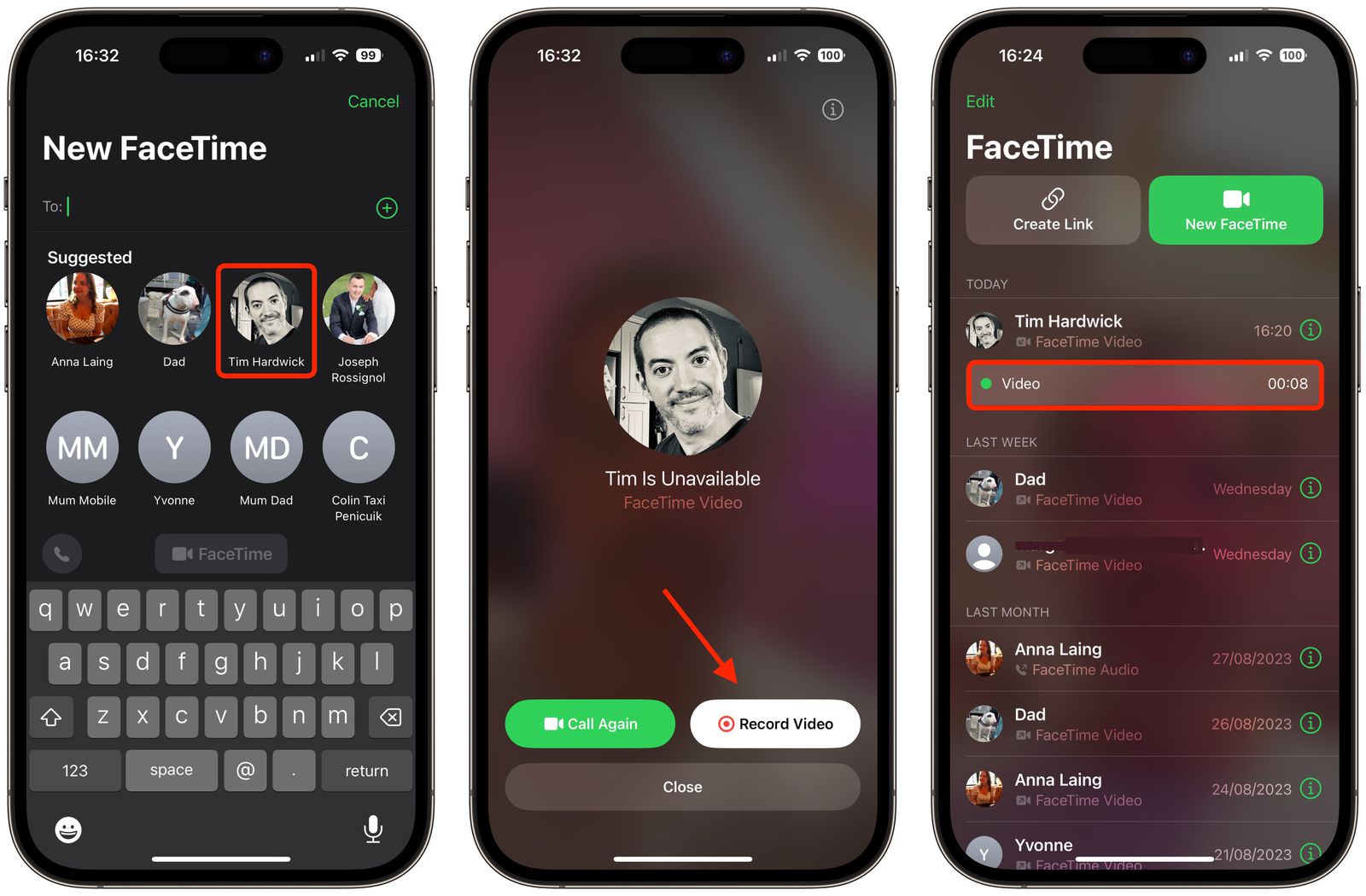 iOS 17: How to Record a FaceTime Video or Audio Message - MacRumors
Lastly, remember that screen recordings only capture what's happening on your screen. They won't pick up audio from other people on the call unless they're sharing their screen or you're using a separate app to record audio.
So, What Are You Waiting For?
Now that you know how to record your FaceTime calls, it's time to get creative! Just remember, with great power comes great responsibility. Use your newfound recording skills wisely, and always be mindful of other people's privacy.
And hey, if you ever find yourself in a situation where you wish you could record a FaceTime call, just remember the words of the great philosopher, Taylor Swift: "Haters gonna hate, hate, hate, hate, hate." But you, my friend, are gonna record, record, record, record, record. Because you can. And that's pretty cool.
