How Do I Create A Hyperlink To A File

So, there I was, sitting at my desk, staring at this PDF report that I needed to share with my team. I mean, it's not like I was expecting a parade or anything, but sending a...

So, there I was, sitting at my desk, staring at this PDF report that I needed to share with my team. I mean, it's not like I was expecting a parade or anything, but sending a file without any context is like throwing a hot dog into a crowded stadium and hoping someone catches it. You know? I needed a way to create a hyperlink to this file, something that would make it easy for my team to access and understand what they were looking at.
Now, I'm not one of those tech-savvy whiz kids who can code a website in their sleep. I'm more of a 'let's see if this button does anything' kind of guy. But even I knew that creating a hyperlink to a file wasn't going to be rocket science. And guess what? It wasn't. It was actually pretty darn simple.
Let's Get Started
First things first, you need to know where your file is located. I mean, you can't create a hyperlink to a file if you don't know where it is, right? So, find your file. It could be on your desktop, in your documents folder, or even buried deep in the digital graveyard we call 'downloads'. Once you've found it, make a mental note of its location. Or, you know, write it down. Whatever works for you.
Must Read
For Windows Users
Alright, let's say you're using a Windows computer. You've found your file, and now you're ready to create that hyperlink. First, you're going to right-click on the file. Yes, you heard me right. Right-click. It's like a secret handshake in the world of computers. You do it, and then... magic happens. Sort of.
In the menu that appears, you're going to look for an option that says 'Get link' or 'Copy as path'. It might vary depending on your version of Windows, but it's usually something along those lines. Click on that, and Windows will generate a URL for your file. You can then copy this URL and use it to create your hyperlink.
 How Do I Put Multiple Hyperlinks In One Picture at Jonathan Middleton blog
Now, if you want to use this URL in an email or a document, you can just paste it where you want the hyperlink to appear. But if you want to use it on a website or a forum, you'll need to wrap it in an <a> tag. Like this: <a href="URL">Link Text</a>. Replace 'URL' with the URL you copied earlier, and 'Link Text' with the text you want to appear as the hyperlink.
For Mac Users
Alright, Mac users, it's your turn. The process is a bit different, but it's just as easy. First, you're going to select the file you want to create a hyperlink for. Then, you're going to press Command + I to open the 'Get Info' window. In this window, you'll see a section called 'General'. Here, you'll find a line that says 'Where:'. Next to it, you'll see the file's location. Copy this location.
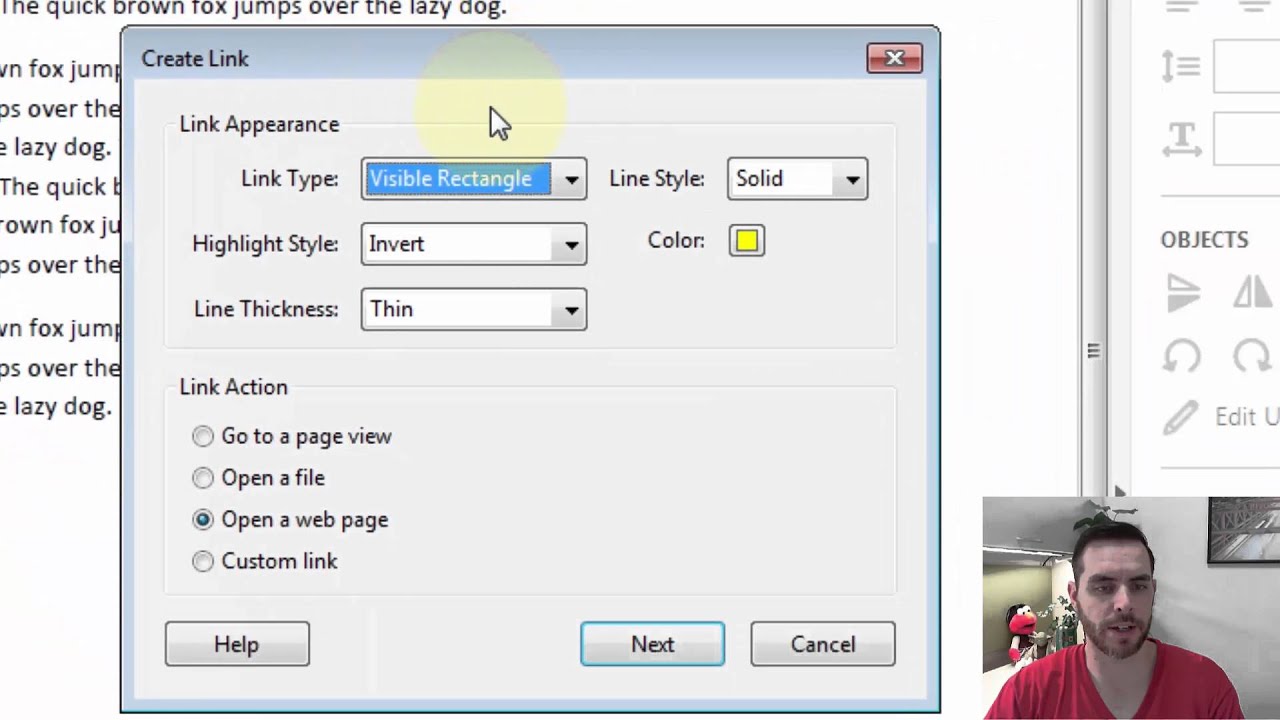 How To Attach A Link To A Folder at William Everhart blog
Now, just like the Windows users, you can paste this location in an email or a document to create a hyperlink. But if you want to use it on a website or a forum, you'll need to wrap it in an <a> tag. The format is the same: <a href="URL">Link Text</a>. Replace 'URL' with the location you copied earlier, and 'Link Text' with the text you want to appear as the hyperlink.
And That's It!
See? I told you it wasn't rocket science. With just a few clicks and a bit of copying and pasting, you've created a hyperlink to your file. Now, when you share this link with your team, they'll know exactly what they're looking at and where to find it. No more hot dogs thrown into crowded stadiums, right?
So, go ahead, give it a try. Create that hyperlink, share that file, and watch as your team's productivity soars. Or at least, you know, improves a little. Either way, you've just leveled up your file-sharing game. And who knows? Maybe next time, you'll get that parade.
