How Do I Set Up A Google Email Account

So, you've found yourself in a situation where you're the only person on the planet without a Google email account, huh? Maybe you've been living under a rock (no judgment, I'...

So, you've found yourself in a situation where you're the only person on the planet without a Google email account, huh? Maybe you've been living under a rock (no judgment, I've seen some cozy caves), or perhaps you've been using your trusty old AOL account since the '90s. Either way, welcome to the 21st century, my friend! Let's dive into the world of Gmail and set up your very own Google email account.
Why Gmail, you ask?
Well, aside from the fact that it's practically a requirement for modern life, Gmail offers a whopping 15GB of free storage, which is more than enough for most of us. It's also got a clean, user-friendly interface, and it integrates seamlessly with all those other Google services you've been meaning to try out (like Google Docs, Sheets, and Slides – they're like Microsoft Office, but free and in the cloud!).
Alright, let's get started!
First things first, head on over to the Google Account sign up page. It's like the promised land of emails, and it's calling your name.
Must Read
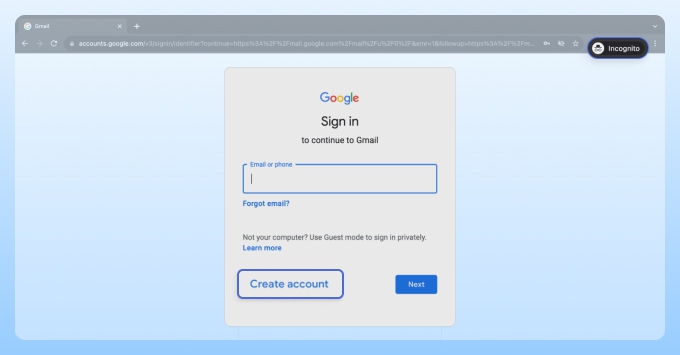
Once you're there, you'll see a big, blue button that says "Create your Google Account". Go ahead and click that bad boy. You're one step closer to joining the Gmail gang!
Time to choose your identity
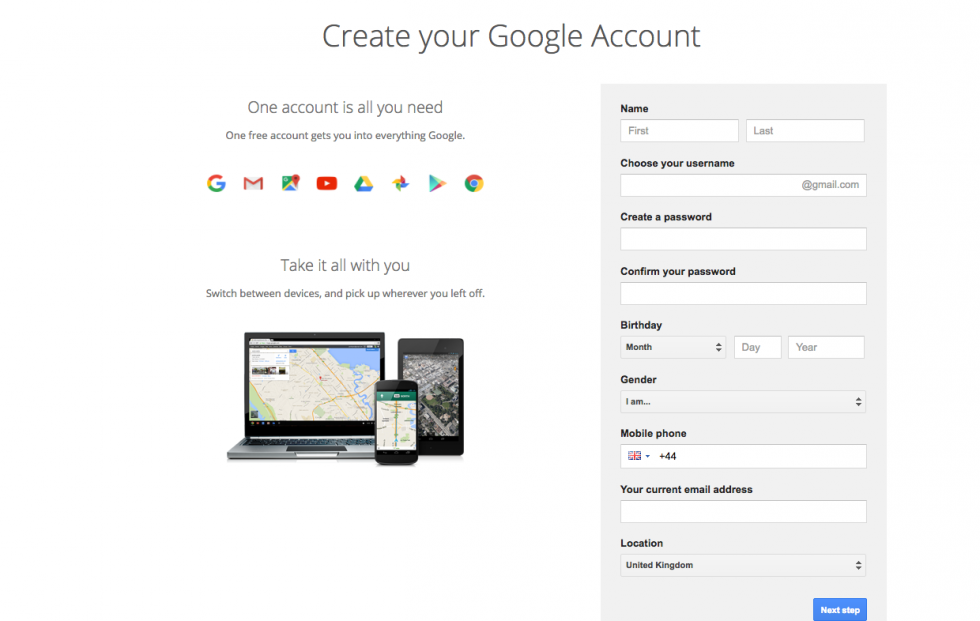
Now, you'll need to come up with a unique username, also known as your "Google ID". This will be the part before the '@gmail.com' in your new email address. Try to keep it simple and memorable – you'll be using it a lot!
 Create a New Gmail Account: Your 2026 Comprehensive Guide
Let's say you've decided to go with awesomeyou123. You'll type that into the "Desired username" field, and then you'll need to choose a password. Make it something strong, with a mix of uppercase and lowercase letters, numbers, and symbols. You know, the usual password dance.
Once you've created your masterpiece of a password, it's time to add a bit of personal information. Don't worry, Google won't share this with the world (unless you want them to). Just fill in your first and last name, choose your country, and enter your phone number. This is for verification purposes, so make sure it's a number Google can reach you at.
Verification: The final hurdle
Now, Google will send a verification code to your phone. Enter that code into the box provided, and you're almost there! Just one more thing: Google will ask you to review and agree to their Terms of Service and Privacy Policy. It's a good idea to give these a quick read (they're not as boring as they sound, promise!), and then check the boxes to agree.
 How to create a Gmail account | Digital Unite
And there you have it! You're now the proud owner of a shiny new Google email account. You'll see a confirmation message, and you can click "Continue to Gmail" to start using your new email address right away.
But wait, there's more!
As a new Gmail user, you'll have the option to import your old emails and contacts from another account. If you're feeling adventurous, give it a try! It's a great way to make the transition to Gmail as smooth as possible.
And that, dear reader, is how you set up a Google email account. Wasn't so bad, was it? Now go forth and conquer the digital world with your new Gmail address!
