How Do I Sign Out Of Gmail On Android

Alright, so you've been checking your emails on your Android, and now you're ready to sign out. Maybe you're at the coffee shop, and you don't want the next person to use your...
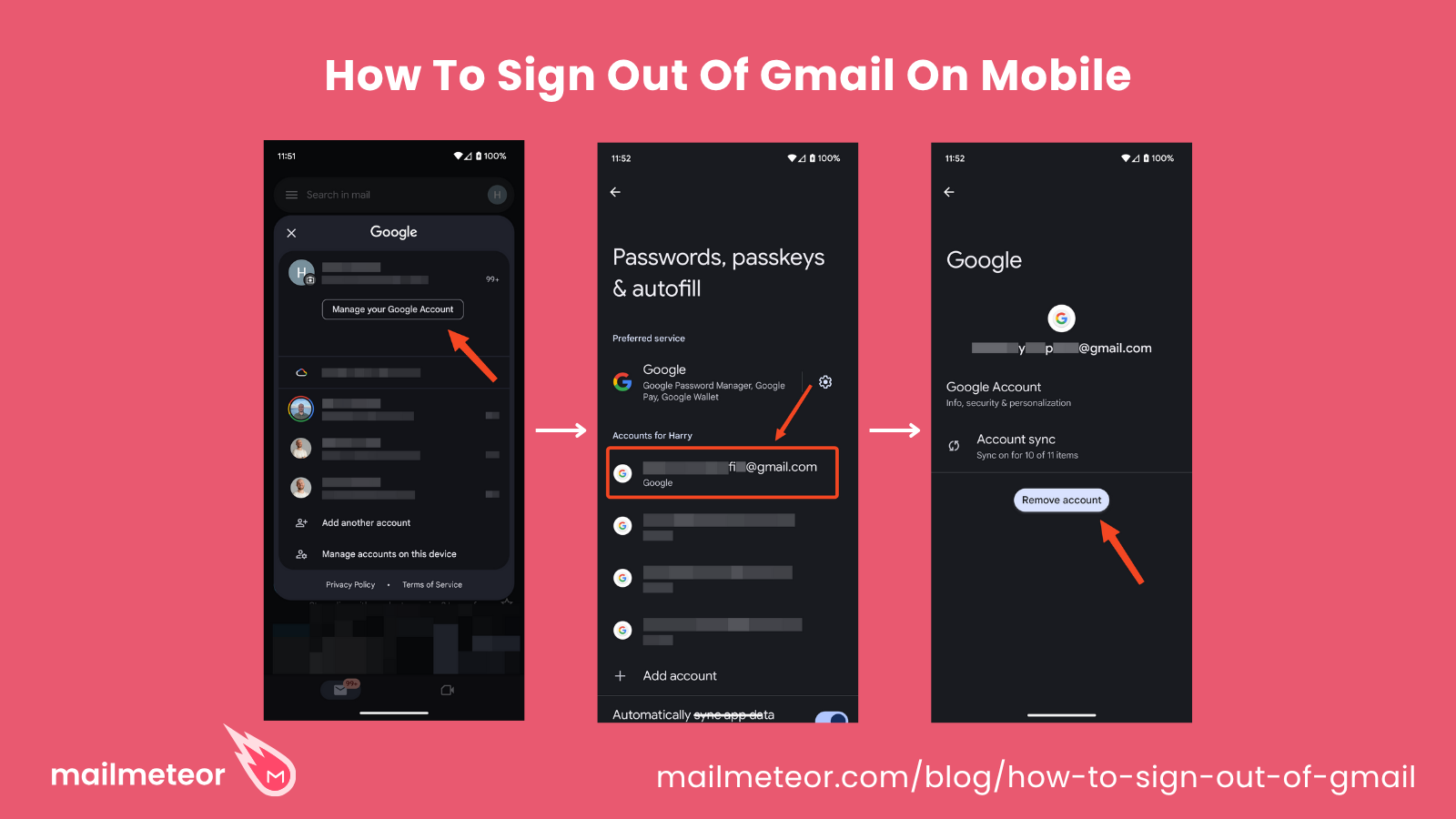
Alright, so you've been checking your emails on your Android, and now you're ready to sign out. Maybe you're at the coffee shop, and you don't want the next person to use your phone to check their emails. Or perhaps you're at home, and you're done with work for the day. Whatever the reason, signing out of Gmail on your Android is a breeze. Let's dive in!
Why Bother Signing Out?
You might be thinking, "Why should I sign out? I'm the only one using this phone!" Well, let me paint you a picture. Imagine you're at the park with your little one. You hand them your phone to play with, and before you know it, they've opened your Gmail and sent an email to your boss. (Don't worry, I won't tell them you named your boss 'Big Boss Man' in your contacts.)
Or maybe you're like my friend Sarah. She'd leave her phone at the office, and her colleagues would reply to her personal emails, thinking they were work-related. It was a comedy of errors, and she finally decided to sign out of her personal Gmail at work. So, even if you think you're the only one using your phone, it's always a good idea to sign out of Gmail when you're done.
Must Read
Signing Out in a Jiffy
Now, let's get to the fun part - signing out! First, open the Gmail app on your Android. You'll see your inbox, with all those unread emails staring at you. (Don't worry, we'll tackle inbox zero another time.)
At the top left corner, you'll see your profile picture or initial. Tap on it. This will open a menu with options like 'Add account' and 'Manage accounts on this device'. But we're not here for that. We're here for the 'Sign out' option at the very bottom. Tap on it.
And just like that, you're signed out! It's as easy as ordering your favorite coffee at Starbucks. (Well, maybe not that easy. I mean, have you tried ordering a 'venti, half caf, no foam, extra hot, extra shot, extra caramel, non-fat latte'? Exactly.)
What If I Want to Sign Back In?
Now, you might be wondering, "What if I want to check my emails again? Do I have to go through the whole sign-up process?" Nope! Gmail has made it super easy to sign back in. Here's how:
 How to Sign Out of Gmail on Android Phone (Samsung S22) | Remove Google
Open the Gmail app, and you'll see the 'Sign in' button. Tap on it. You'll be asked to enter your email address and password. Once you've entered them correctly, tap on 'Next'. And just like that, you're back in your inbox, ready to tackle those emails.
But wait, there's more! If you're using a fingerprint or a PIN to unlock your phone, Gmail will remember you. So, when you open the app, it'll automatically sign you in. Isn't that neat? It's like having a magic password that only you know. (Well, and maybe Google.)
But What If I Forgot to Sign Out?
Alright, so you've been using your phone all day, and you suddenly realize you forgot to sign out of Gmail. Don't panic! There's a way to remotely sign out of your account. Here's how:
Go to the Google Account management page. You'll need to sign in with your Google credentials. Once you're in, click on 'Security' in the left-hand menu. Under 'Your devices', you'll see a list of devices where you're currently signed in. Find your Android device, and click on the three vertical dots next to it. Select 'Sign out' from the menu that appears.
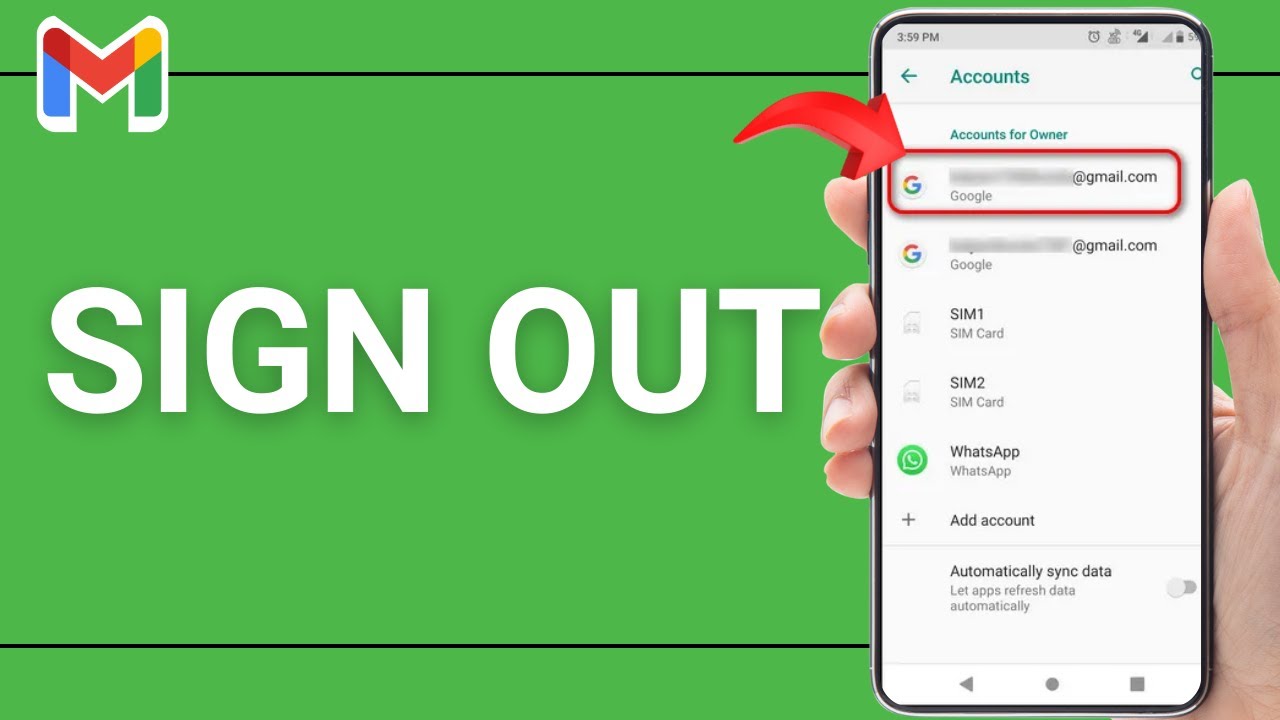 How to Sign Out of Gmail on your Android Device? - YouTube
And just like that, you're signed out of Gmail on your Android, even if you're not near it. It's like having a remote control for your digital life. (Just don't go signing out of your friends' phones without their permission. That's just rude.)
So, Why Should You Care?
Signing out of Gmail on your Android might seem like a small thing, but it's all about digital hygiene. It's like washing your hands after you've been out and about. You don't want anyone else getting their hands on your personal emails, do you? Plus, it's a great habit to get into, especially if you share your phone with others.
So, the next time you're done checking your emails, take a moment to sign out. Your digital self will thank you. And who knows, you might even start signing out of other apps too. (But that's a story for another time.)
And there you have it, folks! Signing out of Gmail on your Android is as easy as pie. (Well, almost. I've never actually made a pie, so I wouldn't know.) Now go forth, sign out, and stay safe in the digital world!
