How To Add A Heading In Google Sheets

Ever found yourself staring at a spreadsheet, wishing you could make it look a little less... well, spreadsheet-y? Like, you know when you're at a buffet, and you see that one...
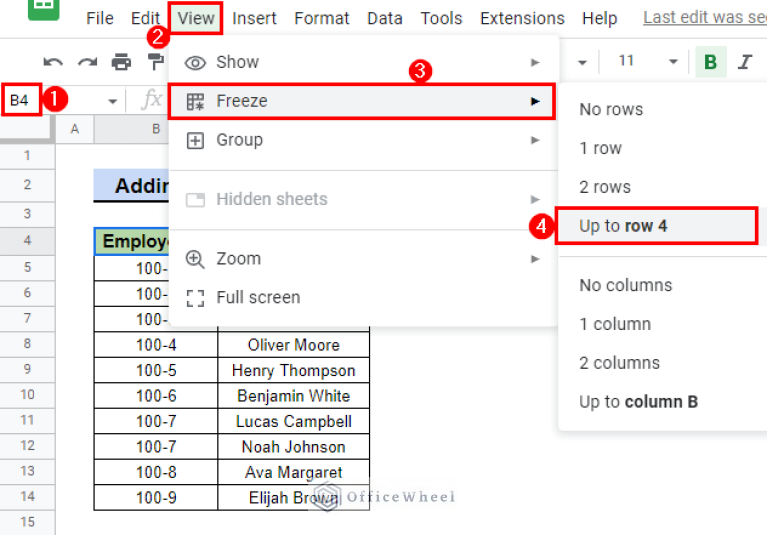
Ever found yourself staring at a spreadsheet, wishing you could make it look a little less... well, spreadsheet-y? Like, you know when you're at a buffet, and you see that one dish that's all mixed up, and you're just like, "Nah, I can't even." That's how I feel about unorganized Google Sheets. But fear not, my friend, for I am about to blow your mind with a super simple trick that'll make your sheets look as neat as a pin. We're talking headings, baby!
Why Headings, You Ask?
Well, let me tell you, headings are like the fairy godmother of Google Sheets. They turn your boring, jumbled data into a beautiful, organized ball gown. Imagine you're at a party, and everyone's just talking all at once. It's chaos, right? But then someone says, "Let's have a toast!" and suddenly, everyone knows what's happening. That's what headings do for your data. They give it structure, make it easier to read, and help you find what you're looking for in a jiffy.
Alright, Alright, I'm Convinced. But How?
I knew you'd see it my way. Now, let's get down to business. First things first, you need to highlight the cells you want to turn into a heading. It's like selecting the best dancers for your squad. Once you've got your team, right-click on one of the highlighted cells and click on "Format" (or press Ctrl + 1, if you're feeling fancy).
Must Read
Now, here's where the magic happens. In the side panel that pops up, look for "Number format." It's like finding the DJ at the party. Click on it, and you'll see a little dropdown menu. At the top, you'll find "Custom." Click on that, and a new box will appear. This is where you'll type in your heading. You can make it as simple or as fancy as you like. Want to add some color? Go ahead, live your best life. Just click on the paint can icon, and choose your hue.
But wait, there's more! You can also change the font size, style, and even add some bold or italic flair. It's like having your own personal stylist for your data. Once you're happy with your creation, click "Apply," and voila! Your heading is ready to take center stage.
 How to make Header Row in Google Sheets 2023 | Header, Google sheets
But What About Those Pesky Headings That Won't Stay Put?
Oh, I know the struggle. You've spent ages perfecting your heading, and then you add some new data, and suddenly, it's all wonky. It's like when you finally get your squad formation just right in your favorite video game, and then the game updates, and everything's all mixed up again. But fear not, for there is a solution!
It's called "Merge cells," and it's your new best friend. Right-click on the cells you want to merge, and click on "Merge cells." It's like telling your squad to huddle up. Now, your heading will stay put, no matter what you throw at it. You can even add some fancy borders to keep it looking sharp. Just click on "Borders" in the side panel, and choose your style.
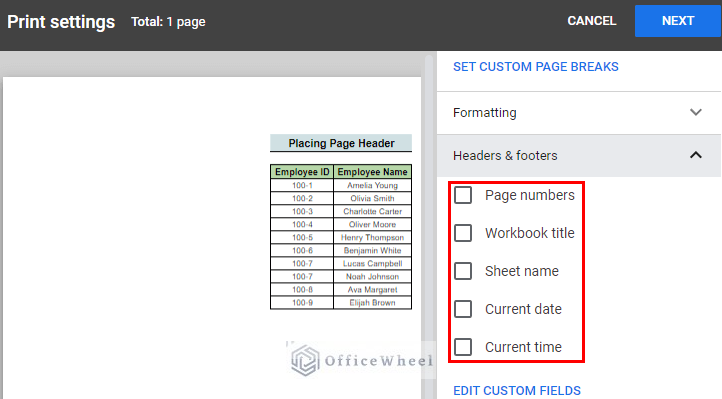 How to Insert a Header in Google Sheets (2 Simple Scenarios)
And There You Have It!
With just a few clicks, you've turned your Google Sheet into a thing of beauty. It's like going from a plain old t-shirt and jeans to a fancy outfit. And the best part? You didn't even have to leave your chair. So go forth, my friend, and make your data the belle of the ball. Your future self will thank you.
And remember, if you ever get stuck, Google's always there to lend a helping hand. Just type in your question, and it'll give you all the answers you need. It's like having a personal tutor for your Google Sheets adventures. So, what are you waiting for? Get out there and start heading!
