How To Add An Unread Folder To Outlook

Hey there, tech-savvy friend! Ever felt like your Outlook inbox is a bustling city without a 'To Do' district? Well, today's your lucky day! We're going to create an 'Unread F...
Hey there, tech-savvy friend! Ever felt like your Outlook inbox is a bustling city without a 'To Do' district? Well, today's your lucky day! We're going to create an 'Unread Folder' - your new, shiny task hub. Let's dive in!
Why Bother?
Imagine this: you're wading through emails, and suddenly, you spot a message you've been meaning to reply to. But wait, you've already moved on to the next email! Sound familiar? An 'Unread Folder' is like your personal email bodyguard, making sure nothing slips through the cracks.
Unread Folders: The Unsung Heroes
Did you know that Outlook has been hiding this nifty feature since the dawn of time? Okay, maybe not that long, but it's been around for a while. And guess what? It's super easy to use. So, let's give our inbox a much-needed makeover!
Must Read
Let's Get Started!
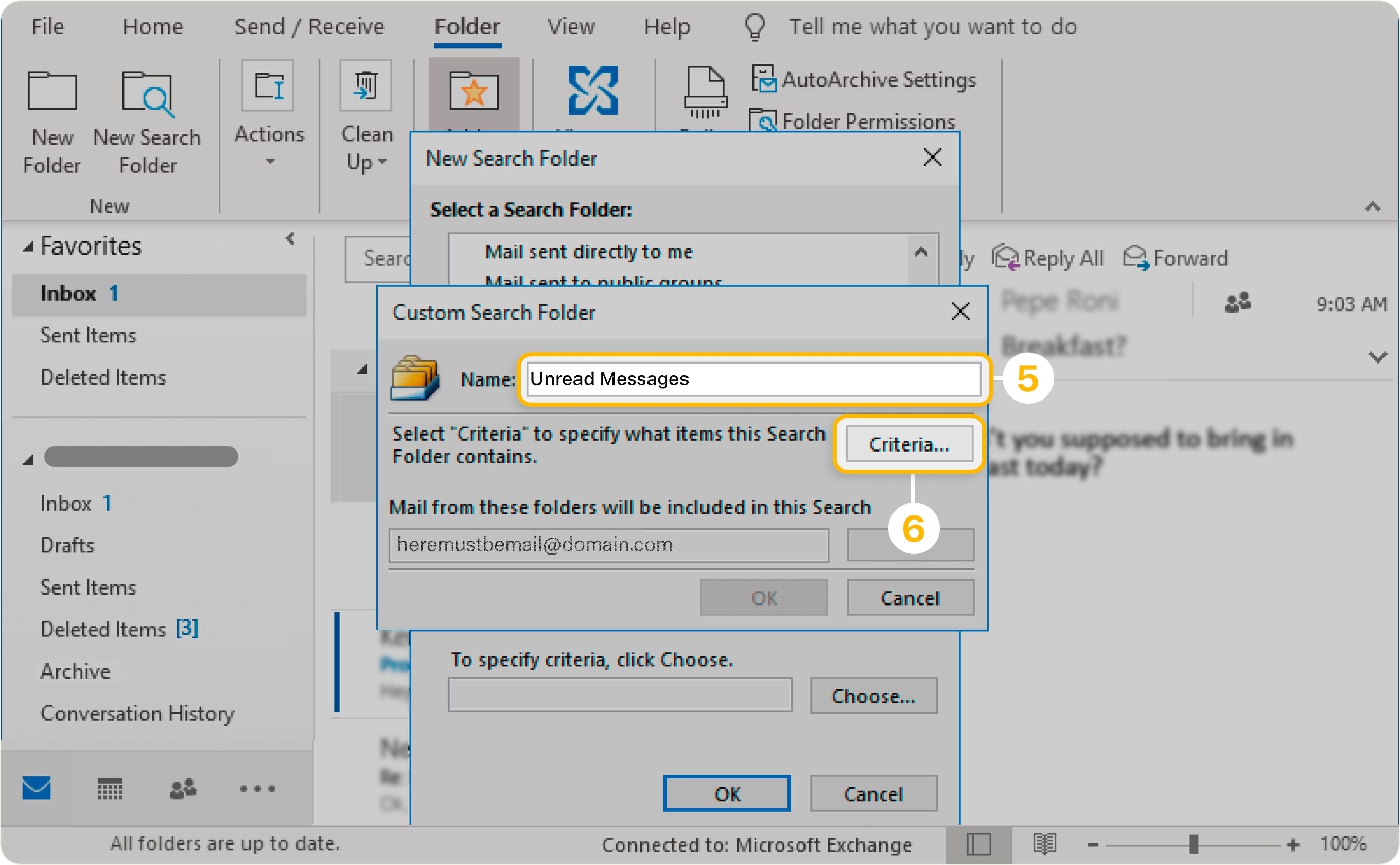
First things first, let's get you to the right place. In Outlook, click on the 'View' tab. See that little icon that looks like a folder with a plus sign? That's our new best friend. Click on it, and voila! You've just created a new folder.
Name Your New Buddy
Now, let's give this folder a name. Something catchy, like 'To Reply' or 'Needs Action'. You could even name it after your pet - who knows, maybe Fido will inspire you to tackle your inbox!
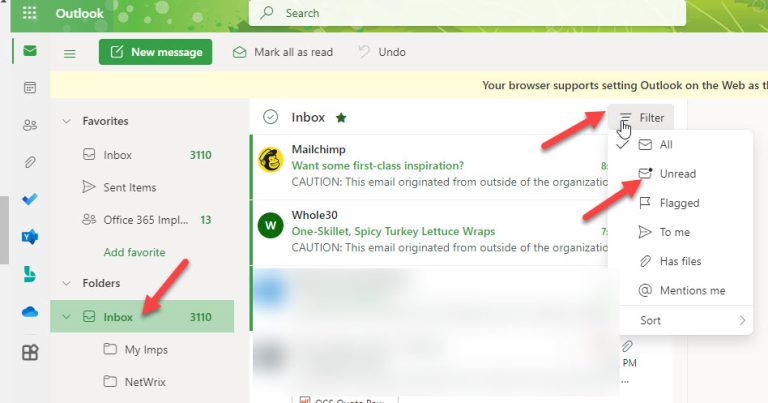 How to Add Unread Folder in Outlook 365/2021 & Older Versions - Sysprobs
To rename the folder, right-click on it and select 'Rename Folder'. Easy peasy, right?
Now, Let's Make It Unread
Here's where the magic happens. Right-click on your new folder again, and this time, select 'Properties'. In the pop-up window, you'll see a little checkbox that says 'Show as unread'. Check that bad boy off, and click 'OK'.
 Unread Folder In Outlook Missing – XPZTMW
Presto! Your Unread Folder is Born
Now, every time you drag an email into your new folder, it'll appear as unread in your inbox. It's like having a little email gremlin reminding you to take action. Isn't that just the cutest thing?
But Wait, There's More!
You can even customize the color of your unread folder. Right-click on it, select 'Properties', and under 'Folder Color', choose your favorite hue. Now, you've got a personalized, unread email hub that's as unique as you are!
Unread Folders: The Secret Weapon of Productivity
So, there you have it! Your new 'Unread Folder' is ready to roll. Now, go forth and conquer your inbox, one unread email at a time. And remember, friends don't let friends miss important emails. Stay productive, stay organized, and most importantly, stay awesome!
