How To Change Text Language On Iphone

Hey there, tech-savvy friend! Ever found yourself wishing you could chat with your Spanish-speaking abuela in her native tongue, or maybe impress your French exchange student...

Hey there, tech-savvy friend! Ever found yourself wishing you could chat with your Spanish-speaking abuela in her native tongue, or maybe impress your French exchange student buddy with a few well-placed bonjours? Well, guess what? Your iPhone's got your back! Let's dive into the fun world of changing your text language, shall we?
Why Bother, You Ask?
Alright, let's address the elephant in the room. You might be thinking, "Why on earth would I want to change my text language? English is the universal language, right?" Well, sure, but where's the fun in that? Imagine sending a cheeky '¡Hola!' instead of a boring old 'Hi', or wowing your friends with a 'Namaste' instead of a 'Hello'. Life's all about spicing things up, and changing your text language is just another way to do that.
Let's Get Started!
First things first, you'll want to head over to your iPhone's Settings. You can do this by tapping on the little gear icon on your home screen. Once you're in, scroll down until you see 'General'. Tap on that, and then look for 'Language & Region'. See it? Tap on that too!
Must Read
Now, here's where the magic happens. You'll see a list of languages. If you're looking for something specific, you can use the search bar at the top to find it. Once you've found your language of choice, tap on it. If it's not already checked, make sure to toggle it on. Easy peasy, right?
But wait, there's more! If you want to set your language as the default for your keyboard, you'll need to go one step further. Tap on 'Done', and then tap on 'Edit'. You'll see a list of your keyboards. Tap on the one you want to change, and then tap on 'Delete'. Don't worry, this won't delete your keyboard entirely. It'll just remove it from your list of active keyboards. Now, tap on 'Add New Keyboard', and select your language. Voila! Your keyboard is now set to your chosen language.
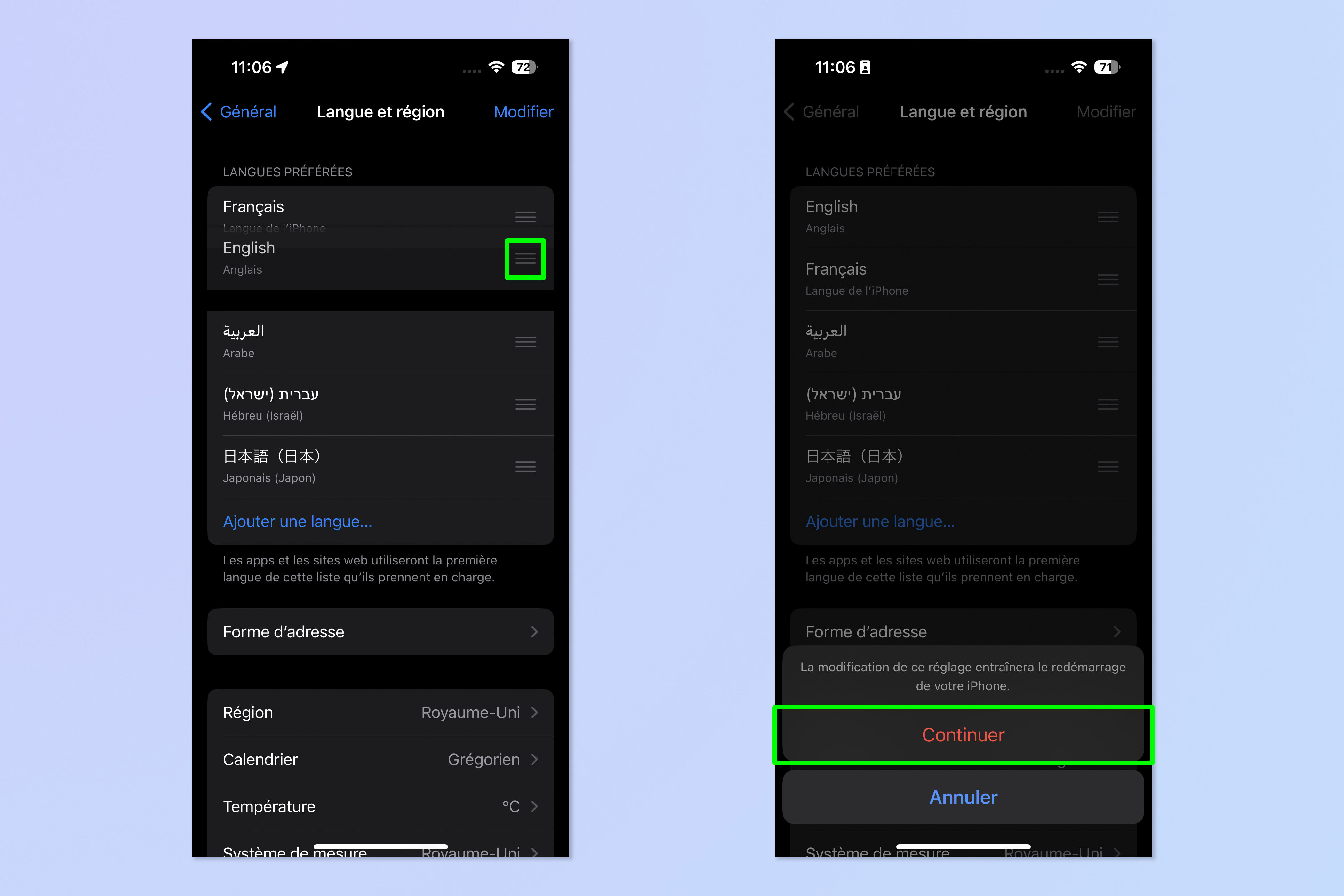 How to change language on iPhone | Tom's Guide
But What About My Other Apps?
Great question! If you want your other apps to follow suit, you'll need to change the language settings in each app individually. Don't worry, it's not as daunting as it sounds. Most apps have a language setting tucked away in their settings menu. Just look for something like 'Language' or 'Region' and you should be good to go.
Now, Go Forth and Conquer!
And there you have it, folks! Changing your text language on your iPhone is as easy as pie. So go on, give it a try. Who knows, you might just find yourself picking up a new language along the way. And even if you don't, at least you'll have some fun trying. So what are you waiting for? The world's your oyster, and your iPhone's your key to unlocking a whole new world of linguistic adventure. Happy exploring!
