How To Change The User Name On A Mac

Ever felt like your Mac's user name is as outdated as last year's fashion trends? Like it's screaming "2010 called, it wants its username back!"? Well, it's time to give your...

Ever felt like your Mac's user name is as outdated as last year's fashion trends? Like it's screaming "2010 called, it wants its username back!"? Well, it's time to give your Mac a fresh start with a new user name. It's like getting a new haircut - it might seem small, but it can make you feel like a whole new you!
Why Bother Changing Your User Name?
You might be thinking, "Why should I care about my user name? It's just a name, right?" Wrong! Your user name is like your digital calling card. It's the first thing people see when you share files or connect to other computers. Imagine if your email address was still your old AOL handle from the '90s - yeah, it's that kind of outdated.
Plus, changing your user name can help keep your Mac secure. If your current user name is something like "Admin" or "User", hackers might have an easier time guessing your password. So, let's give them something a little more challenging to work with, shall we?
Must Read
How To Change Your User Name - The Easy Way
Alright, let's dive into the fun part - changing your user name! Don't worry, it's as easy as ordering a pizza. Here we go:
Method 1: The System Preferences Way
First, click on the Apple logo in the top left corner of your screen. Then, select "System Preferences". You'll see a grid of icons - click on "Users & Groups".
Now, you'll see a list of users on your Mac. Click on the lock at the bottom of the window to make changes. Enter your password when prompted, then click "Unlock".
Select the user you want to rename (hopefully, you!), then click on the text field next to "Name". Type in your new user name, and voila! Your Mac has a fresh new look.
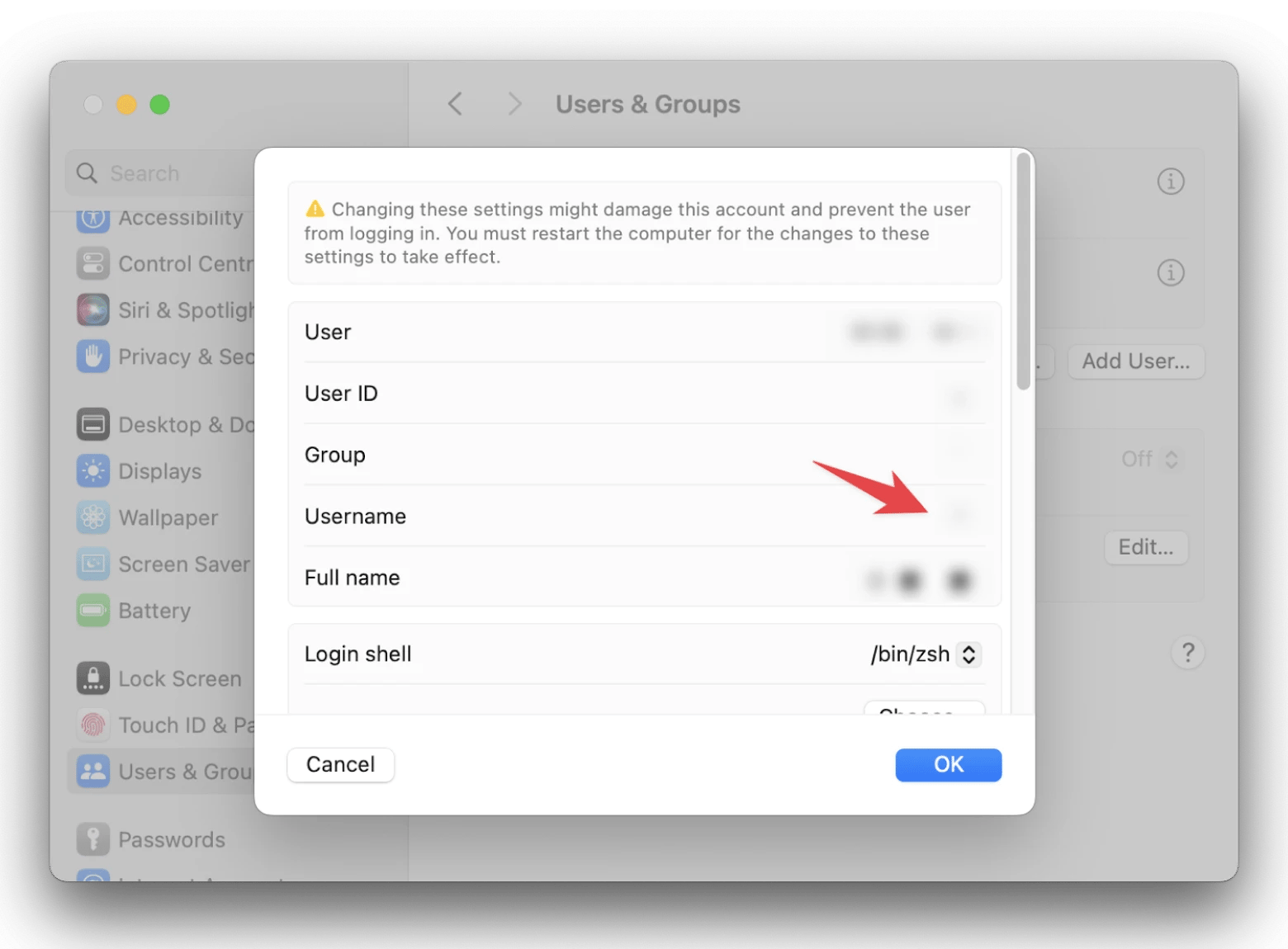 How to change Macbook name to anything you like
Method 2: The Terminal Way
Feeling a bit more adventurous? Let's try changing your user name using the Terminal. It's like learning to ride a bike - a little scary at first, but you'll be a pro in no time!
First, open the Terminal app. You can find it in Applications > Utilities, or just search for it in Spotlight. Once it's open, type the following command and press Enter:
sudo scutil --set ComputerName "New Name"
Replace "New Name" with, well, your new name. Then, type your password when prompted (you won't see any characters appear as you type, so just go with it).
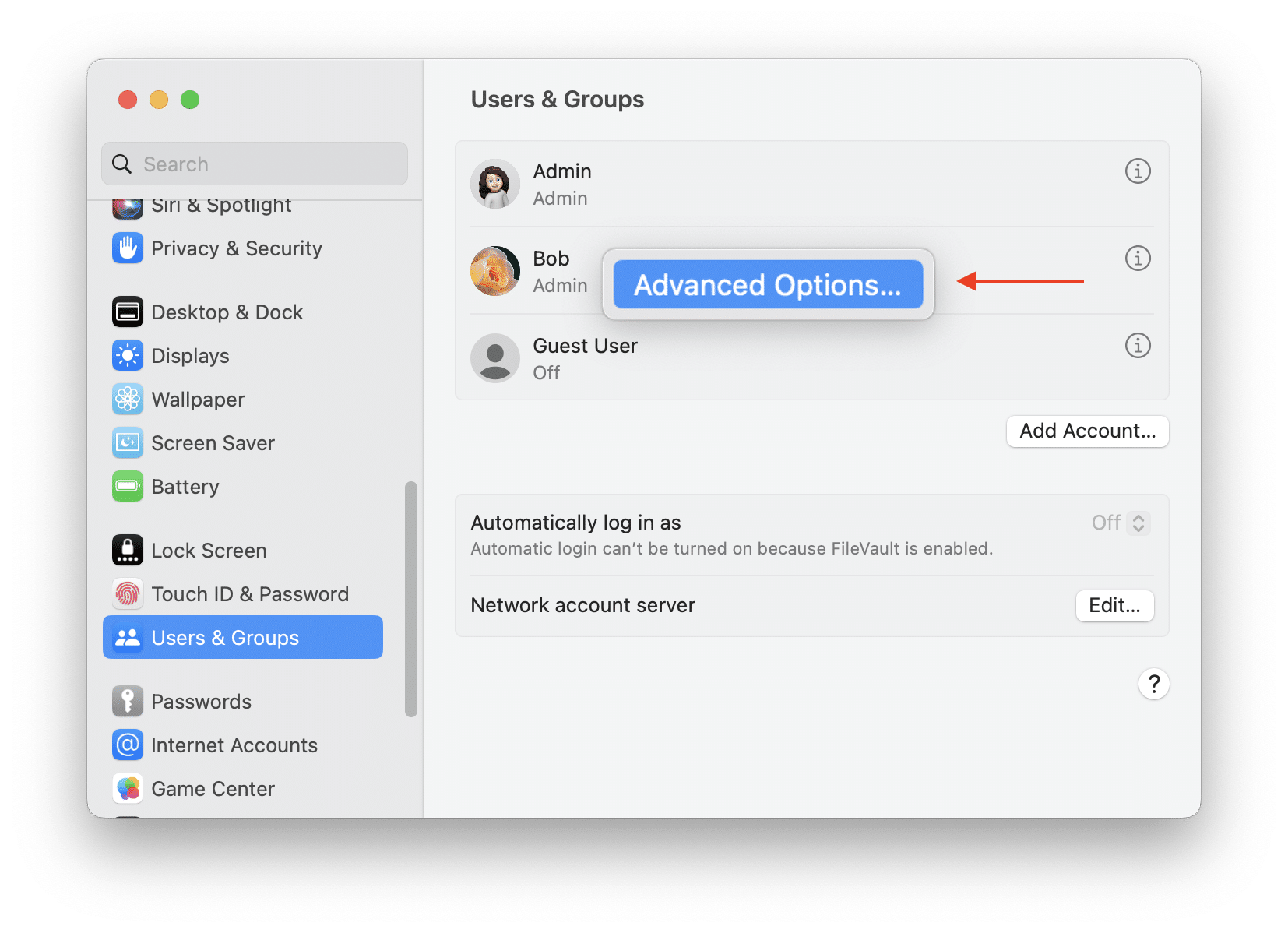 How to Change a Username on your Mac | Nektony
Next, type the following command and press Enter:
sudo scutil --set LocalHostName "New Name"
Again, replace "New Name" with your new user name. Now, restart your Mac, and you'll see your fresh new user name in all its glory!
Now, Go Wild!
So, there you have it! Changing your user name on a Mac is as easy as pie. Now, go wild with your new user name. Make it something you're proud of, something that represents you. After all, it's your digital calling card - make it count!
And remember, changing your user name isn't just about looking cool (although, let's face it, it is a little bit). It's about keeping your Mac secure and making sure you're putting your best digital foot forward. So, what are you waiting for? Get out there and show the world your new user name!
