How To Change Username On Macbook Air

Alright, gather 'round, my tech-savvy (and not-so-savvy) friends. Today, we're going on a little adventure. A quest, if you will, to change that pesky username on your MacBook...

Alright, gather 'round, my tech-savvy (and not-so-savvy) friends. Today, we're going on a little adventure. A quest, if you will, to change that pesky username on your MacBook Air. Now, I know what you're thinking, "Why on Earth would I want to do that?" Well, let me tell you, changing your username is like giving your digital identity a makeover. It's fresh, it's new, and it's a whole lot more fun than watching paint dry.
Why Change Your Username, You Ask?
First things first, let's address the elephant in the room. Why on Earth would you want to change your username? Well, apart from the obvious reason of wanting to be called something cooler than 'Admin' or 'User123', there are a few practical reasons too.
For instance, did you know that changing your username can help boost your computer's security? It's like giving your digital self a secret code name. Hackers are less likely to target a username like 'BondJamesBond' than something generic like 'JohnDoe'. Plus, it's just a fun way to express your personality. I mean, who wouldn't want to log in as 'CaptainAwesomesauce' every day?
Must Read
Before We Begin...
Now, before we dive into the nitty-gritty of changing your username, there are a few things you should know. First off, changing your username doesn't change your Apple ID. So, if you're expecting to suddenly become 'PrincessUnicorn' in the eyes of Apple, you're in for a disappointment. Also, changing your username will require you to restart your MacBook, so make sure you've saved all your work.
And finally, a word of warning. Changing your username is a serious business. It's not like changing your Facebook profile picture. One wrong move and you could find yourself locked out of your own computer. So, if you're not comfortable doing this yourself, I'd recommend taking your MacBook to a professional. Or, you know, a really tech-savvy friend.
Alright, Let's Get Started!
Now that we've got the disclaimers out of the way, let's get down to business. The first thing you need to do is open the System Preferences on your MacBook. You can do this by clicking on the Apple logo in the top left corner of your screen and selecting 'System Preferences' from the drop-down menu.
Once you're in the System Preferences, click on 'Users & Groups'. This is where all the magic happens. Here, you'll see a list of users on your computer. If you're the only user, you'll see your username at the top of the list. If you're feeling fancy, you can even add a profile picture. I recommend something fabulous, like a picture of a kitten wearing a top hat.
 How to Change MacBook Name With Easy Steps - Guiding Tech
Now, here's where things get a little tricky. To change your username, you need to click on the lock icon at the bottom of the window. This will allow you to make changes. If the lock is closed, click on it to open it. You'll be asked to enter your password. Don't worry, this is just to make sure you're really you. After all, we wouldn't want just anyone changing our usernames, would we?
Once you've entered your password, the lock will open, and you'll be able to select your username. Click on it, and you'll see an 'Advanced Options' button appear. Click on that, and you'll be taken to a new window. Here, you can change your username to something fabulous. Something like 'Supercalifragilisticexpialidocious', perhaps?
Now, here's where things get a little technical. When you change your username, your computer will automatically change your home folder name to match. But, if you've got any files or folders with names that include your old username, you'll need to change those too. Otherwise, you might find yourself in a world of confusion. And nobody wants that.
Once you've changed your username and made sure all your files are in order, click 'OK' to close the window. Then, click the lock icon again to close it. And that's it! You've officially changed your username. Now, all that's left to do is restart your computer. And voila! You're a whole new user.
But What If Something Goes Wrong?
Alright, let's address the elephant in the room. What if you change your username and suddenly find yourself locked out of your own computer? Don't panic. There are a few things you can try.
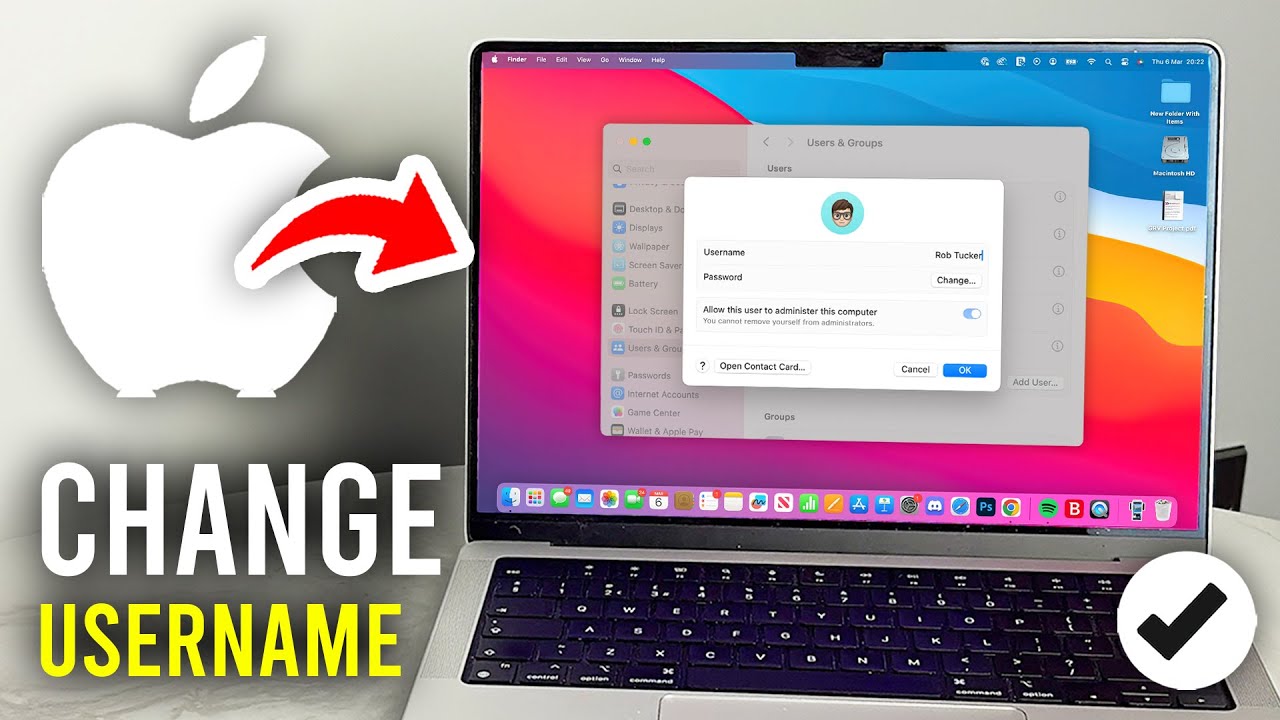 How To Change Username On MacBook or iMac - Full Guide - YouTube
First, try restarting your computer in Safe Mode. This will allow you to boot up your computer in a minimal state, which can sometimes help you troubleshoot problems. To do this, restart your computer and hold down the Shift key during startup. Once you're in Safe Mode, try changing your username back to what it was before.
If that doesn't work, you might need to use Apple's Recovery Mode to restore your computer to a previous state. This will erase all the changes you've made since the last time you backed up your computer, so make sure you've got all your important files saved elsewhere.
And finally, if all else fails, you might need to take your computer to a professional. But don't worry, changing your username is a pretty straightforward process. As long as you follow the steps carefully, you should be just fine.
And That's All, Folks!
And there you have it, folks! Changing your username on your MacBook Air is a fun and easy way to give your digital identity a makeover. So, go ahead, embrace your inner 'QueenBeyonce' or 'DarthVader'. The world is your oyster. Just remember, with great power comes great responsibility. Or something like that.
Now, if you'll excuse me, I've got some serious username-changing to do. I mean, who wants to be 'Admin' when you can be 'WonderWoman'? Not me, that's for sure. Until next time, folks. Happy username-changing!
