How To Change Youtube Playback Speed

Hey there, tech-savvy friend! Ever found yourself binge-watching your favorite YouTube videos, only to wish you could speed things up a bit? Or maybe you've stumbled upon a fa...
Hey there, tech-savvy friend! Ever found yourself binge-watching your favorite YouTube videos, only to wish you could speed things up a bit? Or maybe you've stumbled upon a fascinating lecture that's moving a tad too slow for your liking? Well, guess what? YouTube's got a secret superpower that can make your video-watching experience even better. And no, it's not a talking parrot that summarizes videos for you (although, that would be awesome!). It's the playback speed feature. Let's dive in, shall we?
First Things First: Where's the Magic Button?
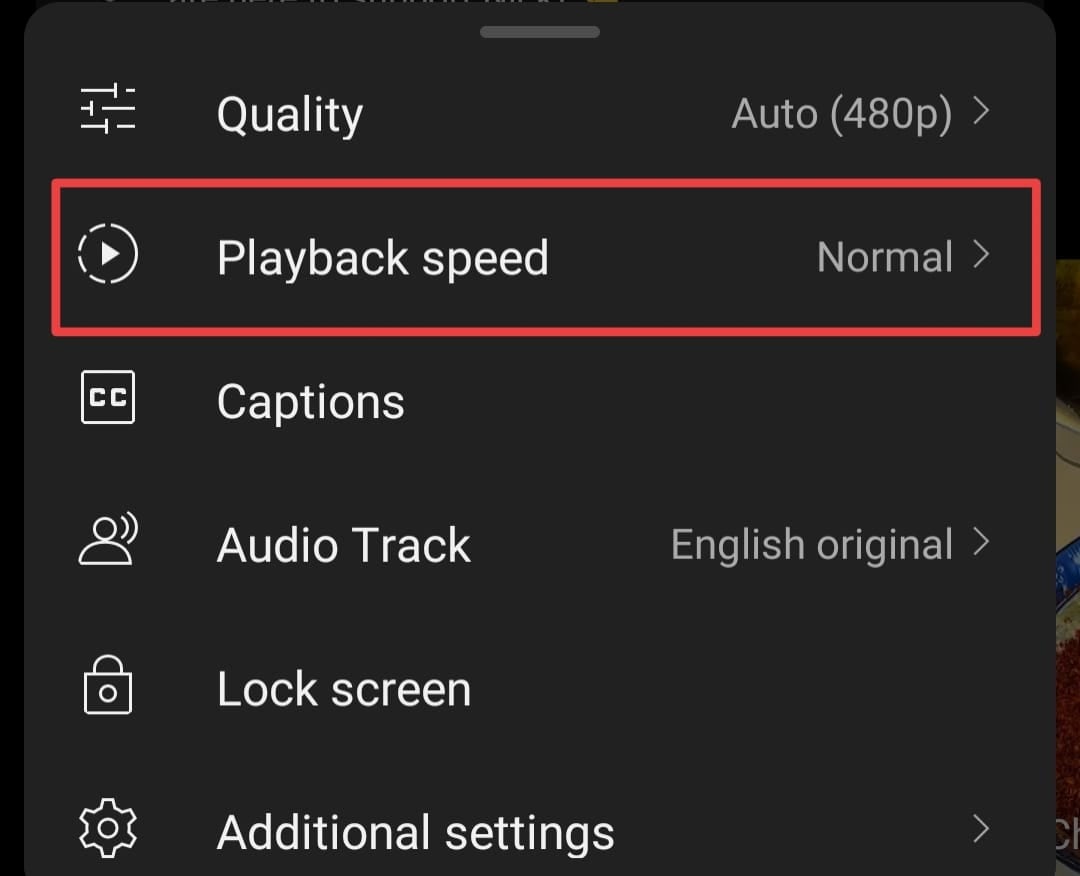
Alright, so you're on YouTube, and you're ready to take control of your video's pace. Look for the 'Settings' icon, which is a little gear symbol, usually found at the bottom of the video player. Click on it, and voila! There it is, hiding in plain sight - the 'Playback speed' option.
Slow Motion or Light Speed? The Choice is Yours!
Now, here's where it gets fun. YouTube offers a range of playback speeds, from 0.25x (for those who like to take things really slow) all the way up to 2x (for the speed demons among us). The default speed is 1x, of course, but who wants to be ordinary?
Must Read
Let's talk about the extremes for a sec. 0.25x is like watching a snail on a caffeine bender. Everything moves in slow motion, which can be hilarious with the right video. On the other hand, 2x is like traveling through time. It's great for lectures or long videos you've seen a million times. Just remember, at this speed, even a video of a sloth looks like it's doing the cha-cha.
But Wait, There's More!
You might be thinking, "That's all well and good, but what if I want to watch a video at, say, 1.5x speed?" Well, my friend, YouTube's got you covered. You can adjust the speed in 0.25 increments, or you can even enter your desired speed manually. Just click on the little plus or minus symbols next to the speed option, or type in your preferred speed in the text box.
And here's a little pro tip for you: Did you know that YouTube automatically adjusts the pitch of the audio to match the playback speed? It's like having your own personal pitch shifter, right there in the video player. Isn't that just the coolest?
 How to Change Playback Speed on YouTube Mobile (iPhone & Android) - YouTube
When to Use This Magical Power
Now, you might be wondering, "When should I use this playback speed thingy?" Well, let me tell you, the possibilities are endless. Here are a few ideas:
- Watching tutorials: Speed up those long, drawn-out explanations to get to the good stuff faster.
- Language learning: Listen to native speakers at a slower pace to improve your skills.
- Comedy: Watch your favorite stand-up specials at 1.5x speed to fit more laughs into your day.
- Music videos: Slow down those complex guitar solos to learn them note by note.
See? Told ya the possibilities were endless!
But What About the Cons?
Alright, let's address the elephant in the room. Yes, there are some downsides to changing the playback speed. For one, it can distort the audio, especially at higher speeds. And let's face it, watching a video at 0.25x can make even the most exciting content feel like a snoozefest.
 Lg Tv Youtube Playback Speed at Pauline Tomlinson blog
But here's the thing: YouTube's playback speed feature is all about giving you control. It's about making your viewing experience work for you, not the other way around. So, if you find that a certain speed isn't doing it for you, don't be afraid to switch it up. After all, variety is the spice of life, right?
So, What Are You Waiting For?
There you have it, folks! You're now officially a YouTube playback speed pro. So, go forth and conquer those videos. Watch them at your pace, laugh at the slow-mo fails, and marvel at the time-traveling lectures. And remember, no matter what speed you choose, YouTube's always here to entertain, educate, and inspire.
Happy watching, and until next time, keep your playback speed on point!
