How To Check Battery Health On Android

Hey there, tech-savvy friend! Ever wondered what's going on under the hood of your Android device? Let's chat about battery health – the unsung hero keeping your phone alive a...
Hey there, tech-savvy friend! Ever wondered what's going on under the hood of your Android device? Let's chat about battery health – the unsung hero keeping your phone alive and kicking. It's like checking up on your bestie's mood, but for your phone. Fun, right?
Why Bother?
You might think, "My phone's working, ain't that enough?" Well, sure, but think about it – your battery's like a trusty sidekick. It's always there, powering your selfies, games, and cat videos. Checking its health is like giving it a high-five, saying, "You're doing great, buddy!"
Plus, knowing your battery's health can save you from sudden blackouts. Nobody wants to be that person at the party with a dead phone, right? So, let's dive in and make sure your battery's in tip-top shape!
Must Read
Meet Your Battery's Health Stats
Your Android phone has a secret battery health report, just waiting to spill the beans. It's like a personal trainer for your battery, giving you the lowdown on its capacity and temperature. Let's find out how to unlock this info!
For Android 9.0 and above:
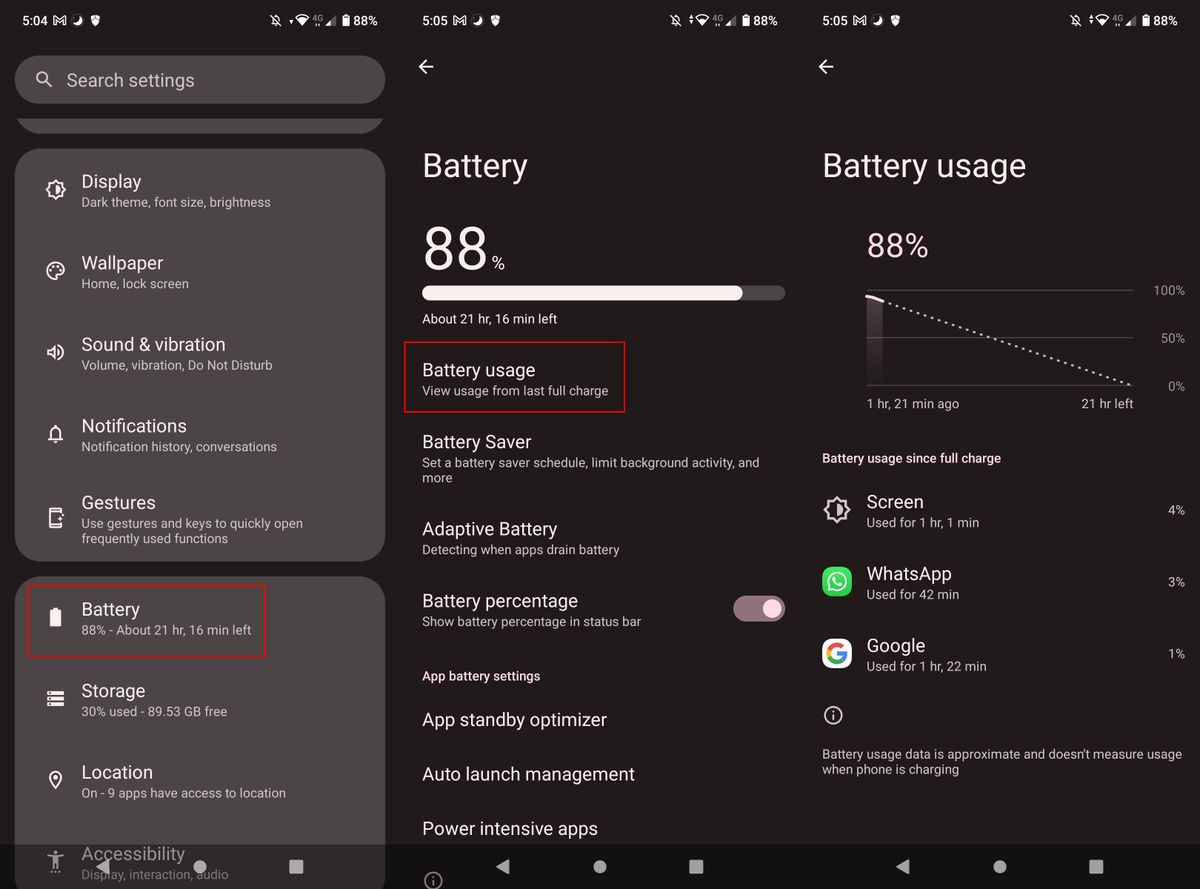
Head to Settings > Battery > Battery Health. Here, you'll find your battery's capacity – a percentage that shows how well your battery's holding charge compared to when it was new. If it's at 85% or above, you're doing great!
 How to Check Battery Health on Android (2 Ways) | Beebom
You'll also see your battery's temperature. If it's too hot or too cold, it could be affecting your battery's health. But don't worry, your phone will warn you if it's getting too toasty or frosty.
For Android 8.0 and below:
Sadly, these older models don't have a built-in battery health report. But don't fret! There's a sneaky workaround. Download the AccuBattery app – it's like a personal trainer for your battery, giving you all the stats you need.
Once you've got the app, open it and tap on the battery icon. Here, you'll find your battery's capacity and other useful info. It's like having a secret decoder ring for your phone!
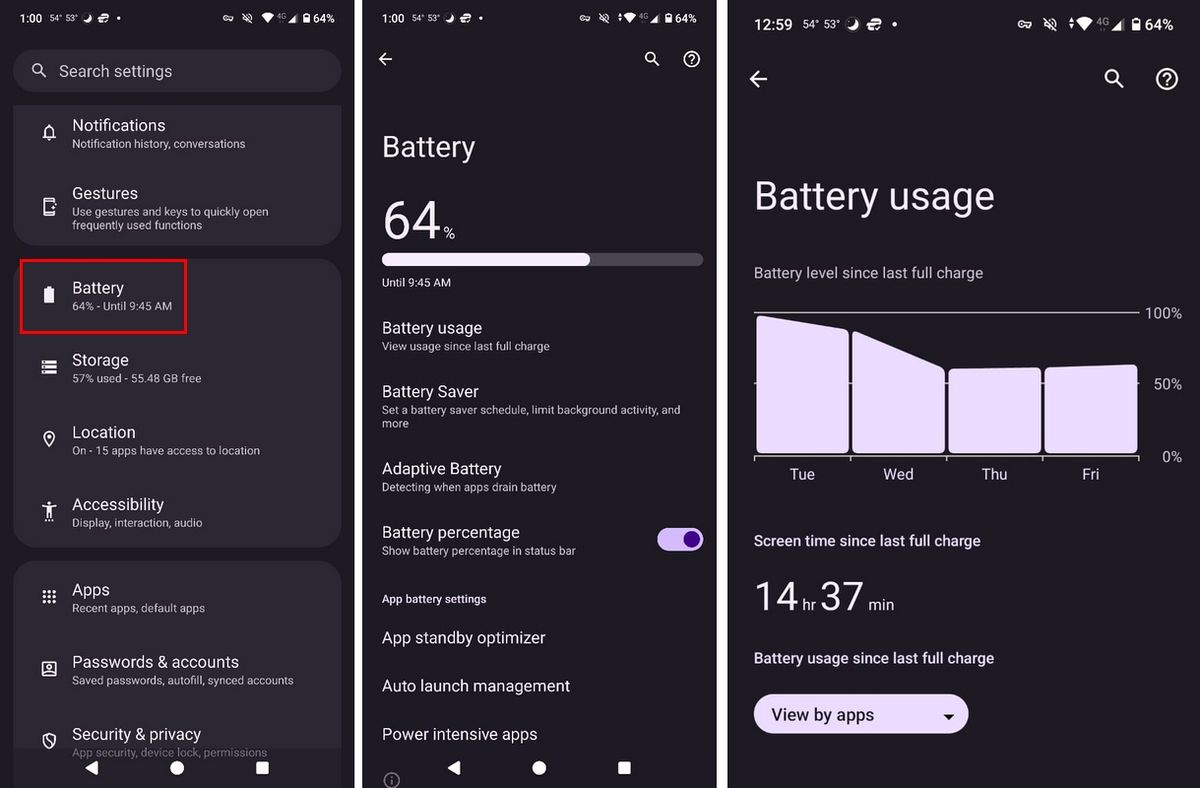 How to check the battery health of your Android phone | Android Central
What's Normal and What's Not?
Now that you've got the lowdown on your battery's health, let's talk about what's normal and what's not. If your battery's capacity is at 85% or above, you're doing amazing, sweetie! That's like your phone giving you a gold star.
But if it's dropping below 85%, it might be time to start worrying. It could be a sign that your battery's not holding charge like it used to. But don't panic – there are ways to help your battery stay healthy.
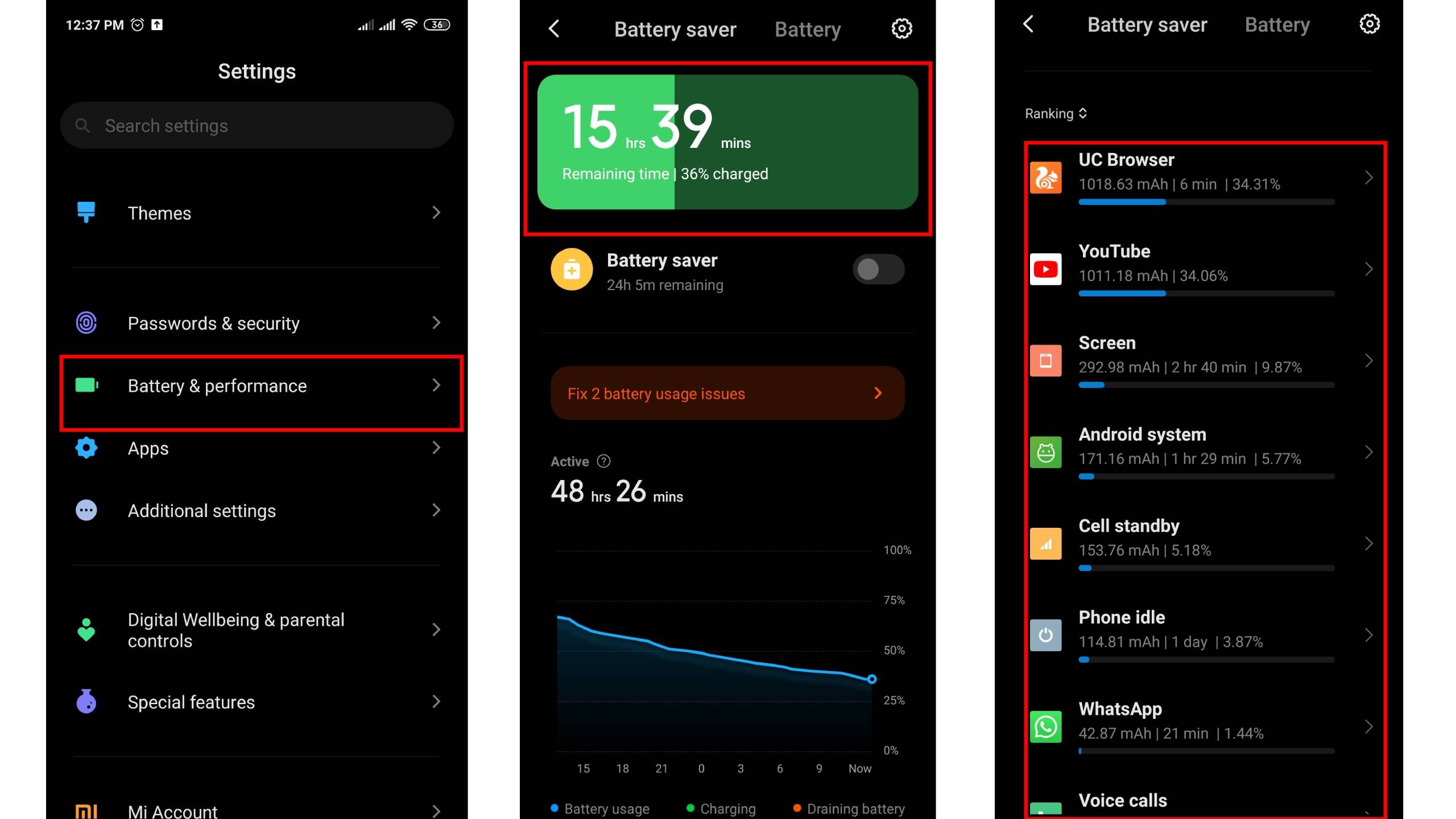 How to check your Android phone's battery health
Battery Health Hacks
Ready to become a battery health ninja? Here are some tips to keep your phone's power pack in tip-top shape:
- Keep it cool – Just like Goldilocks, your battery likes things just right. Avoid leaving it in direct sunlight or in hot cars. And if it gets too cold, give it a chance to warm up before charging.
- Avoid full charges – It might sound counterintuitive, but keeping your battery between 30% and 80% can help it stay healthy for longer. Think of it like giving your battery a balanced diet.
- Say no to fast charging – Fast charging might be convenient, but it can also heat up your battery. If you can, stick to regular charging.
- Keep your software up to date – Software updates can include improvements to battery life. So, make sure you're always running the latest version of Android.
And there you have it – the lowdown on battery health for your Android phone. You're now officially a battery health pro! So go forth, check your battery's health, and give it the love it deserves.
Until next time, stay charged and keep your phone's power pack happy!
