How To Check The Ip Address Of Laptop

Ever wondered what's behind that mysterious string of numbers and dots that's your laptop's identity in the digital world? It's called an IP address, and it's like your laptop...

Ever wondered what's behind that mysterious string of numbers and dots that's your laptop's identity in the digital world? It's called an IP address, and it's like your laptop's secret handshake with the internet. Let's dive in and find out how to check it, yeah?
Why Bother with IP Addresses?
Think of your IP address like your laptop's postal address. It tells the internet where to deliver the websites, videos, and memes you're craving. It's also how your laptop communicates with other devices on the interwebs. Pretty cool, huh?
Now, you might be wondering, "Why would I want to check my IP address?" Well, there are a few reasons. Maybe you're troubleshooting a connection issue, or you're into tech stuff and want to know more about your laptop's digital identity. Either way, let's get to it!
Must Read
Windows Users: Here's How
Alright, Windows users, listen up! The easiest way to check your IP address is through the command prompt. Here's how:
- Press Windows + R on your keyboard to open the Run dialog box.
- Type
cmdand hit Enter. - In the command prompt, type
ipconfigand hit Enter again. - Scroll down and look for Wireless LAN adapter Wi-Fi (or something similar).
- Next to IPv4 Address, you'll see your laptop's IP address. It'll look something like 192.168.1.100.
Easy peasy, right? Now you know your laptop's IP address!
 How to Find IP Address on Laptop/PC on Windows 10/11 | ipconfig
Mac Users: You're Not Forgotten!
Hey there, Mac users! You're not left out in the cold. Here's how to check your IP address on your sleek Apple laptop:
- Click on the Apple menu in the top-left corner of your screen.
- Select System Preferences.
- Click on Network.
- On the left, select your connection type (like Wi-Fi or Ethernet).
- Look at the right side of the window, and you'll see your IP address next to IPv4.
See that? You're a pro now!
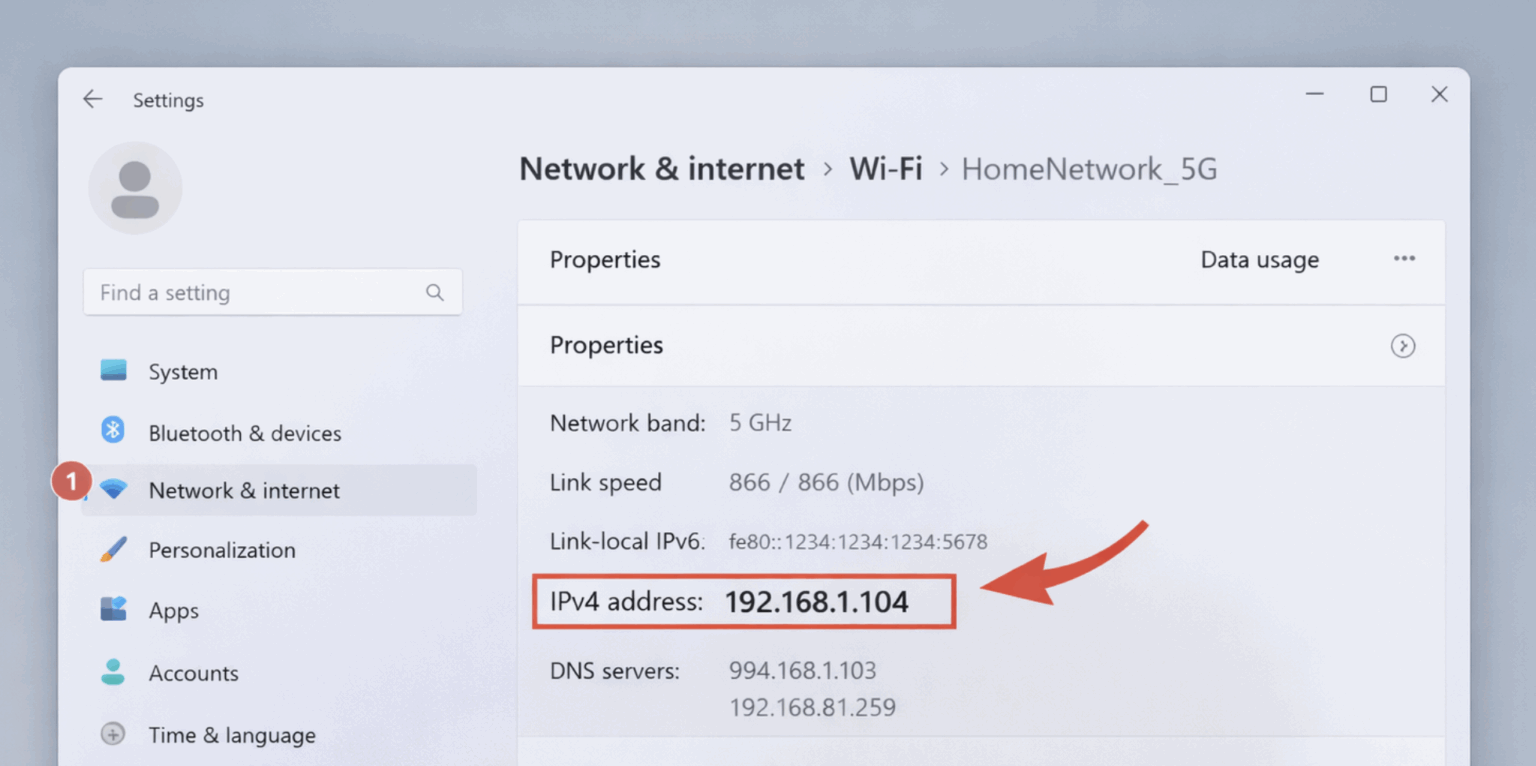 How to Find Computer IP Address on Windows (Easy Guide)
What Else Can You Do with Your IP Address?
Now that you know how to check your IP address, you might be wondering what else you can do with this newfound knowledge. Here are a few fun things:
- Find your public IP address: The IP address we found earlier is your local IP address. To find your public IP address (the one the whole internet sees), just Google "what's my IP" or use a website like What's My IP.
- Port scanning: Ever wanted to see which ports on your laptop are open? You can use a tool like Nmap to scan your IP address and find out.
- VPN fun: If you use a VPN, you can check your IP address before and after connecting to see how it changes. It's like a magic trick for tech nerds!
Pretty neat, huh? Who knew there was so much to explore in the world of IP addresses?
So, there you have it! You're now an IP address pro. Next time someone asks, "What's your IP address?" you'll know exactly how to find it. Happy exploring!
