How To Create Email Address In Yahoo

Alright, gather 'round, folks. Today, we're going to embark on a grand adventure. A journey that'll take us from the humdrum world of no-email to the exciting realm of Yahoo-l...
Alright, gather 'round, folks. Today, we're going to embark on a grand adventure. A journey that'll take us from the humdrum world of no-email to the exciting realm of Yahoo-land. That's right, we're talking about creating an email address. Now, I know what you're thinking, "But I'm just a humble human, not a tech-savvy superhero!" Fear not, dear friend. By the end of this, you'll be wielding your new Yahoo email address like a pro.
First Things First: Why Yahoo?
Well, why not? Yahoo's been around since the dawn of the internet (okay, maybe not that long, but you get the idea). It's like the cool aunt of email platforms. It's got a certain je ne sais quoi. Plus, it's got some nifty features that'll make your emailing experience as smooth as butter on a hot day.
Let's Get Started: The Sign-Up Spree
First things first, head on over to the Yahoo homepage. It's like the grand entrance to our magical email kingdom. Once you're there, click on the 'Sign in' button. See that little 'Sign up' link right next to it? That's our golden ticket. Click it.
Must Read
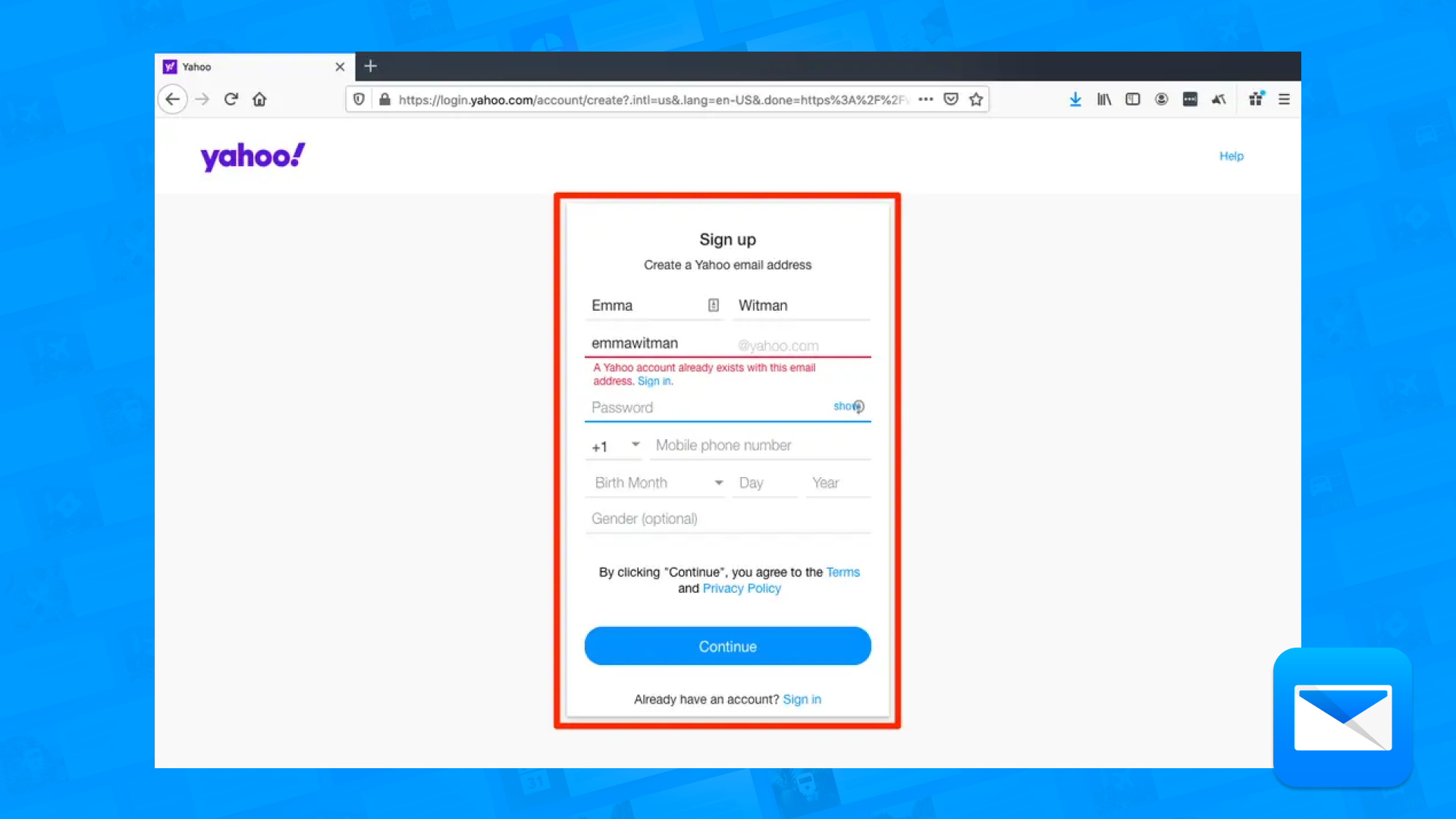
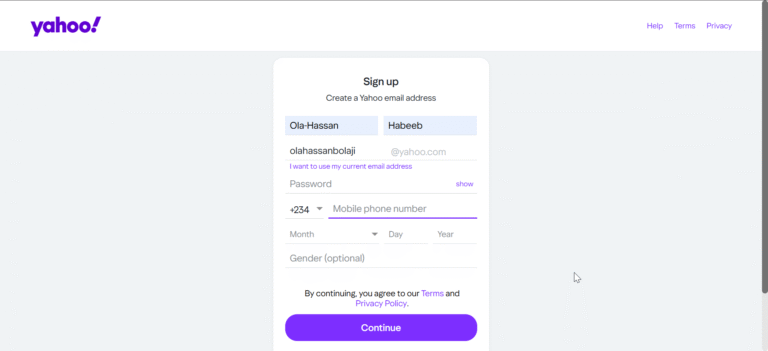
Now, you'll be greeted by a form that looks like it's straight out of a spy movie. Don't be intimidated. It's just asking for some basic info. First up, you'll need a username. This is the part where you can let your creativity shine. Or, you know, just use your name. Whatever floats your boat. Just remember, once you've chosen, you're stuck with it. So, no changing your mind halfway through like when you ordered the anchovies on your pizza.
Next up, you'll need to choose a password. Now, I'm not saying you should use 'password123', but you don't need to make it something like 'G7!j%KL9'. Something simple, yet secure. Like your pet's name and your favorite color. Just don't use 'Fluffy123' if your pet's name is actually 'Brutus'.
After that, it's just a matter of filling in the blanks with your personal details. Don't worry, Yahoo won't sell your soul to the devil (or so they claim). Once you've filled everything in, click that 'Create Account' button. And just like that, you're a Yahoo user. Congratulations! You've just taken the first step into a larger world.
 How to Create a New Email Address
Verifying Your Identity: The Final Frontier
Now, Yahoo wants to make sure you're a real person. So, they'll send a verification code to your phone number or alternate email address. If you don't have either, well, it's time to make some new friends. Just kidding! You can use the 'Call me' option. Yahoo will give you a call and read out your verification code. Easy peasy.
Once you've got your code, pop it into the box on the Yahoo page. And just like that, your account is verified. You're now a fully-fledged Yahoo user. High five!
Customizing Your Inbox: The Fun Part
Now that you're all set up, it's time to make your inbox your own. Yahoo's got a nifty little feature called 'Themes'. It's like choosing a wallpaper for your email. You can go for something calming, like a beach scene. Or something more... stimulating, like a neon cityscape. The choice is yours.
 How to Create an Additional Email Address in Yahoo Easily
But wait, there's more! You can also change your Yahoo avatar. This is your chance to show the world who you really are. Or, you know, who you wish you were. I won't judge. Just remember, once you've chosen, you're stuck with it. So, no changing your mind halfway through like when you ordered the anchovies on your pizza. (I swear, I'll stop with the pizza jokes soon.)
And That's A Wrap!
And there you have it, folks. You've just created a Yahoo email address. You're now ready to take on the world of emails. Or, you know, send a quick message to your mom. Whatever floats your boat.
Now, go forth and email. And remember, with great power comes great responsibility. Don't go spamming people with cat videos. Well, maybe just a few. I mean, who doesn't love cat videos?
Happy emailing, and until next time, stay awesome!
