How To Disable Private Mode On Ipad

So, You've Stumbled Upon Your Partner's 'Private' Mode on iPad, Eh? Well, well, well, look who's here, all curious and tech-savvy. You've found yourself a little conundrum, h...
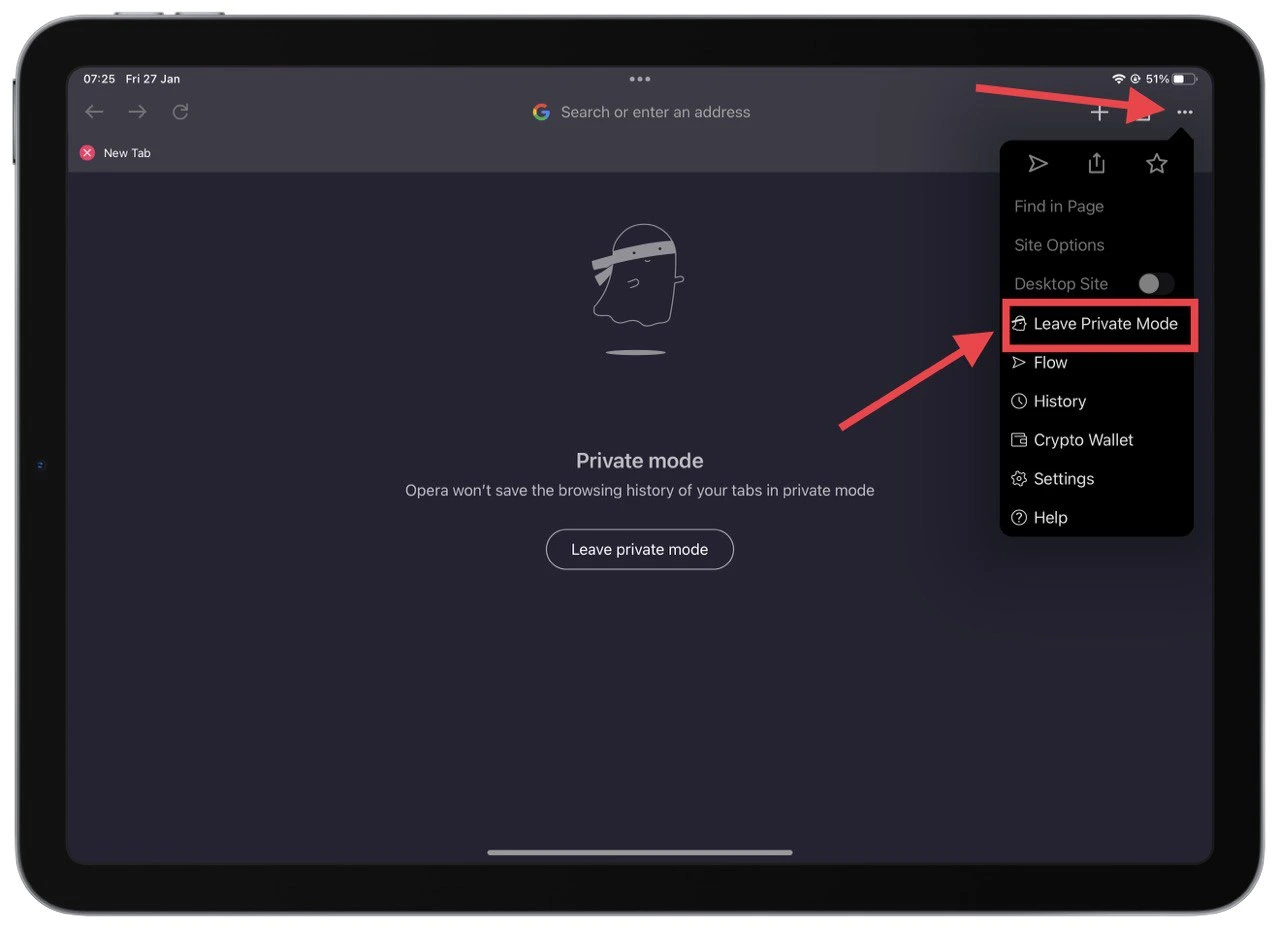
So, You've Stumbled Upon Your Partner's 'Private' Mode on iPad, Eh?
Well, well, well, look who's here, all curious and tech-savvy. You've found yourself a little conundrum, haven't you? You've caught your significant other, roommate, or maybe even your sneaky little pet (yes, they've been using your iPad) in 'Private' mode. Now, you're wondering, "How do I disable this mysterious 'Private' mode, and what on Earth have they been up to?"
First Things First: What's This 'Private' Mode All About?
Alright, let's clear the air. 'Private' mode on iPad isn't some secret spy operation. It's just a feature that lets users browse the web without leaving traces of their activity. No history, no cookies, no nothing. It's like they were never there. Spooky, huh?
Now, you might be thinking, "Why would anyone want to do that? Are they hiding something?" Well, maybe they're planning a surprise party, or maybe they just like their browsing history as private as their grandma's recipe book. Either way, it's time to put on your detective hat and learn how to disable this sneaky little feature.
Must Read
Let's Get Our Hands Dirty: Disabling 'Private' Mode
Step 1: Unlock Your iPad
First things first, you need to unlock your iPad. If you've got Face ID, just look at it. If you've got a passcode, well, you know what to do. And if you've forgotten it, well, this might be a good time to learn about iCloud's 'Find My iPad' feature. Just saying.
Step 2: Find the Settings
Once you're in, swipe up from the bottom of your screen to bring up the Control Center. Now, tap on the little gear icon. That's right, you're going into the 'Settings'. It's like going into the brain of your iPad. Scary, isn't it?
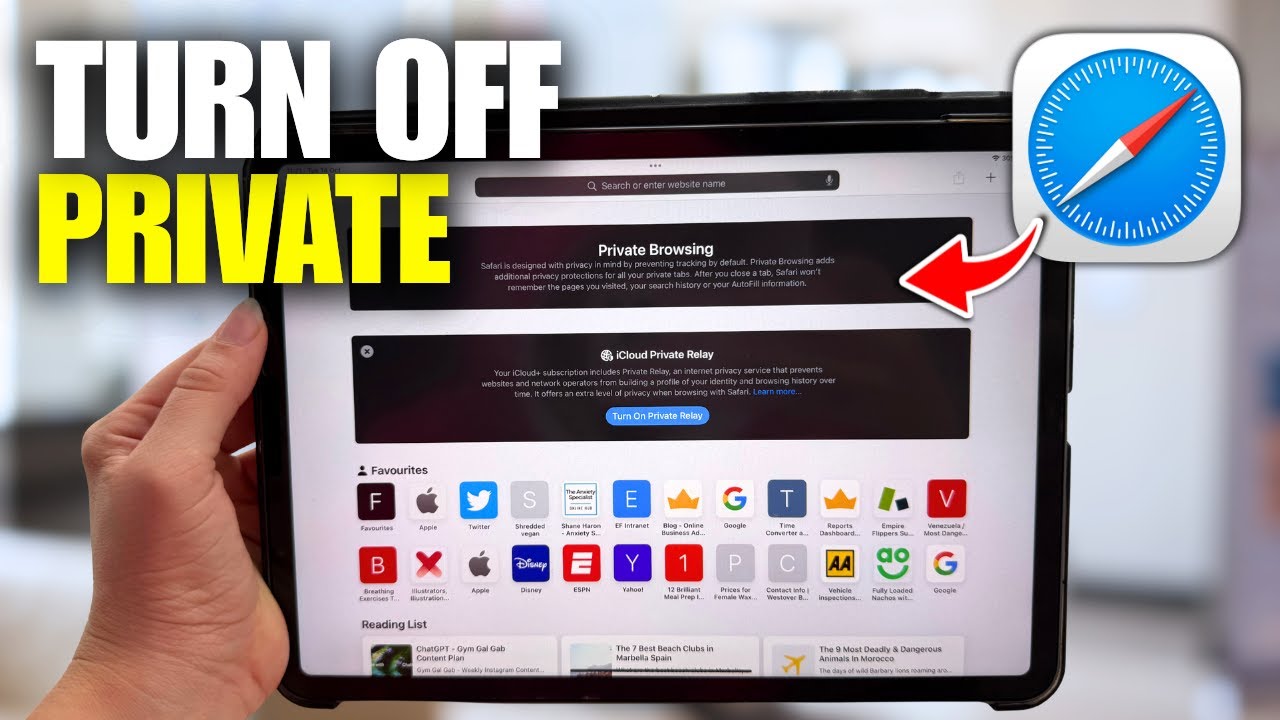 How To Turn Off Private Browsing Mode On iPad - YouTube
Step 3: Dive into Safari
In the Settings, you'll see a whole bunch of options. Scroll down until you see 'Safari'. Tap on it. You're getting closer, detective.
Step 4: Turn Off 'Private' Mode
Now, look for 'Private'. No, not that kind of private. We're talking about 'Private Browsing'. You'll see a toggle switch next to it. Tap it. It should turn from green to white. That's it! You've just disabled 'Private' mode. You should probably give yourself a pat on the back. You've earned it.
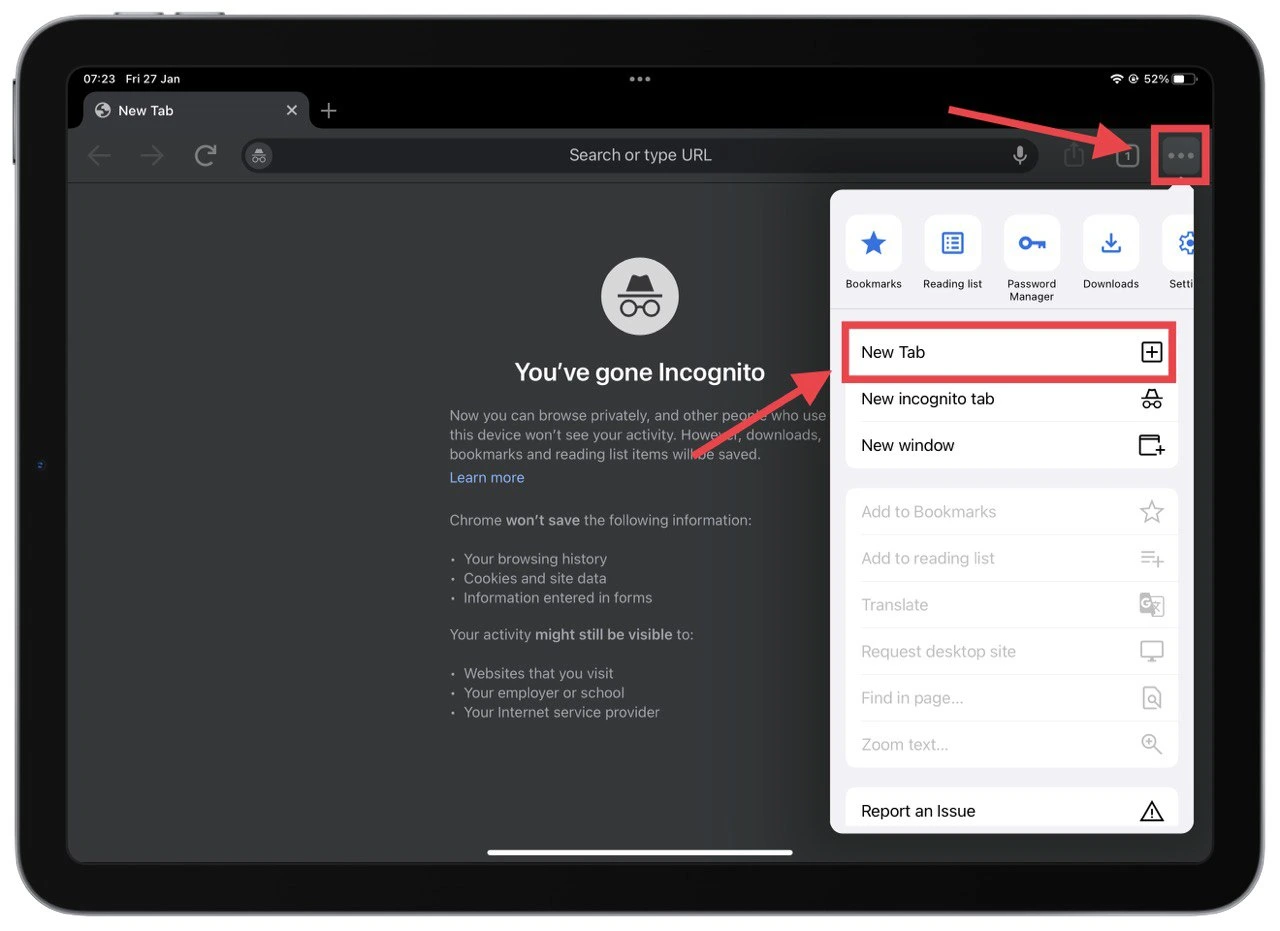 How to turn off private browsing on iPad | Tab-TV
But Wait, There's More!
You might be wondering, "What if I want to browse privately, but not all the time?" Well, iPad's got you covered. You can turn on 'Private' mode whenever you want, and turn it off when you're done. Just follow the same steps, and toggle the switch the other way.
And here's a little bonus fact for you. Did you know that 'Private' mode doesn't just hide your browsing history? It also stops websites from tracking your activity. So, if you're tired of seeing the same ad for that weird-looking shoe you looked at once, 'Private' mode is your friend.
 How to Turn Off Private Browsing Mode on iPad
So, What Now?
Now that you know how to disable 'Private' mode, you can keep an eye on your iPad's activities. Or maybe you'll just use it to plan a surprise party. The choice is yours. Just remember, with great power comes great responsibility. And maybe a little bit of snooping.
And there you have it, folks. You've just learned how to disable 'Private' mode on your iPad. You're officially a tech whiz now. Go forth and conquer the digital world. Just remember to keep your snooping to a minimum. Your partner (or pet) might not appreciate you reading their secret squirrel emails.
