How To Find Apps On Samsung Smart Tv

Alright, folks! Let's talk about something that's become as essential to our lives as our morning coffee - apps on our Samsung Smart TVs. You know, those little helpers that t...

Alright, folks! Let's talk about something that's become as essential to our lives as our morning coffee - apps on our Samsung Smart TVs. You know, those little helpers that turn our TVs into entertainment powerhouses. So, why should you care about finding apps on your Samsung Smart TV?
Well, imagine this: You're snuggled up on your couch, remote in hand, ready for a movie night. But wait, you can't find that amazing documentary app you've been dying to show your friends. Or maybe you're trying to streamline your workout routine with a fitness app, but it's hiding somewhere in the depths of your TV's app store. Frustrating, right? That's why knowing how to find apps on your Samsung Smart TV is like having a secret superpower.
First Things First: The Smart Hub
Your Samsung Smart TV's control center is called the Smart Hub. It's like the town square of your TV, where all the action happens. To access it, just press the Smart Hub button on your remote. Easy peasy!
Must Read
Now, picture the Smart Hub as a bustling marketplace. On one side, you've got your favorite apps like Netflix, YouTube, and Amazon Prime Video. On the other side, there's a whole world of apps waiting to be discovered. Think of it like a treasure map, and you're about to embark on an adventure to find that hidden app treasure.
Navigating the App Store
Alright, so you've found the app store. It's like a vast library, filled with apps of all shapes and sizes. To start your search, press the Search button on your remote. Then, use the directional pad to move the cursor to the search bar and press Enter.
Now, here's where it gets fun. You can search for apps by name, or you can browse by category. Let's say you're looking for a cooking app. Just start typing 'cooking' in the search bar, and watch as the app store magically presents you with a list of cooking-related apps. It's like having a personal assistant, right at your fingertips!
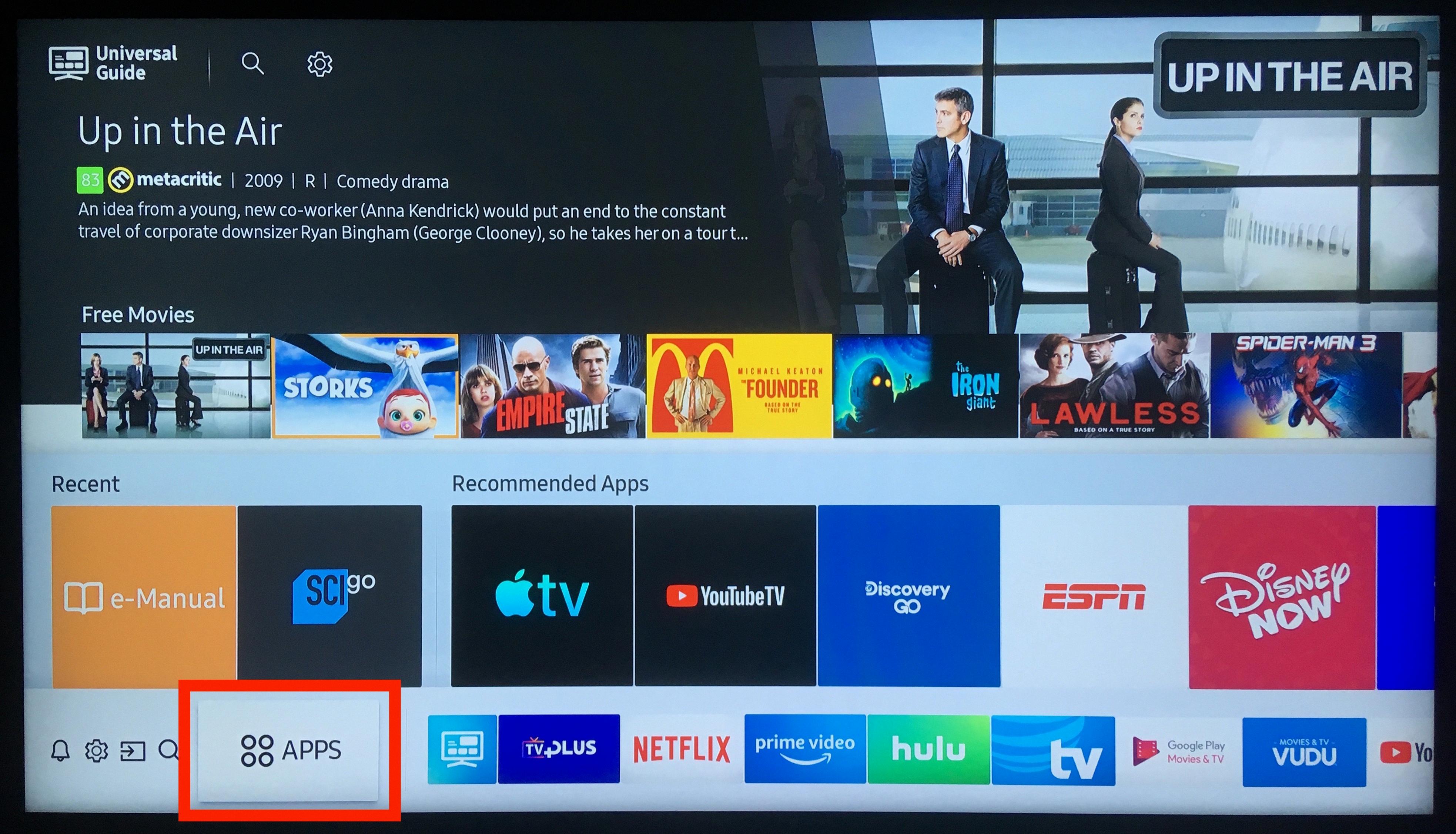 How To Search For Apps On Samsung Smart Tv - DeviceMAG
But what if you don't know the name of the app you're looking for? No worries! You can also browse by category. Just press the Categories button, and you'll see a whole range of categories to choose from. From Education to Lifestyle, there's an app for almost everything. It's like going on a shopping spree, but for your TV!
Installing Your New App
So, you've found the app you've been looking for. Great job! Now it's time to install it. Just press the Install button on your remote. Your TV will do its thing, and before you know it, your new app will be ready to use.
But wait, what if you change your mind and decide you don't want the app anymore? No problem! Just highlight the app, press the Smart Hub button on your remote, and select Delete. It's like having a magic wand that can make apps appear and disappear with just a click of a button.
Keeping Your Apps Organized
Now, you might be thinking, "This is all well and good, but I've got a million apps, and I can't find the one I want!" Fear not, dear reader! Your Samsung Smart TV has a nifty little feature that can help you keep your apps organized.
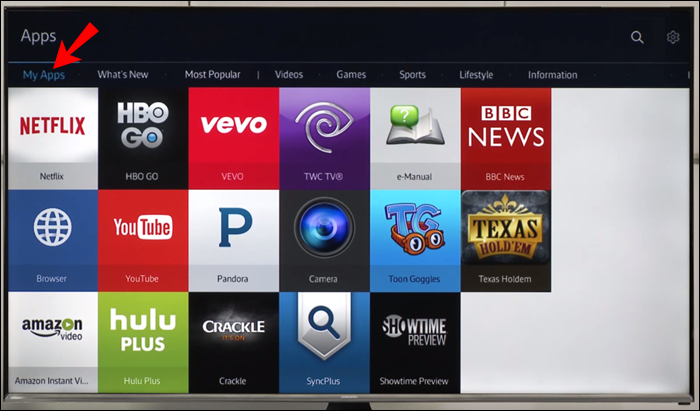 How to Find Apps on a Samsung Smart TV
You can create folders to group your apps together. For example, you could have a folder for all your streaming services, another for games, and another for education. To create a folder, just highlight an app, press the Tools button on your remote, and select Create Folder. Then, drag and drop your apps into the folder. It's like having a personal assistant to keep your TV apps in tip-top shape!
Why Should You Care?
Alright, so you might be wondering, "Why should I care about finding apps on my Samsung Smart TV?" Well, let me tell you, finding the right app can make your TV experience a whole lot better. Whether you're looking for a fitness app to keep you motivated, a cooking app to help you whip up a delicious meal, or a game app to keep the kids entertained, there's an app out there for everyone.
But here's the thing: You can't enjoy what you can't find. So, knowing how to find apps on your Samsung Smart TV is like having the key to a whole new world of entertainment. It's like having a secret door that leads to a magical garden, filled with apps that can make your life easier, more fun, and more enjoyable.
So, go on, give it a try! Start exploring the app store on your Samsung Smart TV. Who knows? You might just find your new favorite app. And who knows? You might just have a blast while you're at it. Happy app hunting, folks!
