How To Link Onedrive To File Explorer

Ever found yourself in a situation where you've got files scattered across different devices, and you're like, "Man, I wish there was a magical bridge connecting all my stuff?...
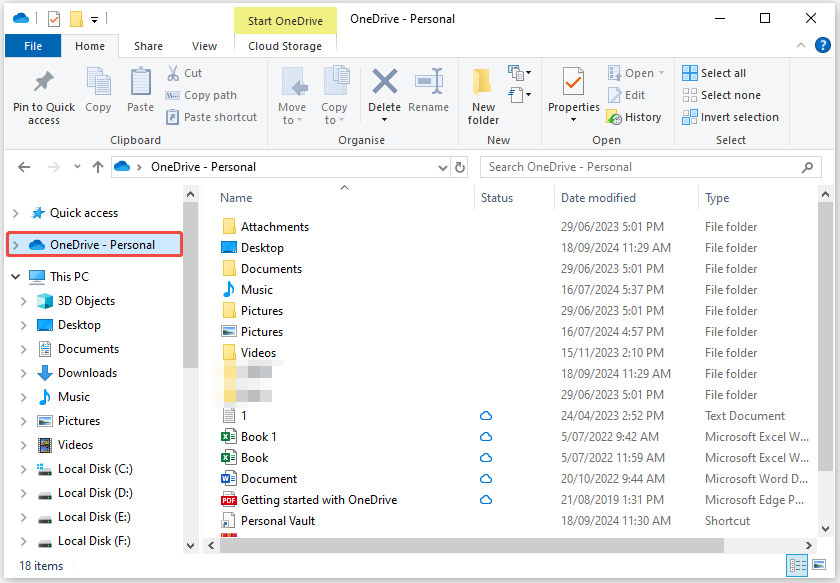
Ever found yourself in a situation where you've got files scattered across different devices, and you're like, "Man, I wish there was a magical bridge connecting all my stuff?" Well, guess what? There totally is, and it's called linking OneDrive to your File Explorer! Let's dive in, yeah?
What's OneDrive, you ask?
Alright, imagine OneDrive as your very own personal butler in the digital world. It's a cloud storage service by Microsoft that helps you store, share, and sync your files across all your devices. Pretty nifty, huh?
Now, you might be thinking, "That's cool and all, but how do I get it to work with my File Explorer?" Well, buckle up, my friend, 'cause we're about to make some magic happen!
Must Read
Let's get this party started!
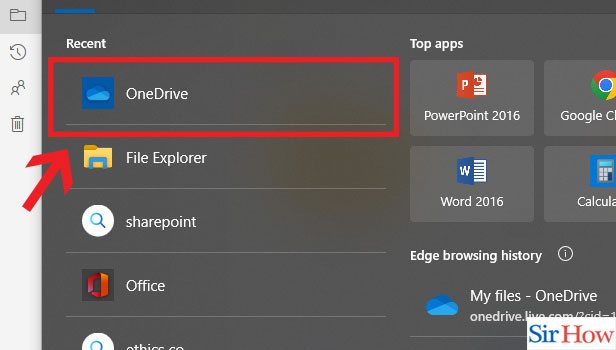
First things first, make sure you've got OneDrive installed on your computer. If you're running Windows 10 or 11, chances are you already have it. If not, you can always download it from the Microsoft website.
Once you're all set up, let's link OneDrive to your File Explorer. Here's how:
 Open Shared Onedrive In Explorer – HNBN
- Click on the OneDrive icon in your taskbar. It looks like a white cloud with a green checkmark.
- Select More (the three dots), then Settings.
- In the Account tab, click on Choose folders.
- Select the folders you want to link to OneDrive. You can choose your entire Documents folder, or just specific subfolders. It's up to you!
- Once you've made your selection, click OK.
And that's it! Your chosen folders are now linked to OneDrive. But wait, there's more!
But why should I care, you wonder?
Great question! Linking OneDrive to your File Explorer brings a whole bunch of awesome benefits:
 How to Install and Setup OneDrive in Windows 11? – WebNots
- Automatic syncing: Any changes you make to your files in one place will automatically sync across all your devices. It's like having a tiny, dedicated elf working overtime to keep your files up-to-date.
- Access from anywhere: With OneDrive, you can access your files from any device with an internet connection. So, whether you're at home, at work, or on the moon (we don't judge), your files are always just a click away.
- Sharing made easy: OneDrive makes sharing files a breeze. Just right-click on a file, select Share, and enter the email addresses of the people you want to share it with. Boom! Instant collaboration.
Pretty neat, huh? But wait, what if you want to unlink a folder? No worries, here's how:
- Right-click on the OneDrive icon in your taskbar.
- Select Settings.
- In the Account tab, click on Choose folders.
- Uncheck the folders you want to unlink.
- Click OK.
And there you have it! You're now a OneDrive linking pro. So go forth, connect your files, and enjoy the sweet taste of digital harmony. Happy exploring!
