How To Loop A Slideshow In Powerpoint

Hey there, coffee companion! So, you're here because you want to loop a slideshow in PowerPoint, right? Let's dive in, shall we? Why Loop, You Ask? Well, imagine you're pres...

Hey there, coffee companion! So, you're here because you want to loop a slideshow in PowerPoint, right? Let's dive in, shall we?
Why Loop, You Ask?
Well, imagine you're presenting at a conference, and you want your slides to keep rolling like a well-oiled machine while you're off grabbing a much-needed coffee. Or maybe you've got a slideshow in the lobby, and you want it to play on a loop until the cows come home. Whatever your reason, looping a slideshow in PowerPoint is easier than you think.
Let's Get Started!
First things first, you need to have your slideshow all set up. Make sure you've got your slides in the right order, and you're happy with the timing. Then, it's time to add a little bit of magic.
Must Read
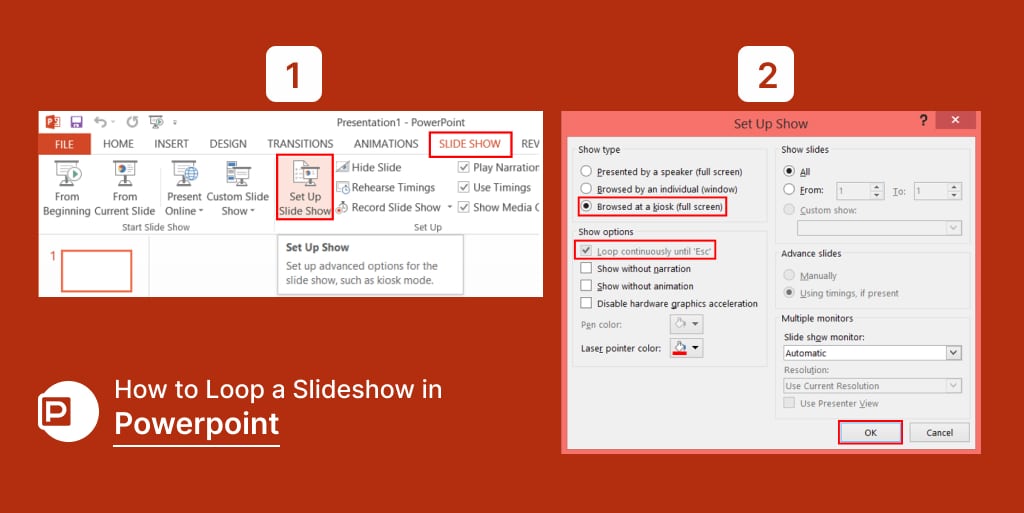
See that little button up there in the toolbar? The one that looks like a tiny, circular arrow? That's our friend, the 'Set Up Slide Show' button. Click on it, and let's get to know it better.
Meet Your New Best Friend
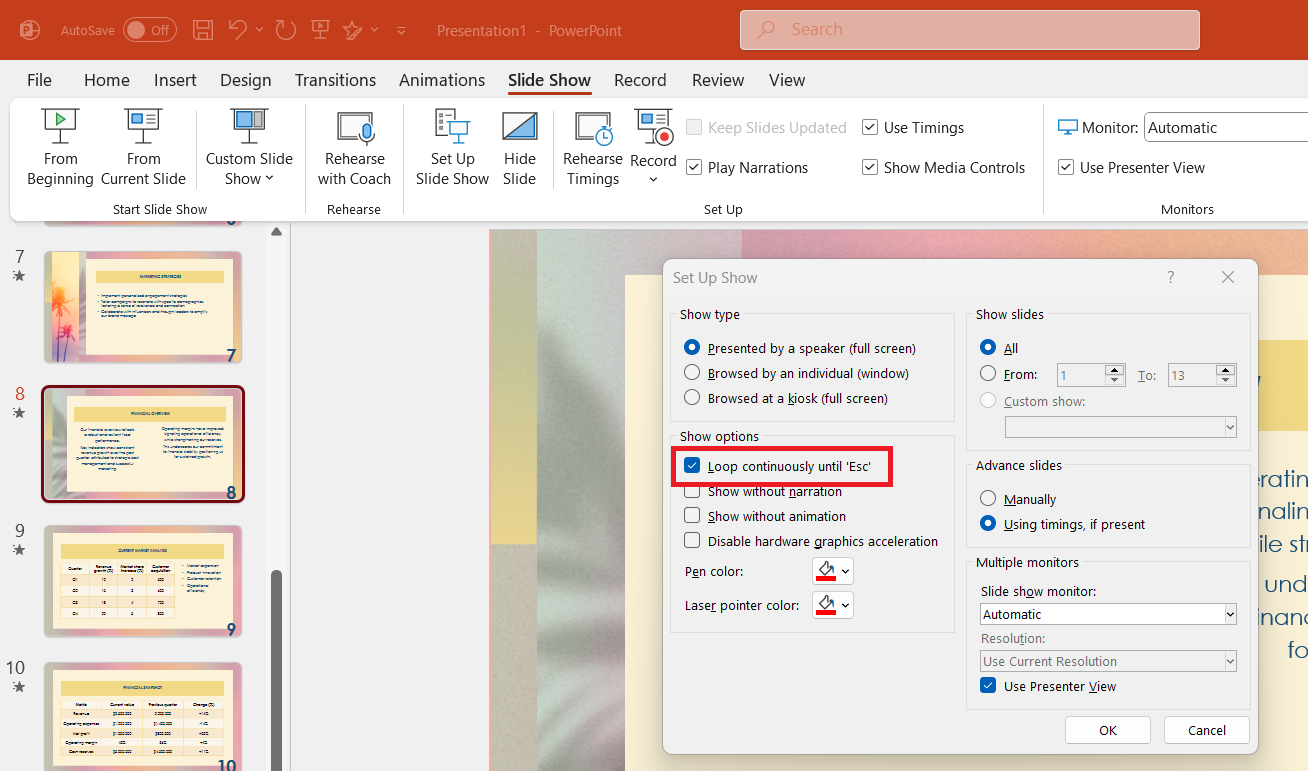
The 'Set Up Slide Show' dialog box is where the magic happens. It's got a few options, but we're only interested in one right now: 'Loop continuously until 'Esc''.
 How to Loop a PowerPoint Slideshow Automatically
Sound good? Great! Tick that box, and suddenly, your slideshow becomes the Energizer Bunny of presentations. It just keeps going and going and going... until you hit that 'Esc' key, that is.
But Wait, There's More!
Now, here's a little trick for you. If you want to loop your slideshow but also have a bit of control over it, you can use the 'Manual' option instead. This lets you advance your slides manually, but your slideshow will still loop back to the beginning once it reaches the end.
And if you're feeling really fancy, you can even set up your slideshow to run in kiosk mode. This means it'll run full-screen, and your audience can't accidentally close it or mess with the settings. Just remember to hit 'F5' to exit when you're done. Trust me, you don't want to be that person who can't get out of kiosk mode.
 The Ultimate Guide to Loop Slideshow in PowerPoint | MyExcelOnline
Practice Makes Perfect
Now, before you go looping your slideshow all over the place, it's a good idea to practice a bit. Make sure your timings are right, and you're happy with the flow. The last thing you want is for your slideshow to be stuck on a slide with a typo, looping until the end of time.
And there you have it! You're now a PowerPoint looping pro. Go forth and loop with confidence. Just remember, with great power comes great responsibility. Don't go looping your slideshow in the middle of the night and keeping the whole office awake. That's just mean.
Until next time, happy looping!
