How To Measure An Area In Google Maps

Hey there, curious explorer! Ever found yourself daydreaming about the size of your favorite park, or wondered how many pizza slices you could cover your backyard with? Well,...

Hey there, curious explorer! Ever found yourself daydreaming about the size of your favorite park, or wondered how many pizza slices you could cover your backyard with? Well, buckle up, because we're about to turn those 'what ifs' into 'wow, thats big/small!' moments. All you need is Google Maps and a little know-how. Let's dive in!
First Things First: Get Your Map On
Alright, so you've fired up Google Maps, and you're staring at that big blue planet. Now, let's zoom in on the area you're interested in. It could be your neighborhood, a distant dream destination, or even the moon (yes, Google Maps goes to space too!).
Meet Your New Best Friend: The Measurement Tool
See that little ruler icon at the bottom right corner of your screen? That's your new BFF. Click on it, and voila!
Must Read
You've just unlocked the power to measure areas, distances, and even elevations. Isn't technology wonderful?
Measuring Areas: A Step-by-Step Guide
Alright, let's get down to business. Here's how you measure an area in Google Maps:
 How to Measure Area with Google Maps: 10 Steps (with Pictures)
- Click on the ruler icon to open the measurement tool.
- Click once on the map to place the first point of your area. You'll see a small square appear.
- Click again to place the second point. A line will connect the two points, and you'll see the distance between them pop up.
- Keep clicking to add more points. Each click creates a new line, and each line creates a new shape. The area of each shape will be calculated and displayed.
- To finish, just double-click on the last point, or click on the first point. The total area will be displayed in square meters or feet.
Pro Tip: The More Points, The Better
Remember, the more points you add, the more accurate your measurement will be. So, don't be shy to click away!
Reading The Results: A Quick Refresher
So, you've measured your area, and now you're looking at a number. But what does it mean? Here's a quick cheat sheet:
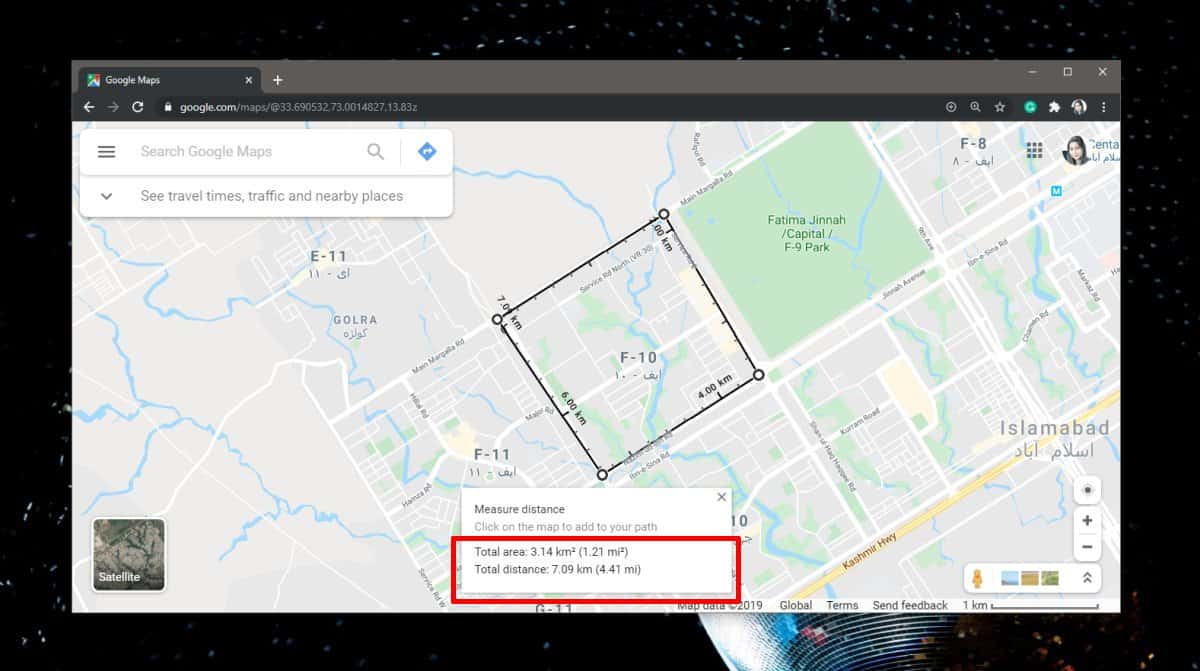 Google Maps Area Measurement _ CALCMAPS – CEPAB
- Square Meters (m2): This is the international standard for measuring areas. A square meter is about the size of a king-sized bed.
- Square Feet (ft2): This is the standard in the US. A square foot is about the size of a small pizza.
Now, Go Forth and Measure!
There you have it! You're now a certified area-measuring maestro. Go forth and measure your heart out. Your backyard, your local park, or even the Great Wall of China - the world (or at least, Google's version of it) is your oyster.
And hey, who knows? You might just discover something new about your neighborhood, or finally find out if your friend's backyard really is bigger than yours. Happy measuring, and until next time, keep exploring!
