How To Open In Safe Mode Windows 10

Alright, buddy, let's talk safe mode. You know, that secret party trick your Windows 10 PC can do. It's like the designated driver of your computer world, making sure everythi...

Alright, buddy, let's talk safe mode. You know, that secret party trick your Windows 10 PC can do. It's like the designated driver of your computer world, making sure everything's running smoothly without any wild, error-causing apps causing a ruckus.
Why Safe Mode, You Ask?
Well, imagine you're at a fancy dress party, but you're not sure who's causing the trouble. In safe mode, you're stripping down to the basics, only the essentials are running. This way, you can find out who's been misbehaving without disrupting the whole shindig.
Now, let's get you into that safe mode. It's easier than you think, and no, you don't need a secret password or a magic wand.
Must Read
Method 1: The Restart Trick
First up, we've got the restart trick. It's like the party game where you have to sneak into the room without being noticed. Here's how you do it:
- Click on the Start button, then the Power icon.
- Hold down the Shift key while you click on Restart.
- Tada! You'll see a blue screen with some options. Choose Troubleshoot.
- Now, click on Advanced options, then Startup Settings.
- Finally, click on Restart. After the restart, you'll see a list of options. Press F4 to enter safe mode.
Easy peasy, right? Now, you're in safe mode, and it's time to play detective.
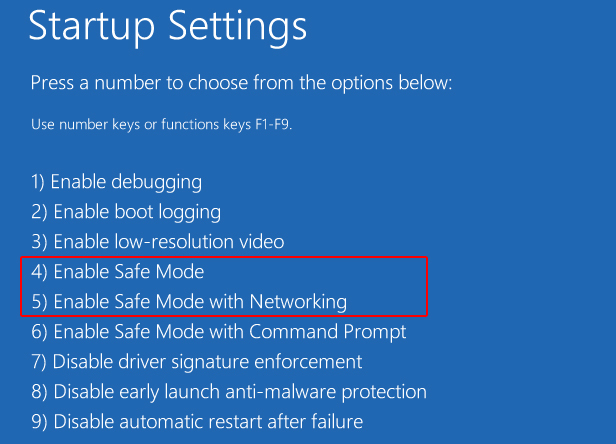 How to Access Safe Mode in Windows 10 | Puget Systems
Method 2: The Msconfig Way
Alright, let's try another method. This one's like playing a game of hide and seek. You're going to find a hidden tool called msconfig.
- Press Win + R on your keyboard to open the Run dialog box.
- Type msconfig and press Enter.
- In the System Configuration window, go to the Boot tab.
- Check the box next to Safe boot and choose Minimal in the dropdown menu.
- Click OK, then Restart. Your PC will restart in safe mode.
Pretty neat, huh? Now, you're in safe mode, and it's time to figure out who's been causing trouble.
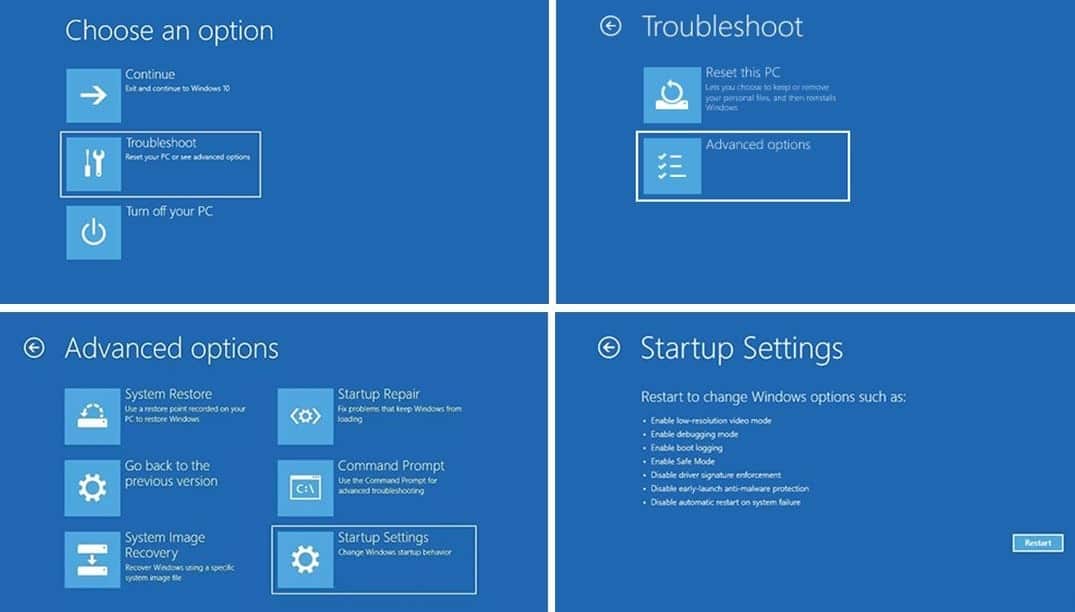 How to Start your Computer in safe mode in Windows 10
Now What?
So, you're in safe mode, and you're ready to find out who's been causing trouble. Here's a quick tip: if you can't remember the last time your PC was working properly, try System Restore. It's like going back in time to when everything was hunky-dory.
And remember, safe mode is like a party where everyone's on their best behavior. Once you've found the troublemaker, you can kick them out (or uninstall them) and get back to your regular party tricks.
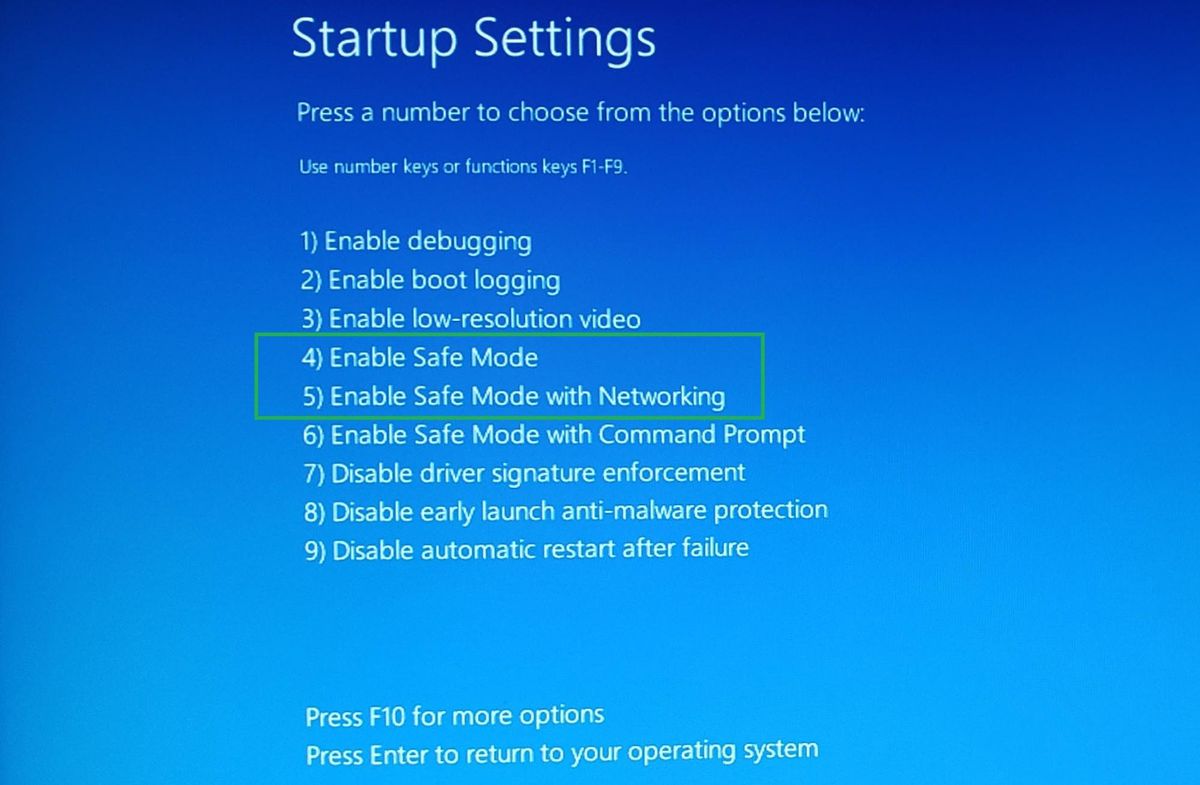 How to Boot Windows 10 in Safe Mode - Tom's Hardware | Tom's Hardware
But hey, don't go wild with the changes. If you're not sure what you're doing, it's always best to ask for help. After all, we wouldn't want you to accidentally break something, would we?
And there you have it, folks! You're now a safe mode pro. Go forth, find those troublemakers, and keep your PC running smoothly. Until next time, happy computing!
