How To Put Stuff On A Usb Flash Drive

Ever found yourself in a bind, wishing you could magically transport a file from your computer to a friend's, or from your desktop to your smartphone? Enter the humble USB fla...
Ever found yourself in a bind, wishing you could magically transport a file from your computer to a friend's, or from your desktop to your smartphone? Enter the humble USB flash drive, the original digital nomad, making data transfer as simple as plug and play. Let's dive into the world of USBs, shall we?
Meet Your New Best Friend
First things first, let's get to know our hero. USB flash drives, also known as thumb drives or pen drives, are portable storage devices that connect to your computer via a USB interface. They're tiny, they're mighty, and they're about as ubiquitous as your morning coffee. From backing up important documents to sharing memes (guilty as charged), USBs are the ultimate sidekicks in our digital adventures.
Prep Work: Choosing Your USB
Before we get started, let's talk USB. There are a gazillion options out there, from sleek, minimalist designs to ones shaped like your favorite superhero (yes, they exist). But here's what you should really be looking at: capacity and speed.
Must Read
Capacity is the amount of data your USB can hold. It's measured in gigabytes (GB) or terabytes (TB), and it's essentially the size of your digital backpack. For most of us, 16GB or 32GB is more than enough. But if you're lugging around 4K videos or entire music libraries, you might want to upgrade to a 128GB or even a 256GB USB.
Speed, on the other hand, determines how quickly data moves between your computer and your USB. It's measured in megabytes per second (MB/s), and it's essentially the speed limit on your digital highway. USB 3.0 and above are your best bets for fast data transfer. Just remember, the faster the speed, the pricier the USB.
Let's Get Physical: Connecting Your USB
Alright, you've got your USB. Now let's get it connected. Plug the USB into an available USB port on your computer. If your computer doesn't have a USB port, you might need to use an adapter. Once plugged in, your computer should recognize the USB and give you a little notification. If it doesn't, try using a different USB port.
Now, let's talk about those little lights on your USB. They're like tiny, digital mood rings, telling you all about what's going on inside. A blinking light usually means your USB is working hard, transferring data. A steady light means it's just chilling, ready for action. And if the light's not on at all, your USB might be asleep. Give it a gentle tap to wake it up.
Mac Users: A Word of Caution
Mac users, listen up. Your Mac is a bit of a diva when it comes to USBs. To avoid any drama, make sure your USB is formatted as Mac OS Extended (Journaled) or exFAT. If you're not sure how to do this, don't worry, we'll get to that later.
Time to Get Stuff Done: Transferring Files
Now that your USB is connected and recognized, it's time to start transferring files. Here's how:
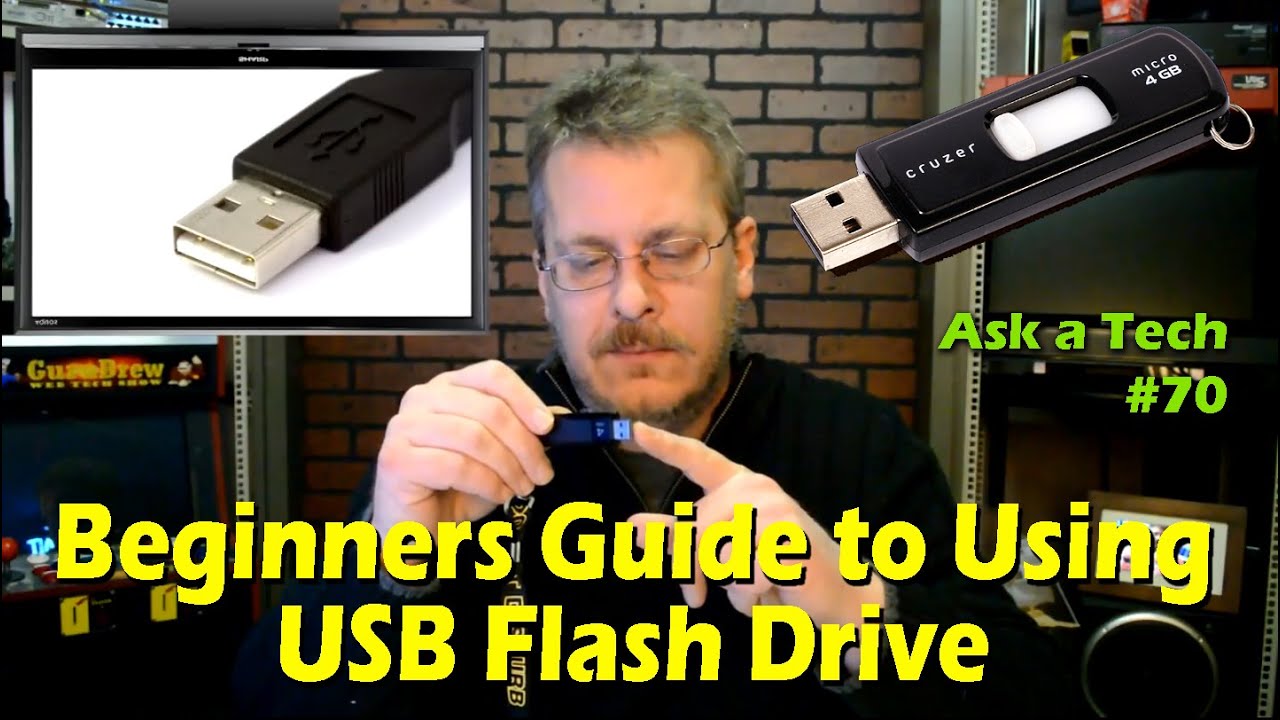 Beginners Guide to Using a USB Flash Drive - Ask a Tech #70 - YouTube
- Open your computer's file explorer (Windows) or Finder (Mac).
- Look for your USB in the list of devices. It might be named something like "NO NAME" or "USB Drive". Don't worry, we'll fix that later too.
- Drag and drop the files you want to transfer onto your USB. That's it! Your computer will take care of the rest.
But what if you want to transfer files from your USB to your computer? Easy peasy. Just follow the same steps, but this time, drag and drop the files from your USB onto your computer.
Pro Tip: Make Your USB Easy to Find
Ever lost a USB in a sea of similar-looking drives? Us too. To avoid this, why not give your USB a unique name? Here's how:
- Windows users: Right-click on your USB in the file explorer, select "Rename", and give it a new name.
- Mac users: Select your USB in the Finder, then press Command + I to open the info panel. Here, you can change the name of your USB.
And while you're at it, why not make your USB stand out with a unique design? You can find USBs in all shapes and sizes, from sleek and minimalist to downright wacky. Just remember, the crazier the design, the harder it is to lose. (Or so we like to think.)
When Things Go Wrong: Troubleshooting
So, you've connected your USB, but nothing's happening. Don't panic. Here are a few troubleshooting tips:
- Check your USB ports. If one isn't working, try another one.
- Check your USB for any dust or debris. Sometimes, a simple clean can do the trick.
- Try using a different USB cable or adapter.
- If all else fails, try restarting your computer. Sometimes, a simple reboot can work wonders.
And if you're still having trouble, don't be afraid to ask for help. The internet is full of kind strangers who love nothing more than solving tech puzzles.
Formatting: The Big Reset
So, you've given your USB a new name, but it's still not showing up in your file explorer. It's time for a big reset: formatting.
Formatting erases everything on your USB and gives it a fresh start. It's like giving your digital backpack a good old spring clean. Here's how:
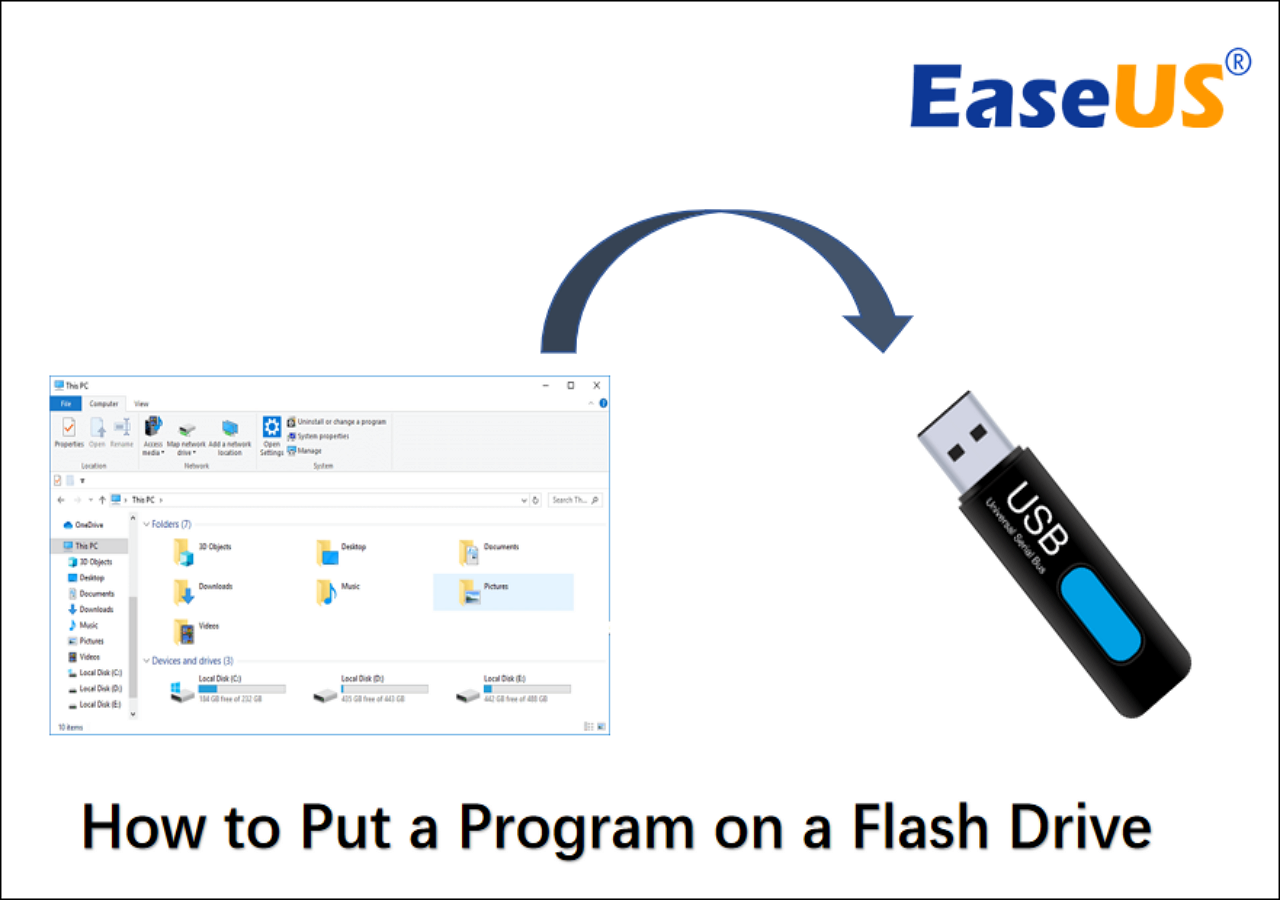 So speichern Sie ein Programm auf einem Flash-Laufwerk [am einfachsten]
- Windows users: Right-click on your USB in the file explorer, select "Format", and follow the prompts.
- Mac users: Select your USB in the Finder, then press Command + Shift + F to open the format panel. Here, you can choose your format (we recommend exFAT for maximum compatibility) and give your USB a new name.
Remember, formatting erases everything on your USB. So, make sure to back up any important data before you start.
From Desktops to Smartphones: USB On-The-Go
USBs aren't just for computers. With USB On-The-Go (OTG), you can connect your USB to your smartphone or tablet and transfer files on the go. It's like having a tiny, portable hard drive in your pocket. Here's how:
- Plug your USB into a USB OTG adapter.
- Plug the adapter into your smartphone or tablet's USB port.
- Open your smartphone's file explorer and look for your USB. Once you find it, you can drag and drop files just like you would on a computer.
Not all smartphones and tablets support USB OTG, so make sure to check if yours does before you buy an adapter.
USBs in Pop Culture: The Digital Sidekick
USBs might be small, but they've made a big impact on pop culture. From secret messages to stolen data, USBs are the ultimate digital sidekicks. Here are a few of our favorites:
- In "The Matrix", Neo uses a USB to access a secret computer system. It's not the most glamorous use of a USB, but it's certainly one of the most iconic.
- In "Mr. Robot", the titular character uses a USB to hack into a corporate network. It's a reminder that while USBs can be used for good, they can also be used for... less good things.
- In "Breaking Bad", Walter White uses a USB to store his secret formula. It's a reminder that sometimes, the most dangerous things come in the smallest packages.
And let's not forget about the humble USB's role in everyday life. From backing up important documents to sharing photos from last weekend's BBQ, USBs are the unsung heroes of our digital lives.
Reflections: The USB and Us
In a world where data is king, the USB is our humble servant. It's the bridge between our digital lives and the physical world, the silent partner in our data-driven adventures. It's a reminder that while technology can be complex and confusing, sometimes the simplest solutions are the best.
So, the next time you reach for your USB, take a moment to appreciate it. It's more than just a piece of plastic and silicon. It's a connection, a bridge, a digital sidekick. And it's here to stay.
