How To See Original Photo In Lightroom

Hey there, photo enthusiast! Let's dive into the magical world of Lightroom and figure out how to see the original photo, shall we? Grab a snack, get comfy, and let's make thi...

Hey there, photo enthusiast! Let's dive into the magical world of Lightroom and figure out how to see the original photo, shall we? Grab a snack, get comfy, and let's make this a fun little adventure.
First things first, let's talk about what you're seeing right now.
When you open an image in Lightroom, you're not actually looking at the original file. Instead, you're seeing a smart preview, which is like Lightroom's way of saying, "Hey, I've got this covered, you don't need to see the real deal just yet." It's like when your friend orders a fancy cocktail and you're like, "Nah, I'll just have a beer, thanks."
Now, why would Lightroom do that, you ask?
Well, smart previews are like Lightroom's secret weapon. They help your computer run smoother, faster, and they even let you edit your photos without having the original files around. It's like having a superpower, right?
Must Read
But what if you really want to see the original photo?
No worries, my friend. Lightroom's got you covered. There are a couple of ways to see the original photo, and I'm gonna spill the beans on both.
Method 1: The Easy Peasy Way
Alright, so you're in the Develop module, right? You know, where all the magic happens. Look up at the top right corner, and you'll see a little icon that looks like a filmstrip. Click on that bad boy, and voila! You'll see the original photo in all its glory. Easy peasy, lemon squeezy!
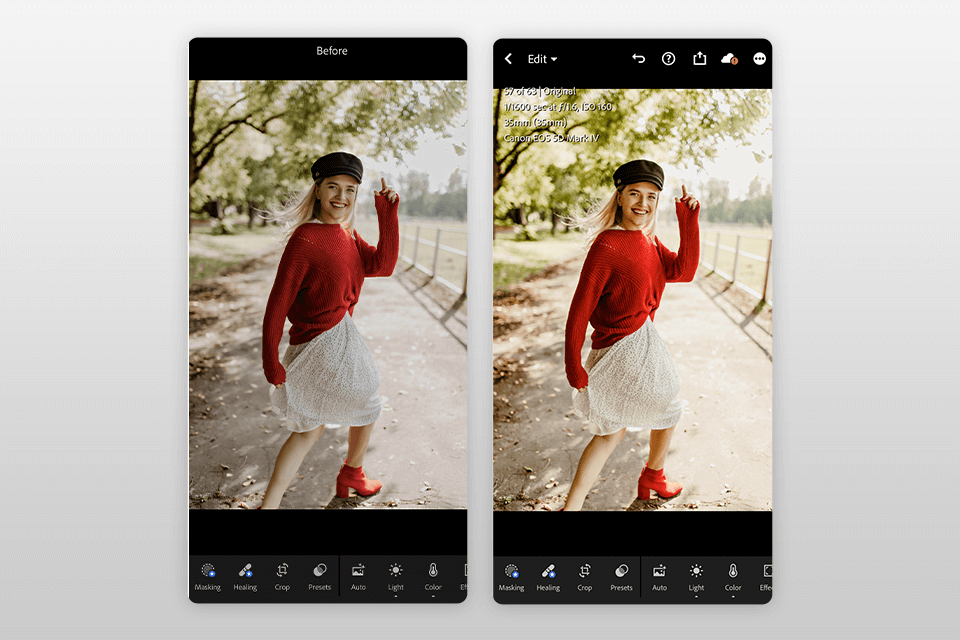 View Original Lightroom – How To See Lightroom Original – PEKB
Method 2: The Slightly Less Easy Way
Okay, so maybe you're not in the Develop module. Maybe you're in the Library module, or maybe you're lost in the vast, confusing world of Lightroom's menus. No problem! Just right-click on your image, and you'll see an option that says, "Go to Lightroom Classic > Original Photo." Click that, and you'll be taken straight to the original photo in the Develop module. See? I told you we'd figure this out!
But wait, there's more!
You might be wondering, "Hey, what if I want to see the original photo and make some edits?" Well, my friend, you can do that too! Just make sure you're in the Develop module, and then click on that filmstrip icon I told you about earlier. But this time, hold down the Alt (or Option on a Mac) key while you click it. This will open the original photo in a new tab, and you can edit it to your heart's content without worrying about losing any changes you've already made.
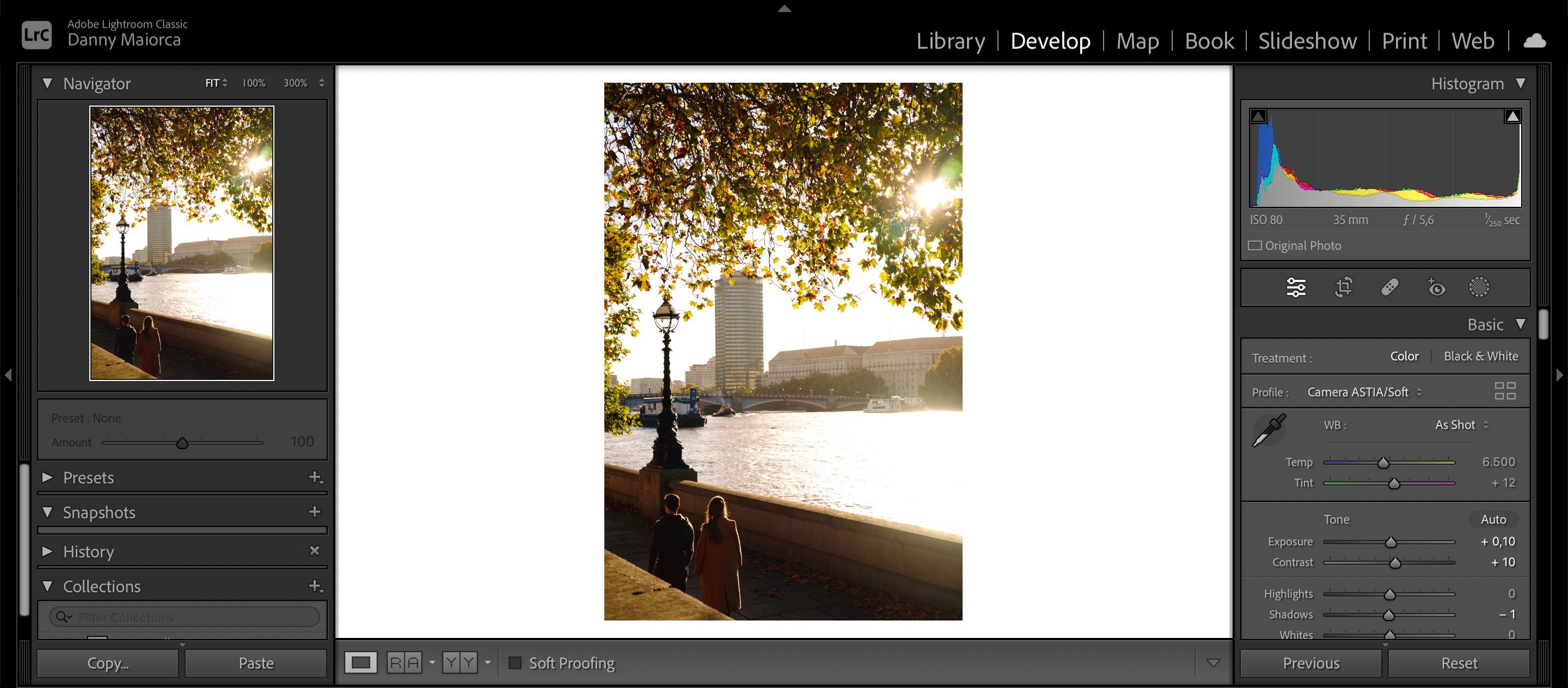 How to Compare Lightroom Edits to the Original Image
And there you have it!
You're now a certified original photo-seeing machine! I hope this little guide helped you out, and I hope you're feeling like a total Lightroom rockstar. Remember, the key to having fun with Lightroom is to experiment, play around, and not be afraid to make mistakes. After all, every mistake is just a stepping stone to learning something new!
So go forth, photo enthusiast, and conquer the world of Lightroom! And hey, if you ever get stuck again, just remember: Lightroom's like a fancy cocktail, and you're the one ordering the beer. You've got this!
