How To Set Home Address On Google Maps

Hey there, tech-savvy explorer! Ever found yourself in a 'Where am I?' moment, only to realize you've been so engrossed in your surroundings that you've lost track of your hom...
Hey there, tech-savvy explorer! Ever found yourself in a 'Where am I?' moment, only to realize you've been so engrossed in your surroundings that you've lost track of your home address? Fret not, for Google Maps has got your back! Today, we're going to make your life a whole lot easier by showing you how to set your home address on Google Maps. Let's dive in!
Why Bother Setting Your Home Address?
You might be thinking, "Why go through the hassle of setting my home address when I can just type it in whenever I need it?" Well, friend, let me tell you, setting your home address on Google Maps is like having your very own personal GPS fairy. It makes your life a breeze in more ways than one.
First off, it's a time-saver. No more typing in your address every time you want to check traffic, find nearby restaurants, or plan a route. Secondly, it's a life-saver. In case of emergencies, having your home address pre-set can help first responders reach you quicker. And lastly, it's just plain convenient. From finding the best pizza place nearby to planning your commute home, having your home address set makes your life run smoother than a well-oiled machine.
Must Read
Let's Get Started!
Alright, enough chit-chat. Let's roll up our sleeves and get this show on the road. Here's how you can set your home address on Google Maps, both on your computer and your phone.
On Your Computer
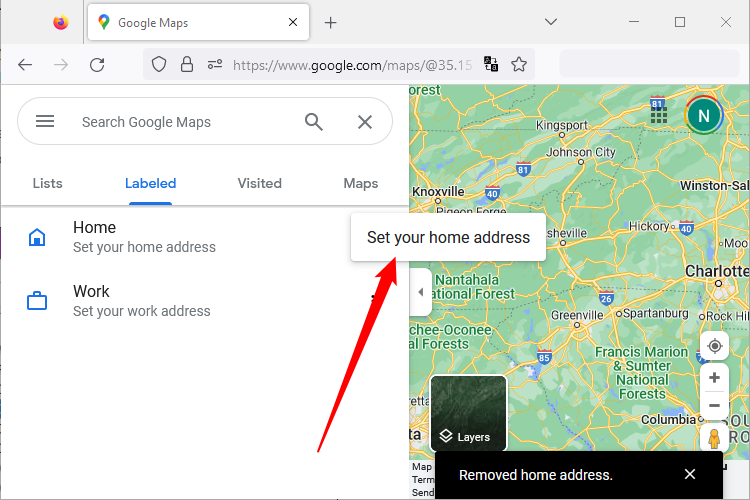
First things first, make sure you're logged into your Google account. Then, head on over to Google Maps. Once you're there, here's what you do:
 How to Change Your Home Address on Google Maps | Beebom
- Click on the three horizontal lines (called a 'hamburger menu') in the top left corner.
- Scroll down and click on 'Your places'.
- Click on 'Home'.
- Enter your home address and click 'Save'.
Et voilà! Your home address is now set on Google Maps.
On Your Phone
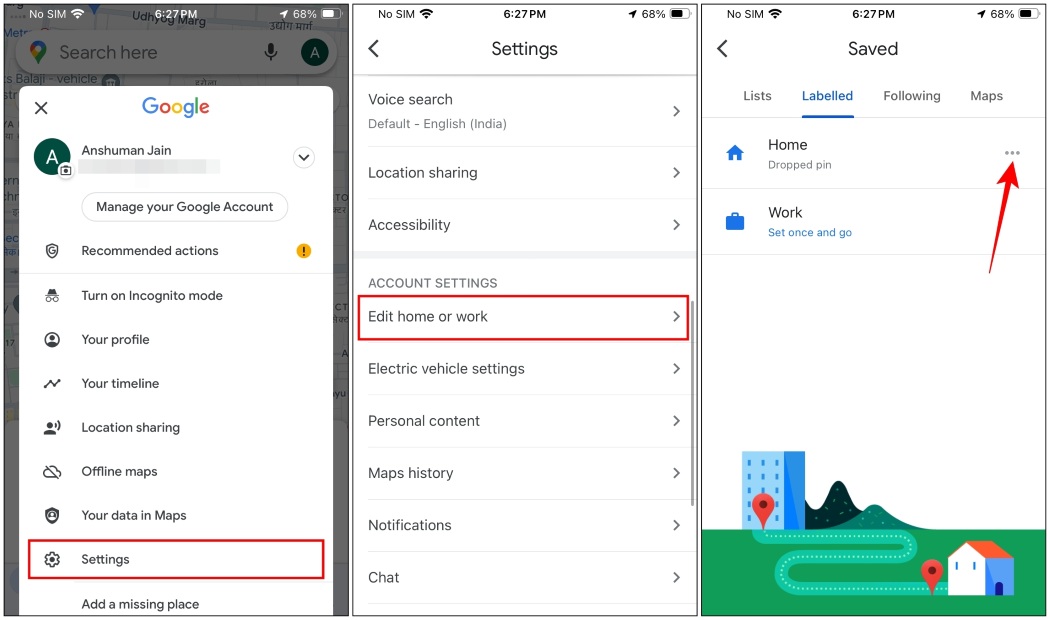
Setting your home address on your phone is just as easy. Here's how you can do it:
- Open the Google Maps app on your phone.
- Tap on your profile picture or initial in the top right corner.
- Tap on 'Settings' at the bottom of the menu.
- Tap on 'Home'.
- Enter your home address and tap 'Save'.
And there you have it! Your home address is now set on Google Maps, ready to make your life a whole lot easier.
 How to Change Your Home Address on Google Maps | Beebom
But Wait, There's More!
Setting your home address is just the beginning. Google Maps has a whole host of features that can make your life a whole lot more fun. From finding the best places to eat to discovering hidden gems in your neighborhood, Google Maps is your key to a world of adventure. So, go ahead, explore, and make every day an adventure!
And remember, every time you use your home address on Google Maps, you're not just making your life easier, you're also making it a whole lot more fun. So, go on, give it a try. You've got nothing to lose and a whole world to gain!
Happy exploring, and until next time, keep your maps open and your spirit adventurous!
