How To Take A Screenshot Of Desktop

Ever found yourself staring at your desktop, wishing you could capture that hilarious meme your friend just sent, or that perfect game score you've been bragging about? Or may...
Ever found yourself staring at your desktop, wishing you could capture that hilarious meme your friend just sent, or that perfect game score you've been bragging about? Or maybe you're trying to troubleshoot a tech issue and your IT buddy asks for a screenshot. Fret not, my friend! Taking a screenshot of your desktop is as easy as pie. Let's dive in, shall we?
Why Bother with Screenshots?
Alright, let's start with the why. Screenshots are like the Polaroids of the digital age. They're instant, they're tangible (well, sort of), and they're a fantastic way to communicate what's happening on your screen. Whether you're explaining a tech glitch, sharing a funny moment, or keeping a record of your gaming prowess, screenshots are your best friend.
Think of it like this: you're at a party, and your friend tells a hilarious joke. You laugh, but you know you'll forget it by tomorrow. A screenshot is like having a little note in your pocket to remind you. Or maybe you're trying to explain how to get to your place. A screenshot is like drawing a little map for your friend.
Must Read
Meet Your Trusty Screenshot Tools
Now that we've established why screenshots are awesome, let's meet the tools that make them happen. Depending on your operating system, you've got a few options. Let's keep it simple and focus on the most common ones: Windows, macOS, and Chrome.
Windows: The PrtScn Button
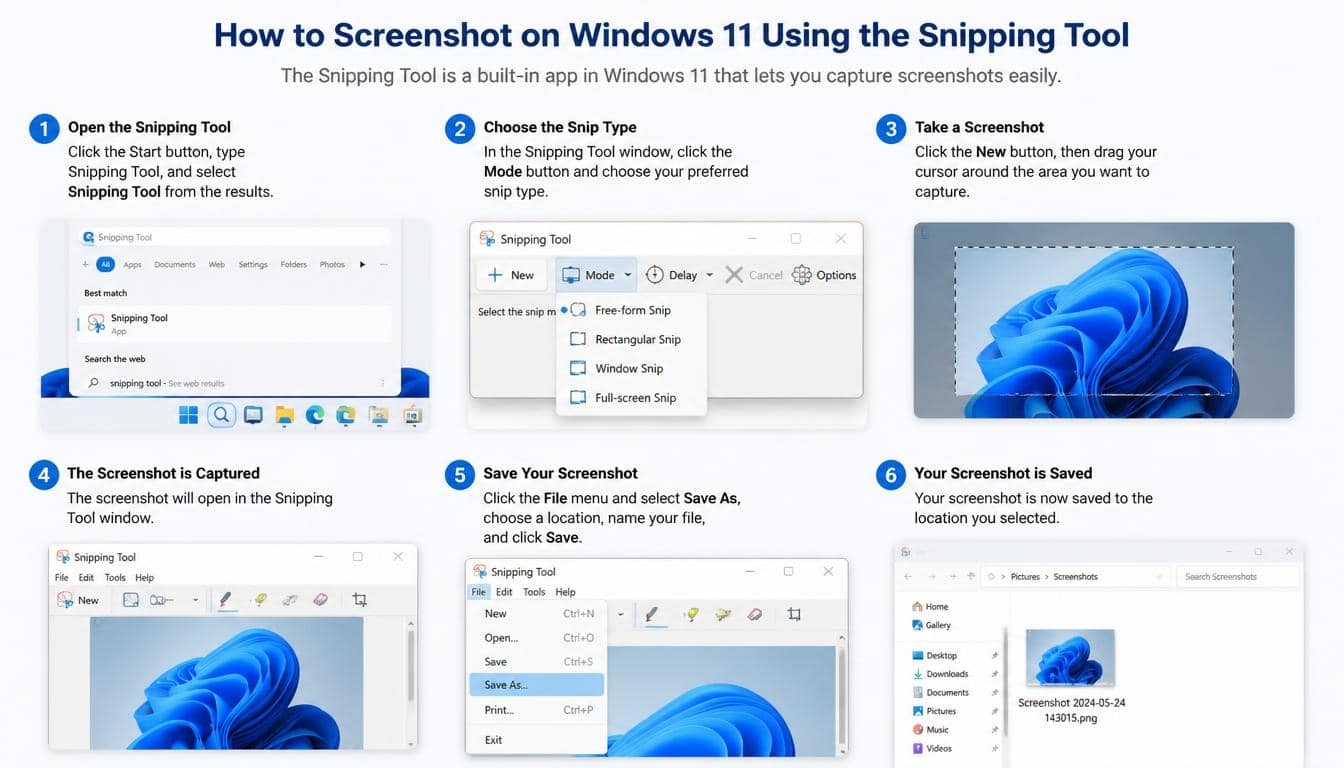
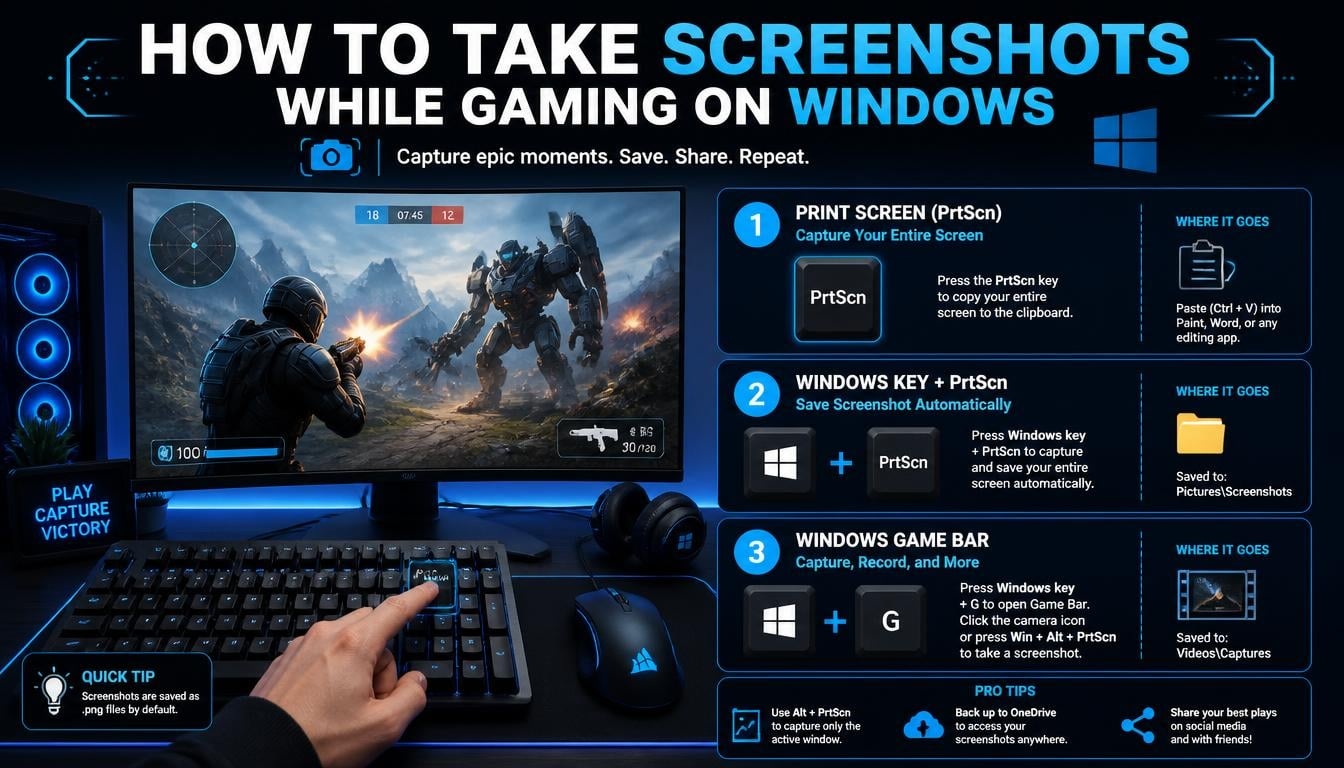
Windows users, listen up! Your trusty keyboard has a secret weapon: the PrtScn (Print Screen) button. Pressing this bad boy captures your entire screen and copies it to your clipboard. From there, you can paste it into any image editing software like Paint or Photoshop. Easy peasy!
 How to Screenshot on Windows: A Complete Guide to Capturing Your Screen
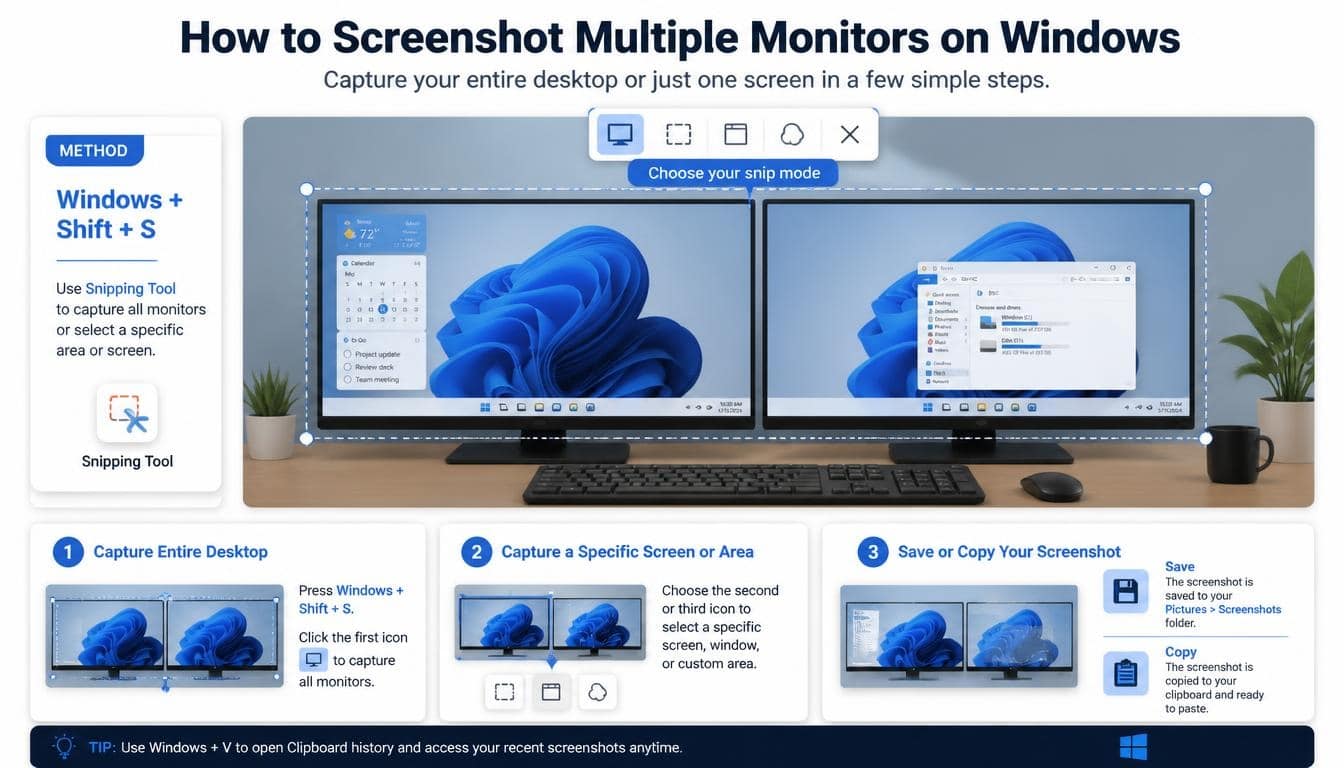
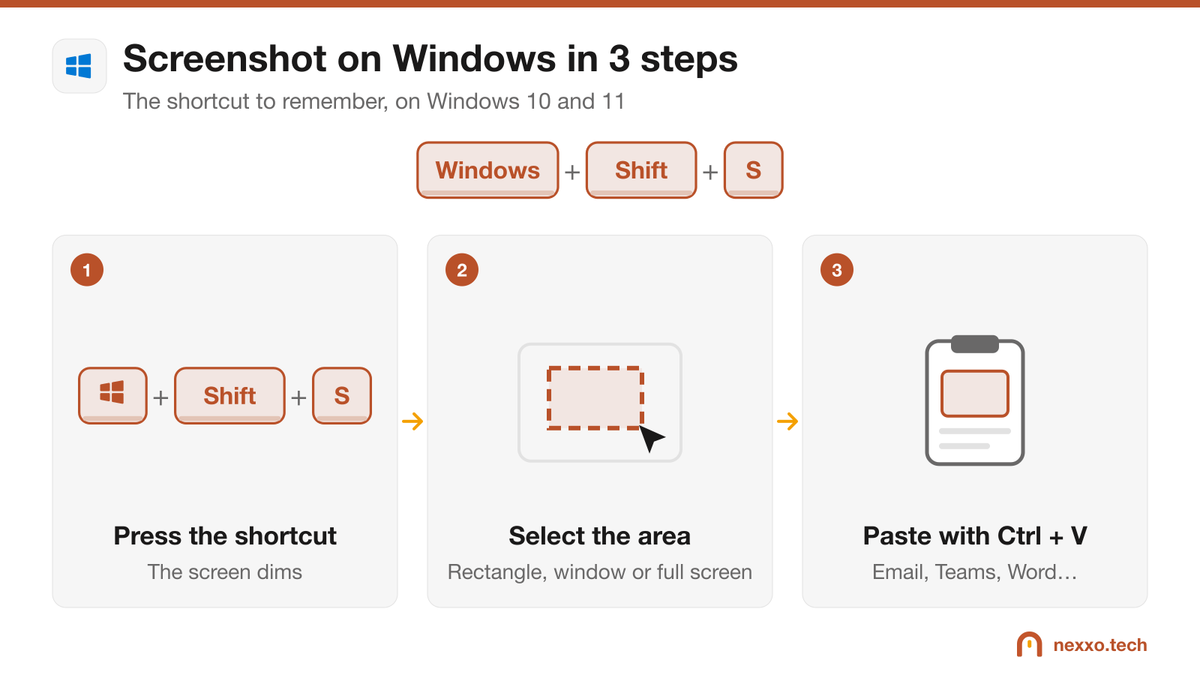
But wait, there's more! If you want to save your screenshot directly to a file, press PrtScn + Windows key + Shift + S. This will bring up a crosshair cursor, allowing you to select the area you want to capture. The screenshot will then be saved to your clipboard, ready to paste wherever you like.
macOS: The Command + Shift + 3 Trick
macOS users, your shortcut is just as simple. Press Command + Shift + 3, and your Mac will snap a picture of your entire screen, saving it as a PNG file on your desktop. If you want to capture a specific window, press Command + Shift + 4, then drag the crosshair to select the area you want. The screenshot will be saved to your desktop, just like before.
 How to Screenshot on Windows: A Complete Guide to Capturing Your Screen
Chrome: The Screenshot Extension
If you're a Chrome user, there's a nifty extension called "Full Page Screen Capture" that's perfect for grabbing entire webpages. It's like taking a snapshot of a really long roll of film - you get the whole thing, not just a tiny strip. Just click the extension's icon in your toolbar, and it'll save the screenshot as a PDF.
Editing Your Screenshots
So, you've taken your screenshot. Now what? Well, you could just send it as is, but where's the fun in that? That's where image editing software comes in. Whether it's Paint, Photoshop, or an online tool like Canva, these programs let you crop, annotate, and jazz up your screenshots to your heart's content.
 How to Take a Screenshot on Windows: 6 Easy Ways (2026)
Think of it like this: you've taken a great photo, but it needs a little tweaking. You straighten the horizon, adjust the brightness, and add a cute filter. Your screenshot is the same - it might need a little editing to make it perfect.
You're a Screenshot Superstar!
And there you have it! You're now a screenshot superstar, ready to capture and share anything that catches your eye. Whether you're troubleshooting tech issues, sharing funny moments, or keeping records of your gaming glory, screenshots are your new best friend.
So go forth, screenshot enthusiast! The digital world awaits, and it's never been easier to capture. And remember, every screenshot is a little piece of digital history. So snap away, and enjoy the ride!
