How To Update My Google Chrome Browser

Hey there, tech-savvy friend! Let's chat about something that's super important, yet often overlooked - updating your Google Chrome browser. I know, I know, it's not as exciti...
Hey there, tech-savvy friend! Let's chat about something that's super important, yet often overlooked - updating your Google Chrome browser. I know, I know, it's not as exciting as the latest memes or cat videos, but bear with me. We'll make this fun, I promise!
Why Bother Updating, You Ask?
Well, imagine your browser is like your favorite pair of jeans. You love them, they're comfortable, but after a while, they start to fray at the edges, right? Updates are like that new pair of jeans - they keep your browser looking sharp, running smoothly, and most importantly, safe from those pesky cyber-baddies.
Think of it this way, every time you update, you're giving your browser a little makeover. It gets new features, improved performance, and most importantly, security patches. These patches fix any holes that sneaky hackers might try to exploit. So, updating is like giving your browser a cool new haircut and a stylish wardrobe - it's a win-win!
Must Read
Alright, Alright, I'm Convinced. How Do I Update?
Updating your Google Chrome browser is as easy as pie. Here's a step-by-step guide that's so simple, even your grandma could follow it (and trust me, if she can do it, anyone can!).
On a Computer
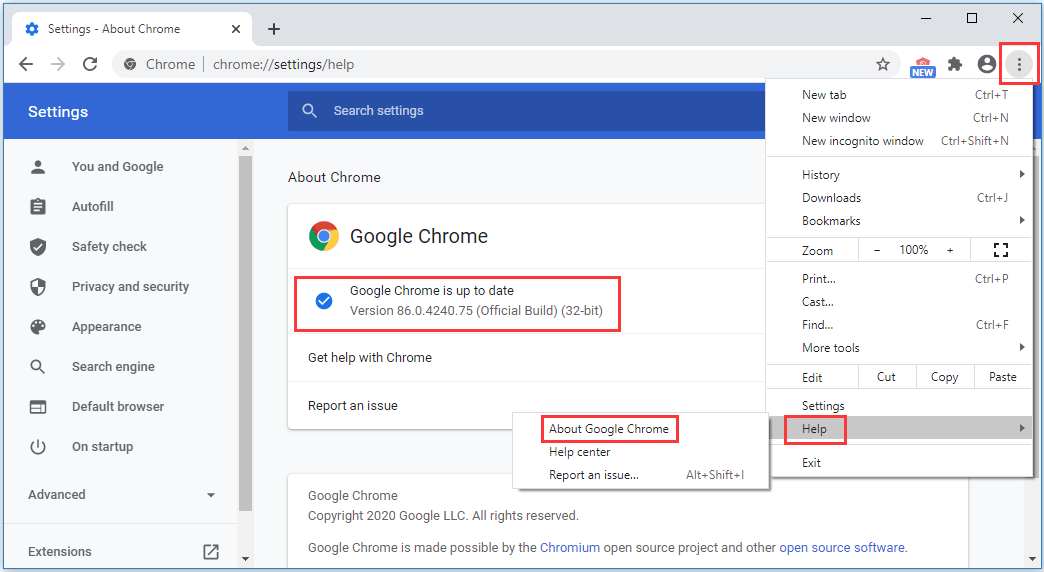
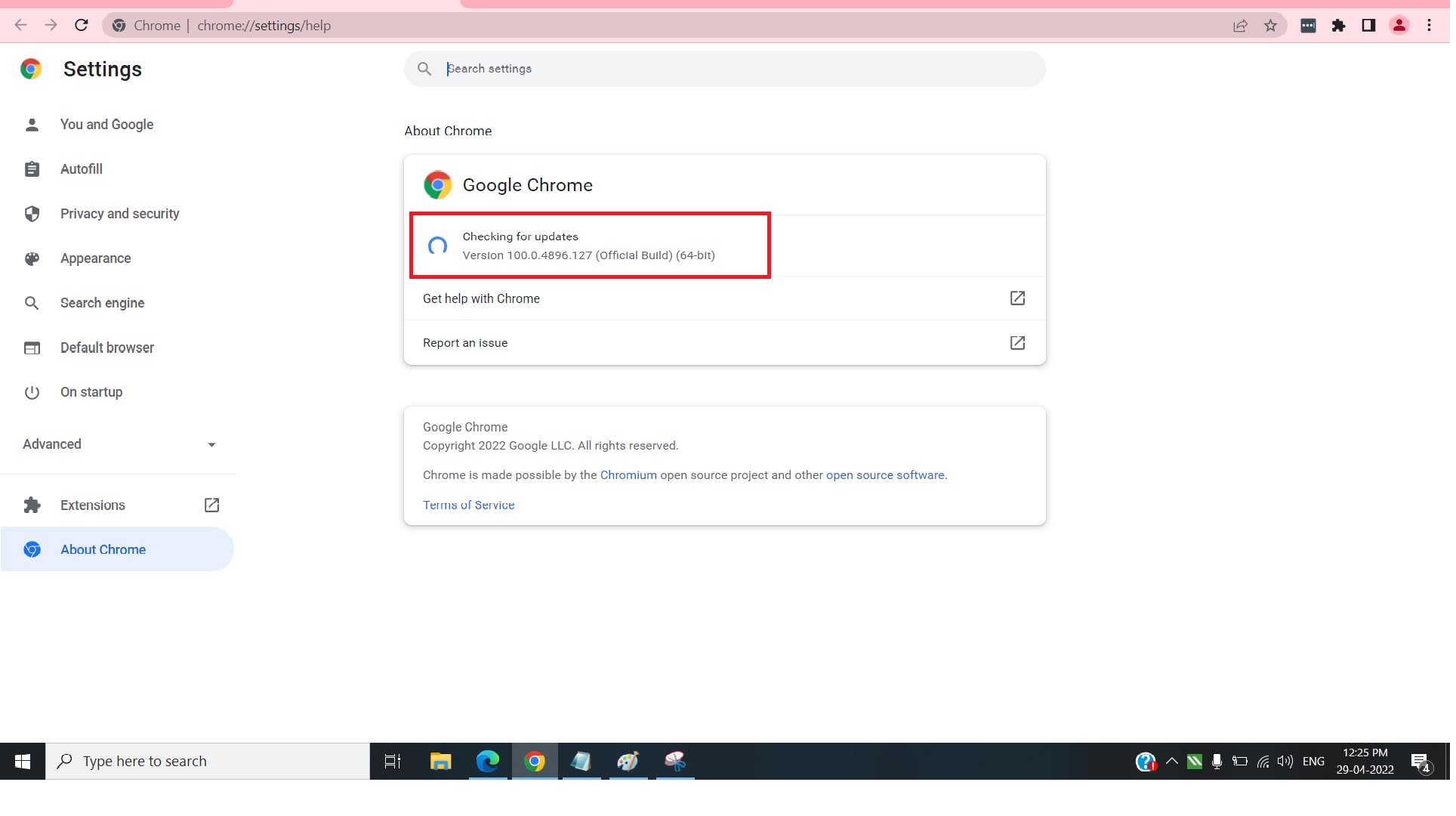
First, open up your Chrome browser. See that little three-dot menu at the top-right corner? Click on it. It's like the secret door to a world of settings and options. Now, look for the 'Help' option and click on it. A dropdown menu will appear, and you'll see 'About Google Chrome' at the bottom. Click that, and voila! Chrome will start checking for updates automatically.
If there's an update available, it'll download and install itself. You might need to restart Chrome for the changes to take effect. But don't worry, it'll tell you when it's ready. And if you're really lucky, you might even get a cute little animation while it's updating. Isn't technology wonderful?
 How to manually force Google Chrome to update itself
On a Mobile Device
Updating Chrome on your mobile device is just as easy. For Android, tap on the three-dot menu, then 'Settings', then 'About Chrome'. For iOS, tap on the three-dot menu, then 'Settings', then 'Help & Feedback', then 'About Chrome'. In both cases, Chrome will check for updates and install them if available.
And there you have it! You're now the proud owner of the latest and greatest version of Google Chrome. Isn't that exciting? You're like a kid on Christmas morning, unwrapping the latest tech toy!
But Wait, There's More!
Now that you've updated your browser, let's talk about extensions. Extensions are like the cool accessories that make your browser even more awesome. They can block ads, help you manage your passwords, or even turn your browser into a virtual pet (yes, that's a thing!).
 What Is the Google Chrome OS? | CitizenSide
To find extensions, click on that three-dot menu again, then 'More tools', then 'Extensions'. You'll see a list of extensions you already have, and a search bar to find new ones. Be careful when choosing extensions, though. Make sure they're from a trusted source and have good reviews. You don't want to accidentally install a browser version of malware, do you?
You've Done It! Now Go Forth and Surf the Web!
And there you have it, folks! You've successfully updated your Google Chrome browser and maybe even found some cool new extensions. You're now ready to surf the web with the speed, security, and style of a seasoned pro.
So, the next time you see that little update notification, don't ignore it. Embrace it! It's like a little gift from the tech gods, keeping your browser safe and sound. And remember, updating your browser is like giving it a hug - it might not seem like much, but it means the world to your browser.
Now, go forth and enjoy the interwebs, my friend! And remember, the world of tech is always changing, so keep those updates coming. Your browser (and your online safety) will thank you!
