How To Use An Ethernet Cable On A Mac

Alright, folks, let's talk about something that's been around since the dawn of the internet but still manages to confuse some of us - the humble Ethernet cable. You know, tha...
Alright, folks, let's talk about something that's been around since the dawn of the internet but still manages to confuse some of us - the humble Ethernet cable. You know, that thing that looks like a giant, tech-savvy earthworm, wriggling its way into our homes and offices. Today, we're going to tackle this beast and learn how to use it on a Mac, without getting tangled in a web of tech jargon.
Why Ethernet, You Ask?
Imagine Ethernet as the reliable, old friend who always shows up with a six-pack of beer (or soda, if you're not into the whole alcohol thing) when you're having a party. He's not flashy, he doesn't promise the world, but he's consistent. He's there when you need him, and he never lets you down. That's Ethernet for you. It's reliable, fast, and it won't suddenly disconnect because your neighbor's Wi-Fi password is '12345678'.
Gathering Your Tools
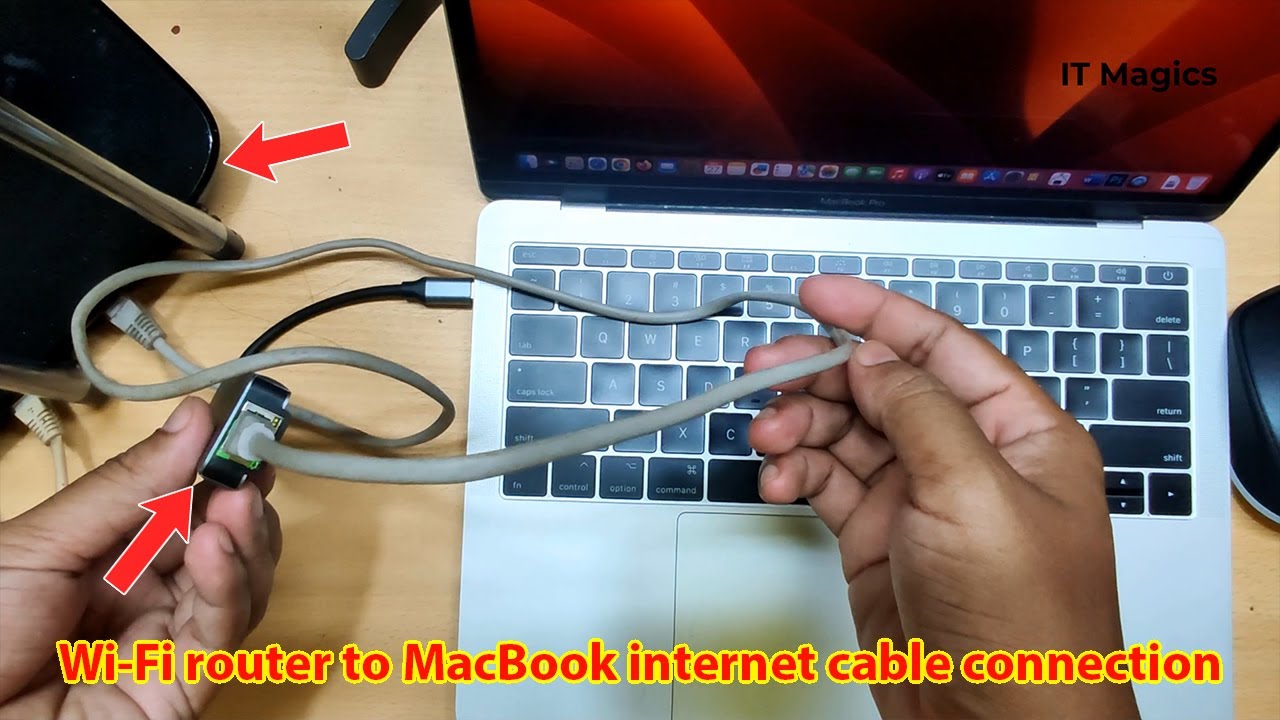
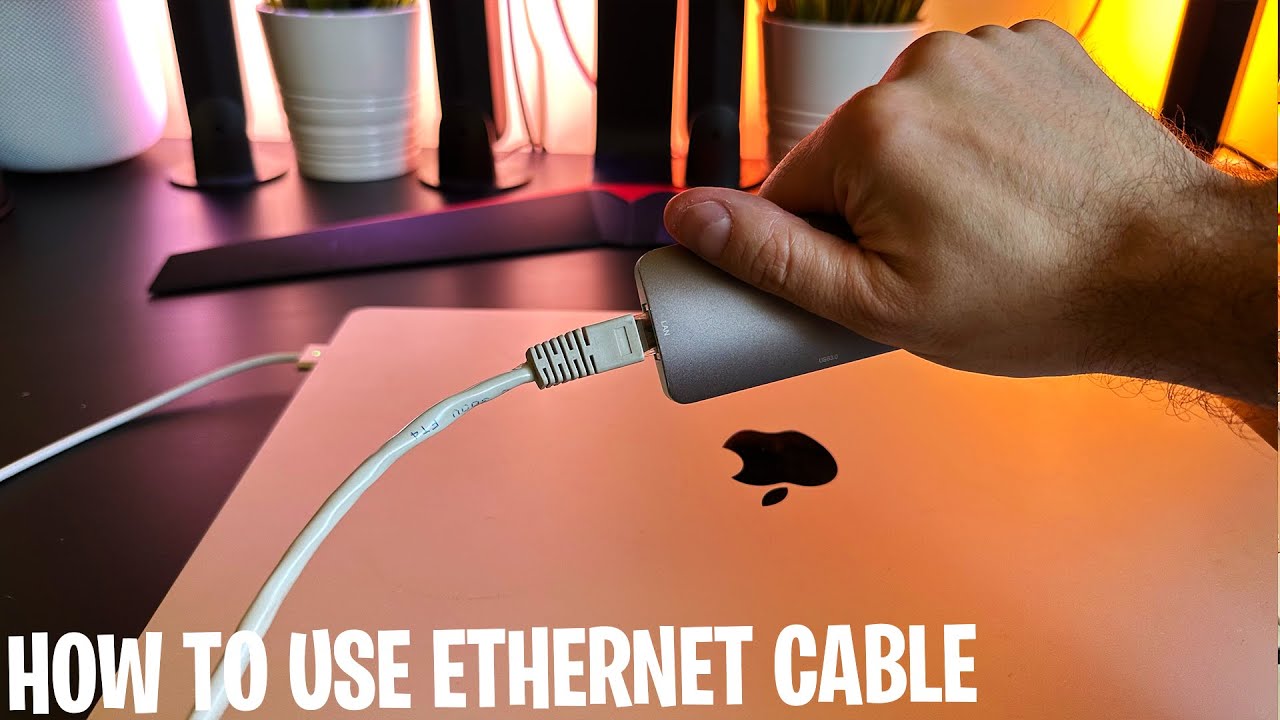
Before we dive in, let's make sure you've got everything you need. You'll need an Ethernet cable, of course. If you're not sure what one looks like, imagine a USB cable that's had one too many and decided to grow out its hair. You'll also need a Mac, obviously. And if your Mac is a MacBook, you'll need an adapter to convert the Ethernet cable's big, fat end into something your MacBook can handle. Think of it like a translator for tech languages.
Must Read
Plugging In: The Big Moment
Now, let's get down to business. First, you'll want to find an Ethernet port on your Mac. It's that little hole that looks like it's been waiting for your cable all its life. If you're using a MacBook, you'll need to plug in your adapter first, then connect the Ethernet cable to that.
Once you've got the cable plugged in, you might think that's it. But hold your horses, partner. We're not done yet. Your Mac needs to know that you've just given it a new, super-fast highway to the internet. So, let's tell it.
Telling Your Mac the Good News
Click on the Wi-Fi icon in your menu bar. It's that little antenna-looking thing. If you can't see it, you can always find it in System Preferences > Network. Once you've clicked on it, you'll see a list of networks. At the bottom of this list, you should see 'Ethernet'. Click on it.
 How To Use Ethernet Cable Windows 10 - Dibujos Cute Para Imprimir
Now, you should see a little gear icon next to 'Ethernet'. Click on that, and then click 'Make Service Idle'. This tells your Mac to stop using Wi-Fi and start using Ethernet. It's like telling your Mac to switch from a slow, bumpy bus to a smooth, speedy train.
Troubleshooting: When Ethernet Acts Up
Alright, so you've done everything right, but your Mac is still acting like it's stuck in traffic. What gives? Well, there are a few things you can check.
First, make sure your Ethernet cable is properly plugged in at both ends. Sometimes, these things can wiggle loose, especially if you've got a curious cat or a mischievous toddler running around. If the cable is in, but your Mac still isn't happy, try using a different Ethernet cable. Sometimes, cables can go bad, just like anything else.
 How to Connect a Mac to a Router
If you're still having trouble, it might be time to restart your Mac. Sometimes, all it needs is a fresh start. And if that doesn't work, it might be time to call in the big guns - Apple Support. But don't worry, you've got this. You're a tech hero now, remember?
Enjoying Your New, Super-Fast Internet
And there you have it, folks! You've just learned how to use an Ethernet cable on a Mac. Now, go forth and enjoy your new, super-fast internet. Whether you're streaming movies, gaming, or just browsing the web, Ethernet is your new best friend. And remember, if anyone asks, you didn't learn this from a stranger on the internet. You learned it from a friend. A friend who knows all about tech and likes to tell stories.
Until next time, stay tech-savvy, and happy surfing!
