How To Use Subtract Function In Excel

Hey there, Excel whiz! Grab your coffee, let's chat about something that's been bugging you - that little minus sign in Excel. You know, the one that's been staring at you, da...
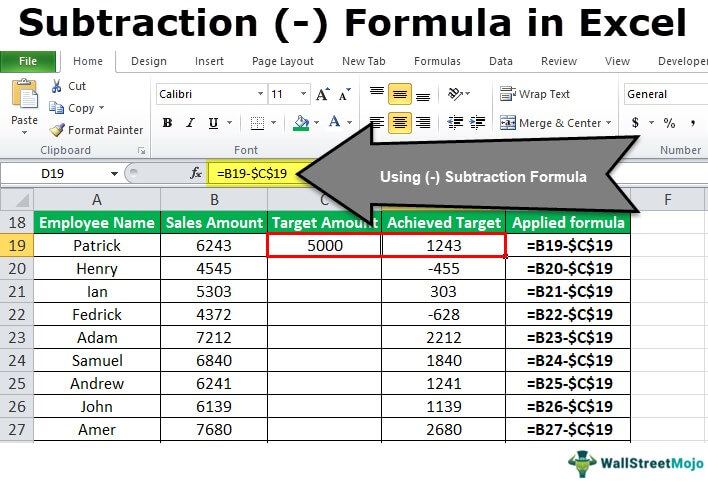
Hey there, Excel whiz! Grab your coffee, let's chat about something that's been bugging you - that little minus sign in Excel. You know, the one that's been staring at you, daring you to use it. Well, today's the day we tackle that subtract function together. Let's dive in, yeah?
First Things First: The Basics
Alright, so you've got your numbers, right? Let's say you've got 10 apples and you want to find out how many you've got left after your sneaky squirrel friend helped himself to 3. You want to use the subtract function, but where do you start?
Well, first off, you've got to know that Excel loves to hide things. It's like that friend who hides the remote because they know you're about to change the channel. But don't worry, we'll find it together. Look at the top left corner of your screen, see that little 'fx'? That's our friend. Click on it, and boom! Welcome to the world of functions.
Must Read
Meet the Subtract Function
Now, you're in the function library. It's like a big, scary library, but don't worry, we're just here for one book - the subtract function. It's called 'MINUS' in Excel's language. See it? Click on it, and let's get this party started.
But wait, before you go clicking that 'OK', let's talk about what this function needs. It's like inviting friends over for dinner - you need to know who's coming. In this case, it's two numbers. One's the number you've got, and the other's the number you're taking away. Make sense?
Let's go back to our apple example. You've got 10 apples, and you want to know how many you've got left after the squirrel took 3. So, in the first box that says 'Number1', you put your 10. In the second box, 'Number2', you put your 3. Then, click that 'OK' button, and watch the magic happen.
 How to Subtract In Excel - Earn and Excel
Let's Get Fancy: Using Cells
Now, you're probably thinking, "Hey, that's all well and good, but what if my numbers aren't just sitting there, waiting for me to type them in?" Well, my friend, that's where cells come in. Cells are like little boxes where you can put your numbers. And guess what? You can use them in the subtract function too!
Let's say your 10 apples are in cell A1, and your sneaky squirrel's 3 apples are in cell B1. You can just click on those cells when Excel asks for your numbers. It's like telling Excel, "Hey, go check out that cell over there, and do your magic." And boom! Excel subtracts the number in B1 from the number in A1, and puts the result right where you want it.
And There's More!
But wait, there's more! (I know, I sound like an infomercial, but bear with me.) You can also use the subtract function in a formula. It's like giving Excel a little recipe to follow. You start with an equals sign (=), then you tell Excel what to subtract, and finally, you tell it where to put the result.
So, if you want to put the result of your apple subtraction in cell C1, you'd type '=A1-B1' and press enter. And just like that, Excel does the math, and you've got your answer. Isn't that neat?
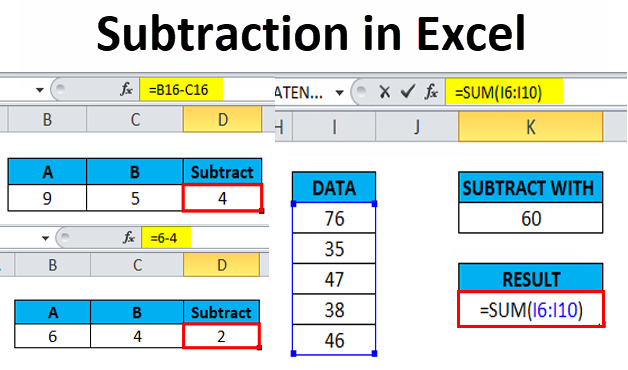 Subtraction in Excel | How To Use Subtraction Operator in Excel?
But Wait, There's a Catch
Now, you might be thinking, "This is all great, but what if I want to subtract a number from a whole bunch of numbers? Do I have to do this one by one?" Well, my friend, that's where the 'AutoFill' feature comes in. It's like having a little helper who does all the work for you.
Let's say you've got a whole list of numbers in column A, and you want to subtract a number from each one. You can do that with just one formula! You start with your equals sign (=), then you tell Excel to subtract your number from the first cell in column A (let's say A1), and then you tell it to 'AutoFill'. It's like telling Excel, "Hey, do this for all the cells below this one too." And just like that, Excel does the math for every cell in that column. Isn't that something?
And That's a Wrap!
And there you have it, folks! We've tackled the subtract function together. You're now an Excel subtract function pro, ready to take on any number challenge that comes your way. So, go forth, subtract away, and remember - if you ever get stuck, just think, "What would my Excel buddy do?" And you'll be just fine.
Now, who's ready for another cup of coffee?
