Screen Recording Software For Iphone

Hey there, tech-savvy friend! Ever found yourself in a situation where you wished you could record that epic game you just played on your iPhone, or maybe show off your mad co...
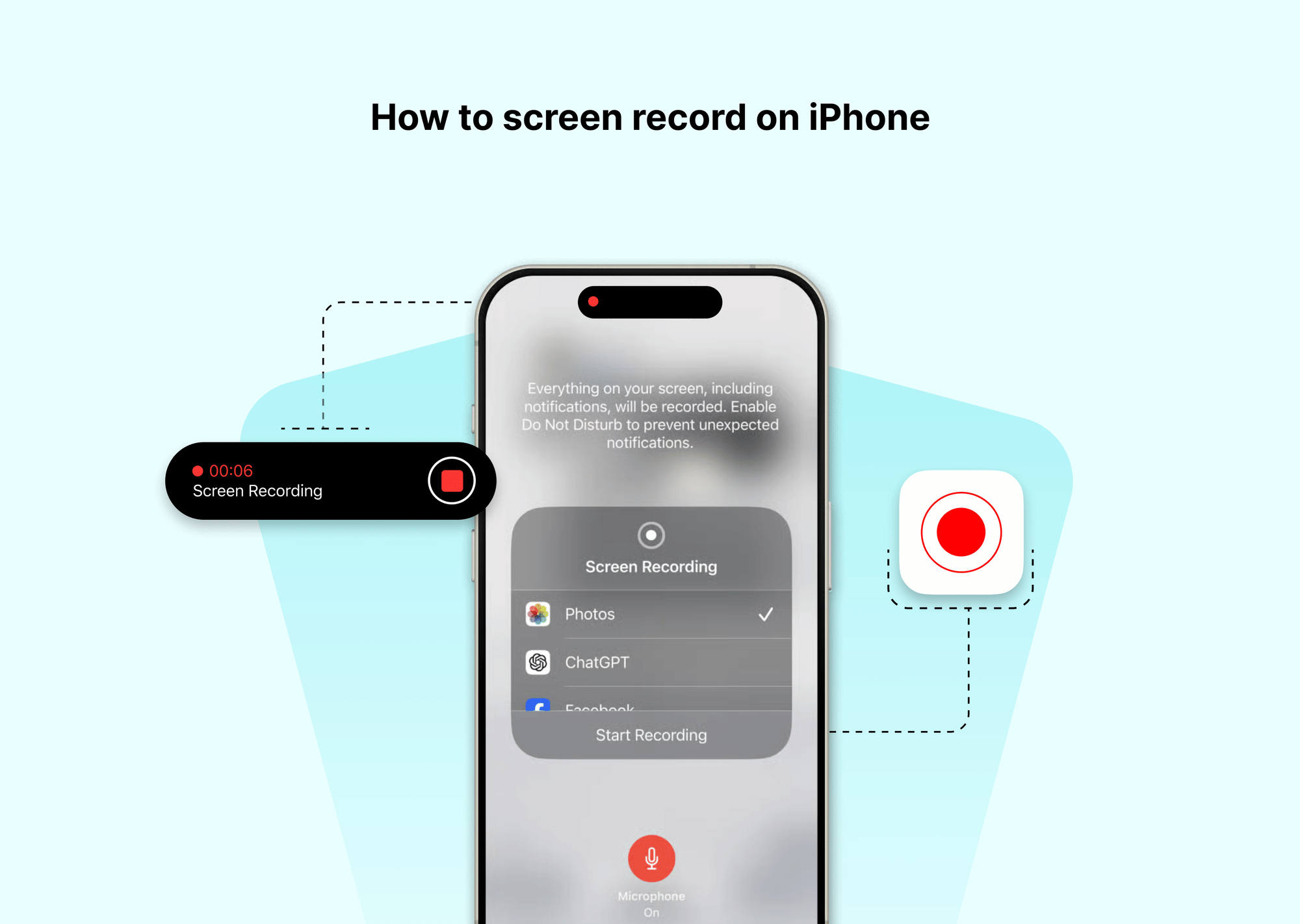
Hey there, tech-savvy friend! Ever found yourself in a situation where you wished you could record that epic game you just played on your iPhone, or maybe show off your mad cooking skills with a step-by-step video? Well, guess what? You're in luck! Today, we're going to chat about some awesome screen recording software for your iPhone that'll make you feel like a total pro.
Why Bother with Screen Recording?
You might be thinking, "Why would I want to record my screen? It's not like I'm making the next big YouTube hit." Well, let me tell you, there are tons of reasons why screen recording can be your new best friend. From creating tutorials, to capturing hilarious gaming moments, or even just showing off your latest app obsession, screen recording is the way to go.
Plus, think about it - have you ever tried to explain how to do something on your phone to a friend or family member? It's like trying to teach a fish to ride a bike, right? With screen recording, you can say goodbye to those confusing phone calls and hello to crystal clear, easy-to-follow guides.
Must Read
Meet the Contenders
Alright, enough chit-chat. Let's dive into the fun stuff - the screen recording software that'll make your iPhone videos shine. We've got three fantastic options for you, so let's get started!
Option 1: QuickTime - The Oldie but Goodie
You might be surprised to find out that Apple's own QuickTime player can record your iPhone's screen. Yep, that's right! All you need is a Lightning cable to connect your iPhone to your Mac, and you're good to go. Just open QuickTime, select 'New Movie Recording', and boom - you're ready to roll.
Now, here's where it gets a little tricky. You'll need to mirror your iPhone's screen to your Mac, which means you'll see the same thing on both screens. But don't worry, once you start recording, only your iPhone's screen will be captured. Easy peasy, lemon squeezy!
 How to Screen Record on iPhone in 4 Easy Steps - Appuals
Option 2: AirShou - The Secret Weapon
Alright, listen up, because this one's a bit of a secret. AirShou is an amazing screen recording app that doesn't require a jailbreak (that's tech talk for 'modifying' your iPhone). It's super easy to use, and it even lets you record your iPhone's screen in the background while you're doing other stuff.
But here's the catch - AirShou isn't available in the App Store. You'll need to download it from a third-party source, which can be a bit of a hassle. Don't worry, though, it's totally safe and legal. Just make sure to follow the instructions carefully, and you'll be recording like a pro in no time.
Option 3: ScreenFlow - The Big Guns
Now, if you're feeling like a total tech whiz and you want to take your screen recording to the next level, then ScreenFlow is the app for you. It's got all the bells and whistles you could ever want, like adding annotations, callouts, and even green screen effects (yes, you read that right - green screen effects!).
 Screen App Recording Iphone at Mark Cox blog
But here's the thing - ScreenFlow isn't free. It'll set you back a cool $129, which might be a bit steep if you're just starting out. But if you're serious about screen recording and you want to create some truly amazing videos, then ScreenFlow is definitely worth considering.
Let's Wrap This Up!
And there you have it, folks! We've covered three fantastic screen recording options for your iPhone, from the oldie but goodie QuickTime to the secret weapon AirShou and the big guns ScreenFlow. No matter which one you choose, you're sure to have a blast recording your iPhone's screen and sharing your awesome creations with the world.
So go on, give it a try! You never know - you might just become the next big thing on YouTube. And who knows, maybe one day you'll look back on this article and think, "Wow, I remember when I first started screen recording. I've come so far!"
Until next time, happy recording!
