Squarespace How To Change The Tab Icon

Ever found yourself staring at your browser tab, thinking, "Man, this icon is so last season." Well, you're not alone. In the ever-evolving world of web design, even the tinie...

Ever found yourself staring at your browser tab, thinking, "Man, this icon is so last season." Well, you're not alone. In the ever-evolving world of web design, even the tiniest details can make a big impact. Today, we're diving into the world of Squarespace, your favorite drag-and-drop platform, to show you how to change that tab icon in a snap. Let's get started!
First Things First: What's a Favicon?
Before we dive into the how-to, let's quickly chat about favicons. Short for 'favorite icon,' these tiny images appear next to your website's URL in the browser tab. They're like your website's calling card, helping it stand out in a sea of open tabs. Think of it like choosing a profile picture for your website - you want something that's instantly recognizable and represents your brand.
Fun Fact: The Term 'Favicon' Was Coined by Microsoft in 1999
Yes, you read that right. Microsoft was the first to use the term 'favicon' to describe these little icons. Talk about a blast from the past!
Must Read
Now, Let's Get Our Hands Dirty
Alright, enough history. Let's dive into how to change that tab icon on Squarespace. Don't worry, it's as easy as pie. Promise.
Step 1: Log In and Head to Design
First things first, log into your Squarespace account. Once you're in, click on the 'Design' tab in the left-hand menu. This is where the magic happens.
Step 2: Find the 'Logo & Title' Section
Scroll down until you see the 'Logo & Title' section. This is where you'll upload your new favicon. But before you do, let's chat about size.
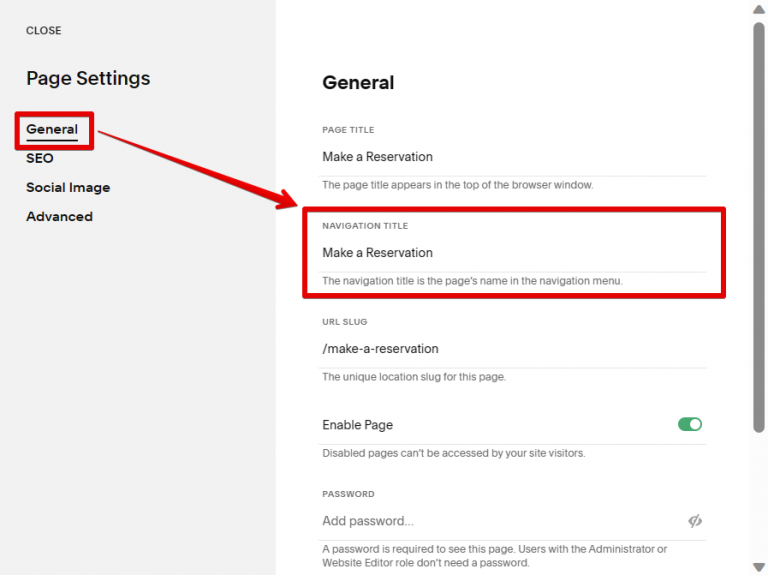 How Do I Change the Tab Title in Squarespace? - WebsiteBuilderInsider.com
Size Matters: The Perfect Favicon Dimensions
Favicons are tiny, so you'll want to make sure your image is the right size. The ideal dimensions for a favicon are 512x512 pixels. This might seem big, but trust us, it's worth it. Squarespace will automatically resize the image for you, ensuring it looks great on every device.
Pro Tip: Use PNG Format for Transparency
If your favicon has a transparent background, use a PNG file. This will ensure that the background of your icon doesn't get lost in the browser tab.
Step 3: Upload Your Favicon
Now that you've got your perfect favicon, it's time to upload it. Click on the 'Edit' button next to 'Favicon.' A window will pop up, allowing you to select your image. Once you've chosen your favicon, click 'Save.'
 How to Change Icon in Tab in Squarespace [QUICK GUIDE] - YouTube
Step 4: Preview and Publish
Before you hit publish, take a moment to preview your new favicon. Click on the 'Preview' button at the top of the page. This will open a new tab with your website, allowing you to see your new favicon in action. If you're happy with it, click 'Publish' to make it live.
And That's a Wrap!
See, we told you it was easy! Changing your tab icon on Squarespace is a quick and painless process. But remember, your favicon is more than just an icon - it's a representation of your brand. Make sure it's something you're proud to see in your browser tab.
Reflection: The Power of Small Changes
In the grand scheme of things, changing your tab icon might seem like a small change. But as we've seen, small changes can make a big impact. Whether it's updating your favicon or making a bigger change, like switching up your website's layout, remember that every change is an opportunity to improve your online presence.
So, go ahead, make that change. Your website - and your browser tab - will thank you.
