Vizio Smart Tv How To Connect To Wifi

Hey there, tech-savvy friend! So, you've just unboxed your shiny new Vizio Smart TV, and you're eager to dive into the world of streaming, right? Well, hold your horses, becau...
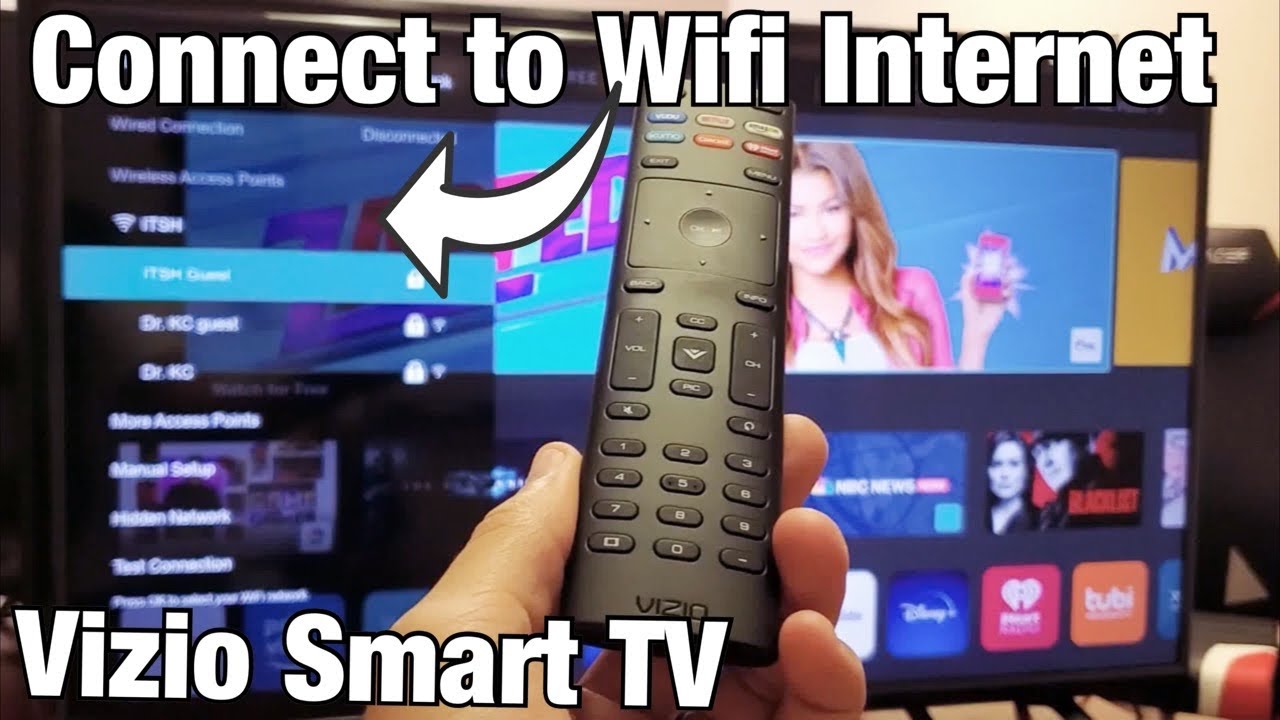
Hey there, tech-savvy friend! So, you've just unboxed your shiny new Vizio Smart TV, and you're eager to dive into the world of streaming, right? Well, hold your horses, because before you can binge-watch your favorite shows, we need to get your TV connected to the Wi-Fi. Don't worry, it's easier than trying to explain your ex's mixed signals!
Let's Get Started!
First things first, make sure your TV is turned on. I mean, it's not like it can connect to Wi-Fi if it's snoozing, am I right? Now, grab your remote and press that 'Menu' button. It's usually located at the top, looking all important and stuff.
Navigating the Menu
Once you're in the menu, use the arrow buttons to highlight 'Network' and press 'OK'. You'll see a few options pop up, but we're interested in the one that says 'Wi-Fi'. Click on that, and let's get this party started!
Must Read
Now, here's where things get a tad bit tricky. Your TV will scan for available networks. If you've got a ton of neighbors with Wi-Fi, it might take a sec. So, be patient, like when you're waiting for your coffee to brew.
Finding Your Network
Once your TV has found your network (and I hope it's not called 'Free Wi-Fi', because, well, it's not), highlight it using the arrow buttons. If your network is secured (which it should be, because, you know, privacy), you'll need to enter the password.
 How to Connect Vizio TV to Wi-Fi
Here's where you might be thinking, "Ugh, I never remember my password!" Don't worry, I've been there. Just take a deep breath, and let's figure this out together. Most Vizio remotes have a number pad on the side. Use that to enter your password. If you're using a universal remote, you might need to do some fancy button-pressing to get the numbers to appear on the screen.
Entering the Password
Alright, so you've entered your password. Now, press 'OK'. If everything goes well, your TV will connect to the Wi-Fi, and you'll see a little checkmark or a 'Connected' message. If not, don't panic! It might be a case of 'user error', as they say. Double-check that you've entered the password correctly. Sometimes, those little numbers can look an awful lot like letters, you know?
Once you're connected, your TV will probably do a little happy dance, and you'll be ready to stream to your heart's content. But wait! Before you start binge-watching, let's just make sure everything is working properly.
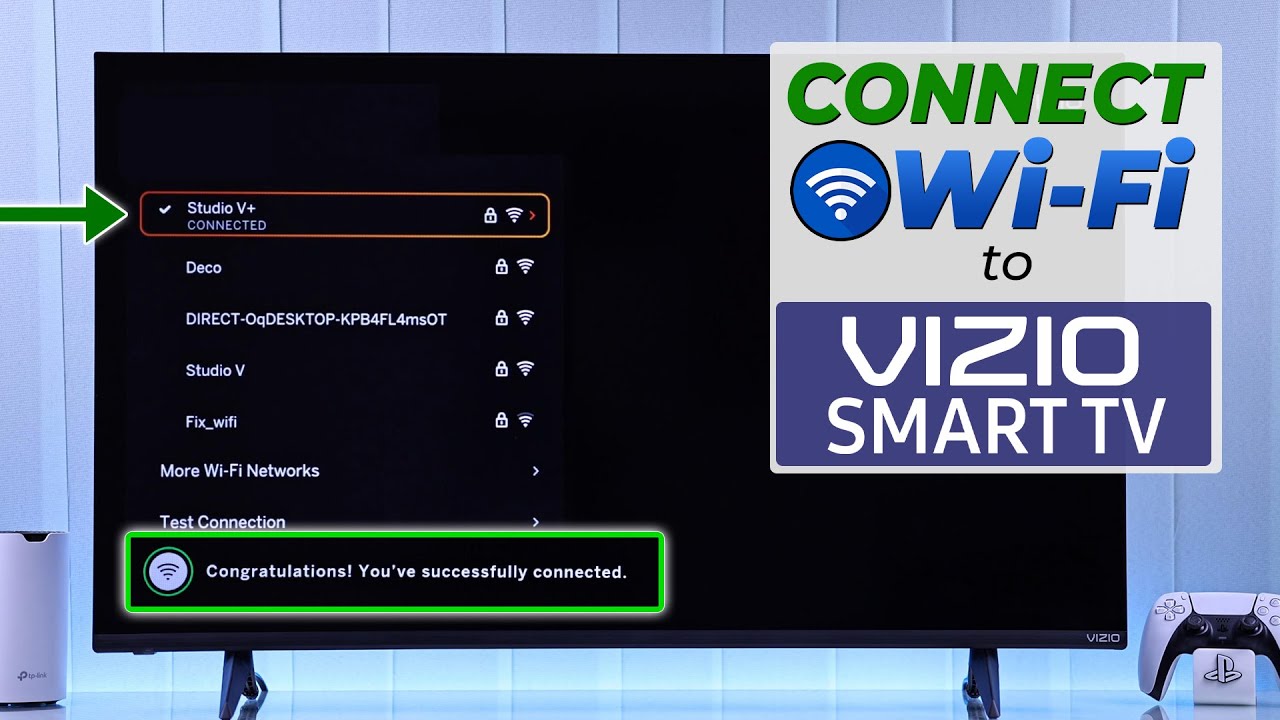 Vizio Smart TV: How To Connect To Wi-Fi Internet [With Remote] - YouTube
Testing the Connection
Head back to the 'Menu', then go to 'Network' again. This time, select 'Test Network Connection'. Your TV will do a little test, and if everything is working, you should see a message saying 'Pass'. If not, it might be time to call in the big guns - I mean, your friendly neighborhood tech support.
And there you have it! Your Vizio Smart TV is now connected to the Wi-Fi, and you're ready to stream all the movies, shows, and cat videos your heart desires. Just remember, friend, with great streaming power comes great responsibility. Don't forget to take a break and stretch those legs every now and then!
Happy streaming, and until next time, stay tech-savvy!
