What To Do When Face Id Is Not Working

Alright, so you're here because your iPhone's Face ID is playing hard to get, huh? It's like trying to convince your cat to come when you call - you know it's supposed to work...
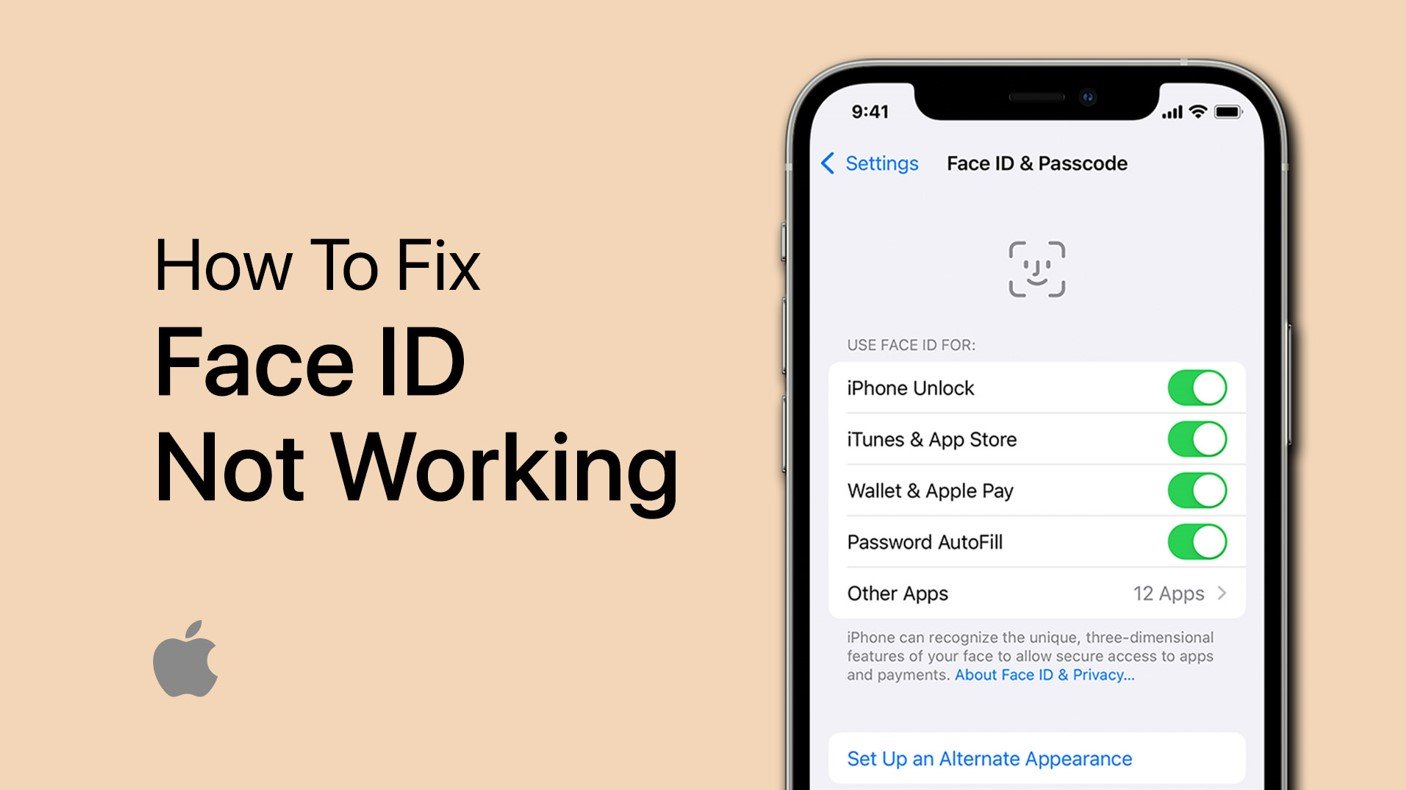
Alright, so you're here because your iPhone's Face ID is playing hard to get, huh? It's like trying to convince your cat to come when you call - you know it's supposed to work, but sometimes it's just not in the mood. Don't worry, we've all been there. Let's troubleshoot this together, shall we?
First Things First: Check the Obvious
Before we dive into the tech-deep end, let's make sure we've covered the basics. Is your phone case or screen protector blocking the TrueDepth camera? It's like trying to read a book with your thumb over your eyes - it's not gonna work. Also, is your face clean? No, I don't mean you should go wash your face (although, if you've been wearing your mask all day, maybe you should). I mean, are there any smudges or dirt on your screen? Give it a quick wipe and try again.
Let's Get a Little More Technical
Alright, now that we've ruled out the obvious, let's get a bit more technical. Is your phone up to date? Software updates often include bug fixes, so if Face ID is acting up, it might be because your phone is behind on its updates. You can check for updates by going to Settings > General > Software Update. If there's an update available, don't be shy, let your phone have its digital growth spurt.
Must Read
Next, let's make sure your face is registered correctly. Go to Settings > Face ID & Passcode (you'll need to enter your passcode here). Under 'Face ID', make sure 'iPhone Unlock' and 'iTunes & App Store' are turned on. Then, tap on 'Set Up Face ID' and follow the prompts. It's like teaching your phone to recognize your face all over again - think of it as a refresher course for your phone's memory.
 Diagnosis & Fix: What To Do If Face ID Is Not Working
When All Else Fails, Reset and Reboot
Sometimes, the best way to fix a problem is to start fresh. Try resetting your phone's settings by going to Settings > General > Reset > Reset All Settings. This won't delete any of your data, but it will reset your phone's settings to their default state. After that, give your phone a quick reboot by pressing and holding the side button (or the top button, if you've got an iPhone SE or earlier model) until the 'slide to power off' slider appears. Slide to power off your phone, then wait for about 30 seconds before turning it back on.
If none of these solutions work, it might be time to take your phone to an Apple Store or a trusted repair shop. They've got the tools and know-how to diagnose and fix any hardware issues that might be causing your Face ID troubles.
 Diagnosis & Fix: What To Do If Face ID Is Not Working
Prevention is the Best Medicine
Now that we've got your Face ID working again, let's keep it that way. Try to keep your phone's screen clean and free of smudges. If you use a screen protector, make sure it's not blocking the TrueDepth camera. And remember to keep your phone's software up to date - it's like giving your phone a regular check-up to make sure everything's running smoothly.
And there you have it, folks! You're now a Face ID troubleshooting pro. Next time your iPhone starts playing hard to get, you'll know exactly what to do. Until then, enjoy the convenience of unlocking your phone with just a glance - it's like having your own personal magic trick, every time you pick up your phone.
