Where To Change Favicon On Squarespace

So, there I was, staring at my freshly baked Squarespace website, feeling like a proud parent. I mean, it was beautiful, sleek, and everything I wanted it to be. But then, I n...
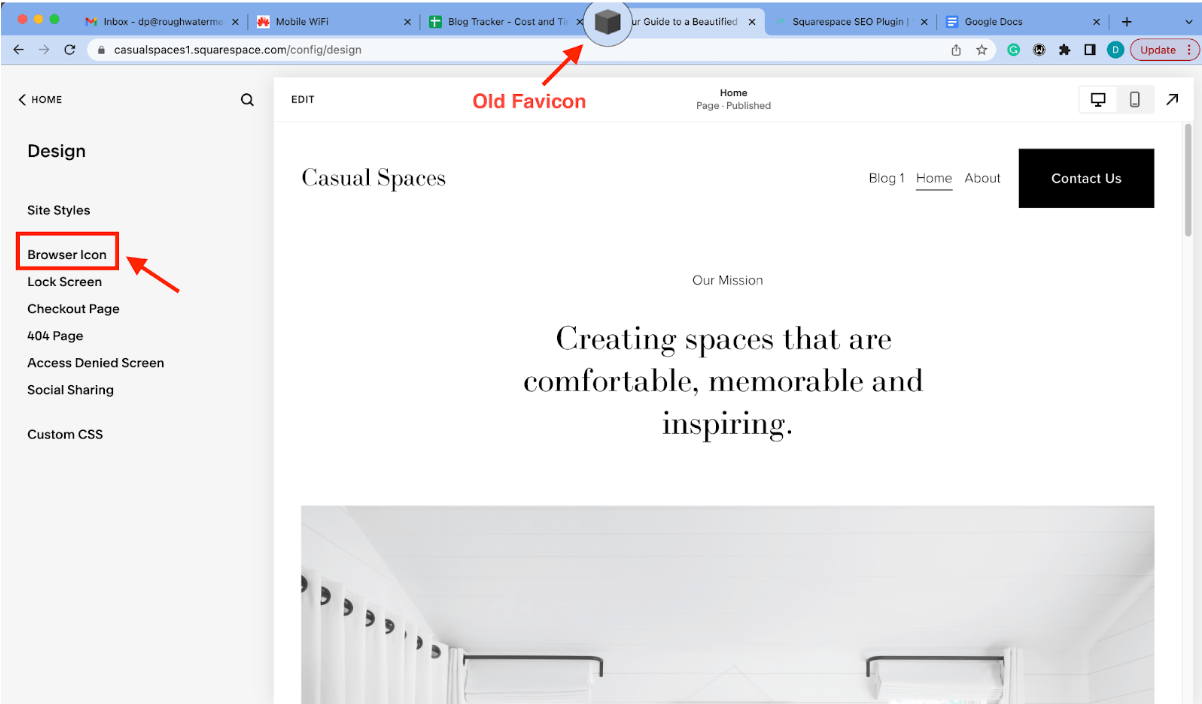
So, there I was, staring at my freshly baked Squarespace website, feeling like a proud parent. I mean, it was beautiful, sleek, and everything I wanted it to be. But then, I noticed it. That tiny, glaring detail that made my website look like it was still wearing its 'under construction' hat - the favicon. It was the default Squarespace one, and it was screaming 'amateur hour' louder than a toddler in a library.
I knew I had to change it, but where do you even start with these things? I'm not a tech whiz, just a regular Joe trying to make his mark on the digital world. So, I grabbed a cup of coffee (because, you know, adulting), and I set out on a mission to find out where to change the favicon on Squarespace.
First Things First: What's a Favicon?
In case you're new to the game like I was, a favicon is that little icon that appears next to your website's name in the browser tab. It's like your website's tiny, digital mascot. It's not just about looking cool (though, let's be real, that's a big part of it), it's also about helping your website stand out and be recognizable.
Must Read
Alright, Let's Get Down to Business
Now that we're on the same page about what a favicon is, let's dive into the nitty-gritty. Changing your favicon on Squarespace is actually pretty straightforward, once you know where to look. Here's a step-by-step guide that even a tech newbie like me can follow:
First, log into your Squarespace account. Once you're in, click on the website you want to work on. It's like choosing your favorite pair of shoes, but, you know, less exciting.
Next, you'll want to head over to the 'Settings' tab. It's usually lurking at the bottom left corner of your screen, looking all sneaky. Click on it.
Now, scroll down (or up, depending on your perspective) until you see 'Favicon'. Click on that. It's like finding a hidden treasure, but less piratey.
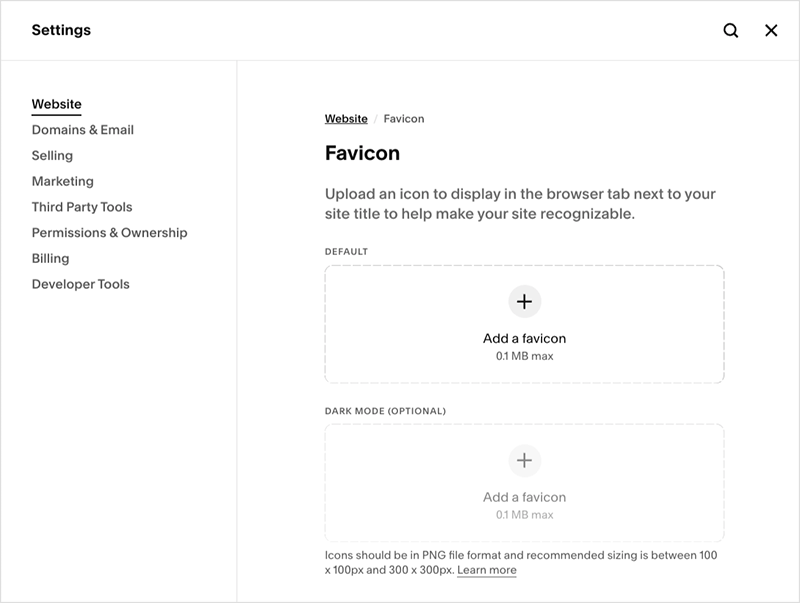 How to Add a Favicon to Squarespace (2024) — Simple Guide
Here's where the magic happens. You'll see a little square where your current favicon is (or should be). Click on it. It's like giving your website a virtual high-five.
Now, here's where you get to show off your artistic side. You can either upload a new favicon image, or use the image editor to create one. I went with the latter because, well, I'm not exactly Picasso with a mouse.
Once you've created your masterpiece, click 'Save'. Then, click 'Done'. It's like telling your website 'You're welcome' for being so easy to work with.
And there you have it! Your website now has a shiny new favicon, and you didn't even need to sell your soul to the tech gods. Well, maybe just a little bit.
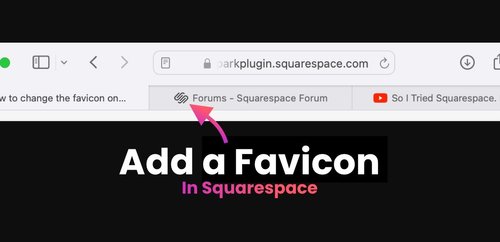 How to Change Favicon on Squarespace in 3 Easy Steps (2026)
But Wait, There's More!
Here are a few things to keep in mind when you're creating your favicon:
Size Matters: Your favicon should be a 512x512 pixel image. It's like the Goldilocks of favicons - not too big, not too small, just right.
Keep It Simple: Remember, this is a tiny icon. It's not the place to showcase your entire life story. Keep it simple and recognizable.
Test, Test, Test: Once you've created your favicon, make sure to test it on different browsers and devices. You don't want to be that person who has a favicon that only works on their mom's old laptop.
And there you have it, folks. Changing your favicon on Squarespace is as easy as pie (well, maybe not that easy, but you get the idea). So, go forth, create your favicon, and make your website stand out from the crowd. And remember, if you ever get stuck, there's always Google and a cup of coffee to help you out.
