Why Isn't My Netflix Working On My Tv

Alright, folks, let's tackle a problem that's as old as Netflix itself - why isn't my Netflix working on my TV? It's like trying to enjoy a box of chocolates but finding out t...

Alright, folks, let's tackle a problem that's as old as Netflix itself - why isn't my Netflix working on my TV? It's like trying to enjoy a box of chocolates but finding out they're all strawberry cream (yuck, who does that?).
First Things First: Check Your Connection
Imagine your Netflix subscription is like a fancy dinner reservation. You've made the call, they've noted it down, but if the line's dead, they can't seat you. So, let's check if your internet connection is the culprit. Grab your phone, open Netflix, and see if it's working there. If it is, then it's not the connection, it's your TV. If not, well, it's time to call your internet service provider and have a little chat about why your dinner reservation is MIA.
It's Not You, It's Your TV (Or Is It?)
Now, let's assume your internet is fine. It's time to give your TV a little interrogation. Is it a smart TV? If not, then it's like trying to order a pizza without a phone - you can't. You'll need a streaming device like a Chromecast, Apple TV, or a gaming console that supports Netflix. If you've got a smart TV, great! But remember, even the smartest TVs need a little TLC sometimes.
Must Read
Check if your TV is on the right input. It's like being at a buffet and picking up a plate, but then realizing you're at the wrong table. You've got the right food, just the wrong place. So, grab your remote, press the 'Source' or 'Input' button, and make sure you're on the right one (usually HDMI).
Update, Update, Update
Remember when you used to update your phone games and it would take forever? Well, your TV apps need updating too. If your Netflix app is acting up, it might just need a little update. Check your TV's settings to see if there are any updates available. It's like giving your TV a little makeover - it might not look different, but it'll work better.
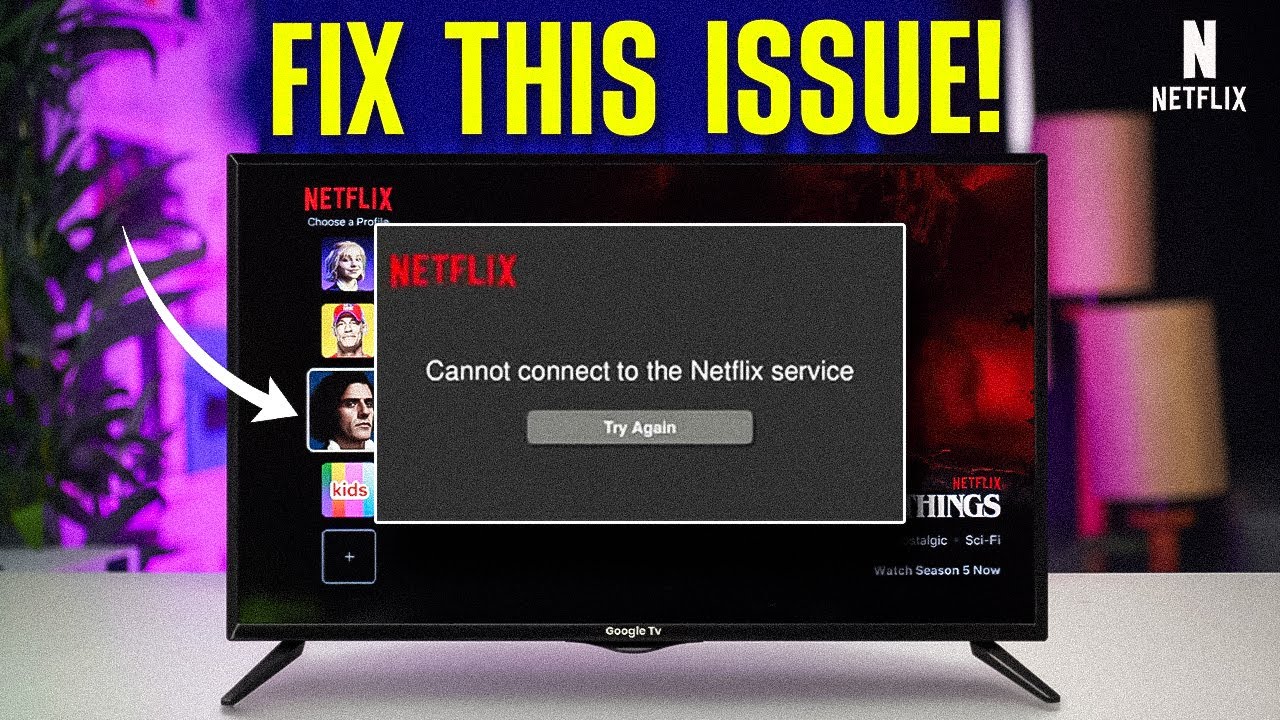 How to Fix Netflix Internet Connection Issues on Google TV | Netflix
Power Cycle: The Techie's Version of 'Let's Take a Break'
Sometimes, all your TV needs is a little nap. A power cycle, that is. It's like when you're stuck on a problem at work, so you take a walk, come back, and suddenly, it's as clear as day. To power cycle your TV, just turn it off at the plug, wait for about 30 seconds (count the 'Netflix, chill' jokes on your fingers), then turn it back on. If that doesn't work, try unplugging your streaming device and plugging it back in.
It's Not Just You: Netflix Has Bad Days Too
Sometimes, Netflix has its own issues. It's like when your favorite restaurant runs out of your favorite dish - it's not personal, they're just having a bad day. Check Netflix's service status on their website. If they're down, then you know it's not you, it's them. But don't worry, they usually fix it faster than you can say 'binge-watching'.
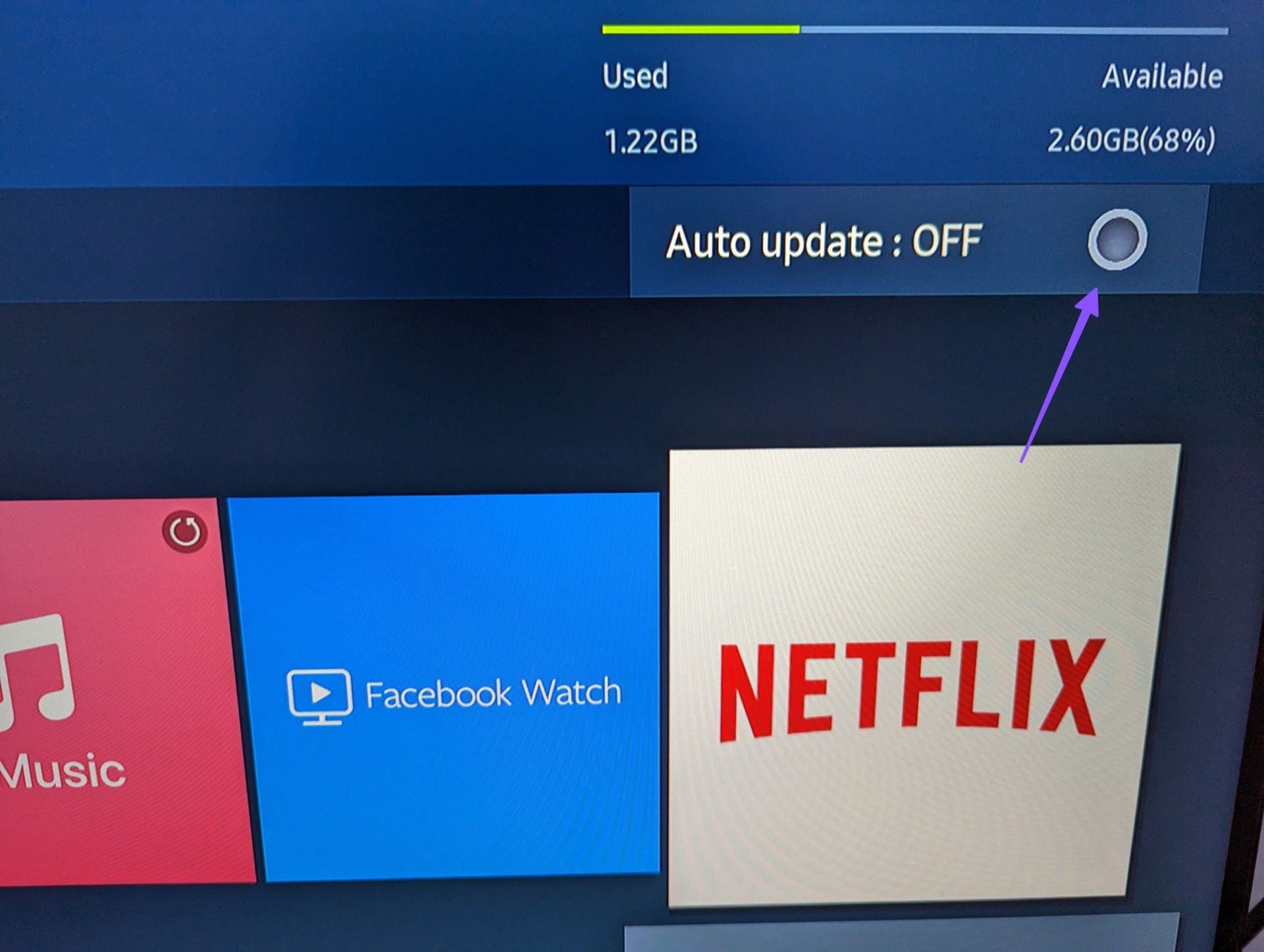 Netflix Will Not Work On My Samsung Smart Tv – FZPK
When All Else Fails, Call for Backup
If you've checked everything and Netflix is still being a party pooper, it might be time to call Netflix's customer service. They're like the bouncers at the club - they might not be the friendliest, but they'll make sure you get in. Just remember, they're humans too, so be patient and polite.
So there you have it, folks. Next time Netflix isn't working on your TV, don't throw your remote at the wall (well, maybe just a little one). Check these steps, and you'll be back to binge-watching in no time. Happy streaming!
