Can Google Calendar Sync With Iphone

Hey there, iPhone users! 🍎 Ever wondered if Google Calendar can sync with your iPhone? Let's dive in and find out! So, you're an iPhone lover, huh? 😎 That's cool! But you'r...

Hey there, iPhone users! 🍎 Ever wondered if Google Calendar can sync with your iPhone? Let's dive in and find out!
So, you're an iPhone lover, huh? 😎 That's cool! But you're also a Google Calendar enthusiast, right? Well, you might be wondering, "Can these two powerhouses play nice together?" The answer is a big, fat, "Yes, they can!"
But why should you care, you ask? 🤔
Imagine this: you're planning a super-secret surprise party for your bestie. You've got a guest list, a shopping list, and a to-do list. Now, you could write all this down in a notebook (which, let's face it, you'll probably lose), or you could use Google Calendar to keep everything organized. But here's the kicker - you want all that info on your iPhone, because, well, it's always with you. That's where the magic of syncing comes in!
Think of it like this: Google Calendar is the brains of the operation, planning everything out. Your iPhone is the body, always on the go, ready to remind you about that surprise party. When they sync, it's like they're working together, making sure you never miss a beat. 💪
Must Read
Alright, alright, you're convinced. But how do you make it happen? 🤔
First things first, you need to have the Google Calendar app installed on your iPhone. If you don't, you can grab it from the App Store. Once it's there, open it up and tap on the 'Calendar' tab at the bottom. Then, tap on 'Settings' in the top right corner. See that 'Accounts' option? Tap on it!
Now, you'll see a list of all the accounts connected to your iPhone. If you're already signed in with your Google account, great! If not, tap on 'Add Account' and follow the prompts to sign in. Once you're all set up, make sure the toggle next to your Google account is turned on. That's it! Your iPhone and Google Calendar should now be best buds, syncing away in the background.
 How to Sync Google Calendar With iPhone Calendar
But what if you want to keep some calendars private? 🔒
No worries, Google Calendar has you covered. When you're in the 'Accounts' settings, you'll see an option to 'Toggle All Calendars On/Off'. Tapping this will sync all your Google Calendars to your iPhone. But if you want to keep some calendars private, just go back to the 'Calendars' tab and tap on the 'i' next to the calendar you want to hide. Then, turn off the 'Show' toggle. Easy peasy!
Now, let's talk about those sweet, sweet reminders. 🔔
So, you've got your calendars all set up and syncing like a dream. But what about those reminders? You don't want to miss your bestie's surprise party, after all! In the Google Calendar app, you can set reminders for each event. Just tap on the event, then tap on the 'Reminder' option. You can choose to get reminded at the event time, or up to 29 days before. And guess what? Those reminders will pop up right on your iPhone's lock screen!
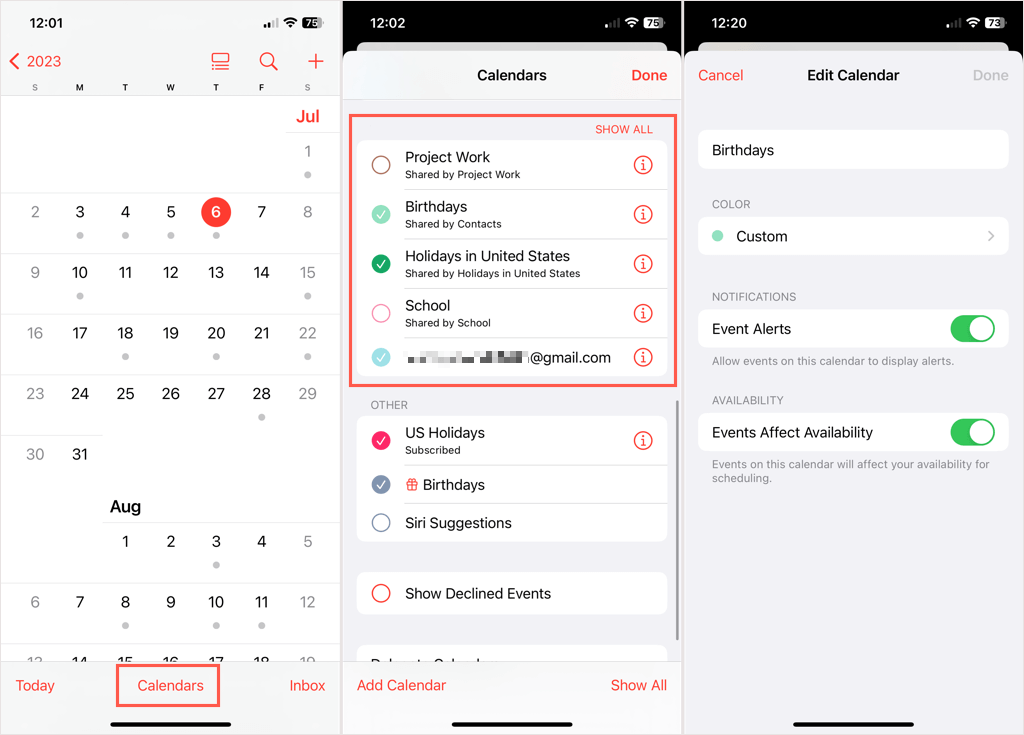 How to Add and Sync Google Calendar to Your iPhone and iPad
But what if you want to change the default reminder time? No problem! Just go back to the 'Settings' tab, tap on 'Reminders', and choose your preferred reminder time. Now, every time you create a new event, you'll get reminded at that time by default. Isn't technology wonderful? 😄
And there you have it! 🎉
Google Calendar and your iPhone can be the ultimate power couple, working together to keep your life organized and on track. So go ahead, give it a try! And who knows, you might just find yourself planning that surprise party after all. 🎁
Happy syncing, friends! 🤗
