Combine Multiple Excel Sheets Into One

Ever found yourself drowning in a sea of Excel sheets, each one a tiny island of data, and wished you could just merge them all into one big, organized continent? You're not a...
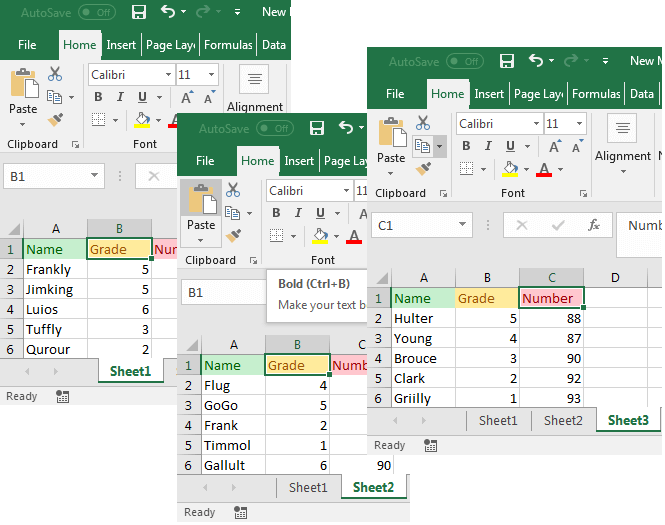
Ever found yourself drowning in a sea of Excel sheets, each one a tiny island of data, and wished you could just merge them all into one big, organized continent? You're not alone, friend. We've all been there, staring at our screens, wondering why Microsoft didn't just give us a 'Merge All' button. Well, grab a coffee (or tea, we don't discriminate), because we're about to make your life a whole lot easier.
Why Merge, You Ask?
Imagine you're planning a cross-country road trip. You've got maps of each state, but wouldn't it be simpler to have one big map showing your entire journey? That's essentially what merging Excel sheets does. It turns your scattered data into one cohesive, easy-to-navigate document. Plus, it's a great way to impress your colleagues with your newfound spreadsheet superpowers.
Before We Begin: A Word on Versions
Before we dive in, a quick word on versions. If you're using an older version of Excel, some of these steps might differ. But don't worry, we've got you covered. If you're using Excel 2010 or later, you're in luck. Let's get started!
Must Read
Method 1: The Easy Peasy Way (Using the 'Get & Transform Data' Feature)
Alright, let's start with the simplest method. If your sheets are in the same workbook, this is your jam.
- Click on the 'Data' tab in the ribbon.
- In the 'Get & Transform Data' group, click on 'Get Data' and then 'From Other Sources'.
- Select 'Existing Excel File', then choose the file with the sheets you want to merge.
- In the 'Navigator' window, hold down the Ctrl key and select the sheets you want to merge.
- Click 'Load'.
- Now, click on the 'Home' tab, then 'Merge & Consolidate'. Select 'Consolidate' and choose how you want to combine your data.
- Click 'OK'.
Et voilà! Your sheets are now one big, happy family.
Method 2: The Old Faithful Way (Using the 'Consolidate' Feature)
If you're using an older version of Excel or prefer a more manual approach, this method is for you. It's a bit more hands-on, but don't worry, we'll guide you through it.
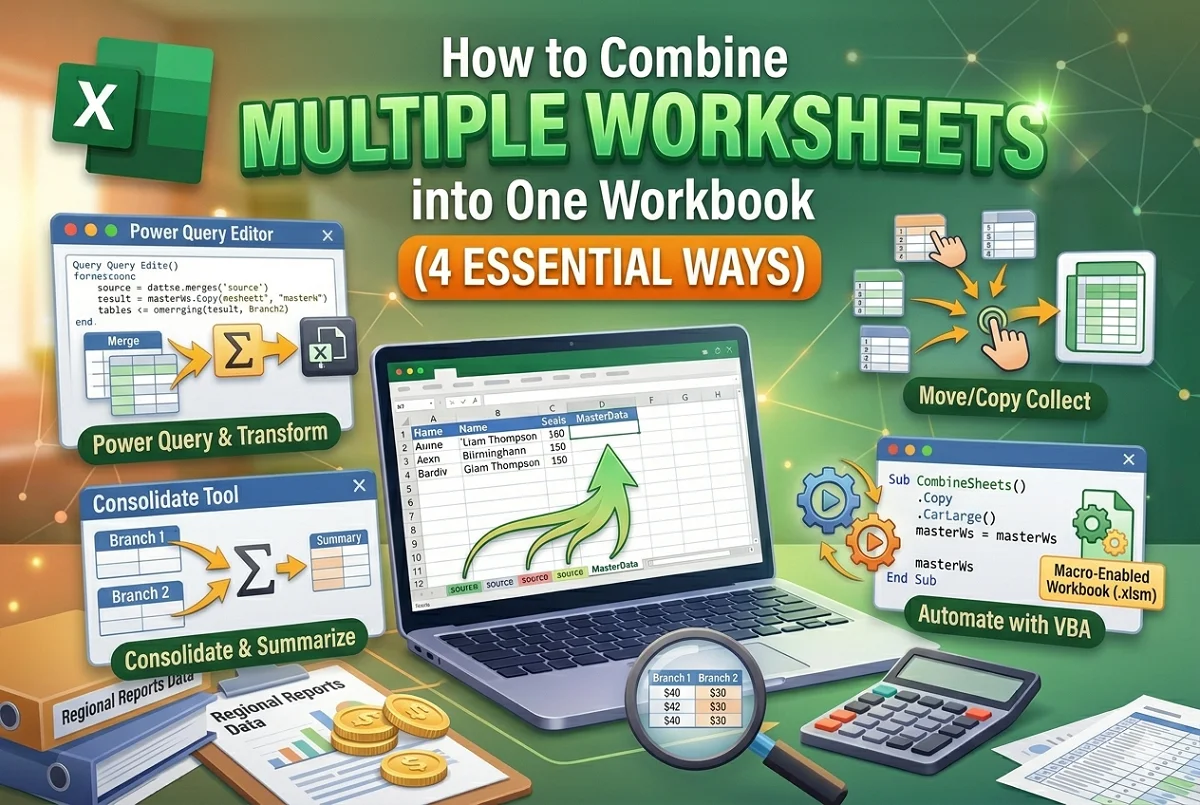 How to Combine Multiple Worksheets into One Workbook in Excel - Excel
- Open the main workbook where you want to merge your sheets.
- Click on the cell where you want to place the data from the first sheet you want to merge.
- Click on the 'Data' tab in the ribbon, then 'Consolidate'.
- In the 'Consolidate' window, under 'Reference', click on the 'Range' field and then click on the sheet tab at the bottom of the workbook.
- Select the range of cells you want to merge, then click 'OK'.
- Repeat steps 4 and 5 for each sheet you want to merge.
See? We told you it was old faithful. It might take a bit longer, but it's still a solid method.
Fun Fact: The Origin of Excel
Did you know that Excel wasn't always the powerhouse it is today? It started life as a little program called 'Multiplan' in 1982. Microsoft bought it, renamed it, and the rest, as they say, is history. So the next time you're merging sheets, remember, you're using software that's been around almost as long as the Rubik's Cube.
Tips and Tricks
Now, let's talk tips. First, always save a backup of your work before merging. You never know when something might go wrong, and it's always better to be safe than sorry.
 Merge multiple Excel sheets into one - Tpoint Tech
Second, if you're merging sheets with different structures, you might need to use the 'Consolidate' feature with a 'Function' like 'SUM' or 'AVERAGE'. This way, you can combine like data from different sheets.
Lastly, if you're merging sheets with a lot of data, consider using the 'Get & Transform Data' feature with 'Power Query'. It's a bit more complex, but it can handle large datasets like a boss.
Reflection: The Art of Simplifying
In a world where data is king, knowing how to simplify and organize it is a valuable skill. Merging Excel sheets isn't just about making your life easier (though let's be real, that's a big part of it). It's about turning chaos into order, making the complex simple, and turning data into something useful. So the next time you're staring at a screen full of sheets, remember, you're not just merging data, you're creating order from chaos. And that, dear reader, is a pretty cool superpower to have.
