Email Account Create New Account Gmail

So, picture this. You're at a friend's house, they're showing off their new gadget, and you're thinking, "Wow, that's cool! I need one of those!" But then, you realize, you've...

So, picture this. You're at a friend's house, they're showing off their new gadget, and you're thinking, "Wow, that's cool! I need one of those!" But then, you realize, you've got no way to share your excitement because you've just remembered - you don't have an email account. Cue the awkward silence.
I mean, it's the 21st century, right? We've got smart fridges, self-driving cars, and yet, here you are, email-less. But don't worry, I'm not here to judge. I'm here to help. Today, we're going to dive into the world of Gmail and learn how to create a new account. It's easier than you think, I promise.
Why Gmail, you ask?
Well, aside from the fact that it's the most popular email service out there, Gmail offers a whopping 15GB of free storage, which is more than enough for most of us. It's also got a clean, user-friendly interface, and it's integrated with other Google services like Google Drive and Google Docs. Plus, it's got some pretty nifty features like smart replies and email scheduling. What's not to love?
Must Read
Let's get started!
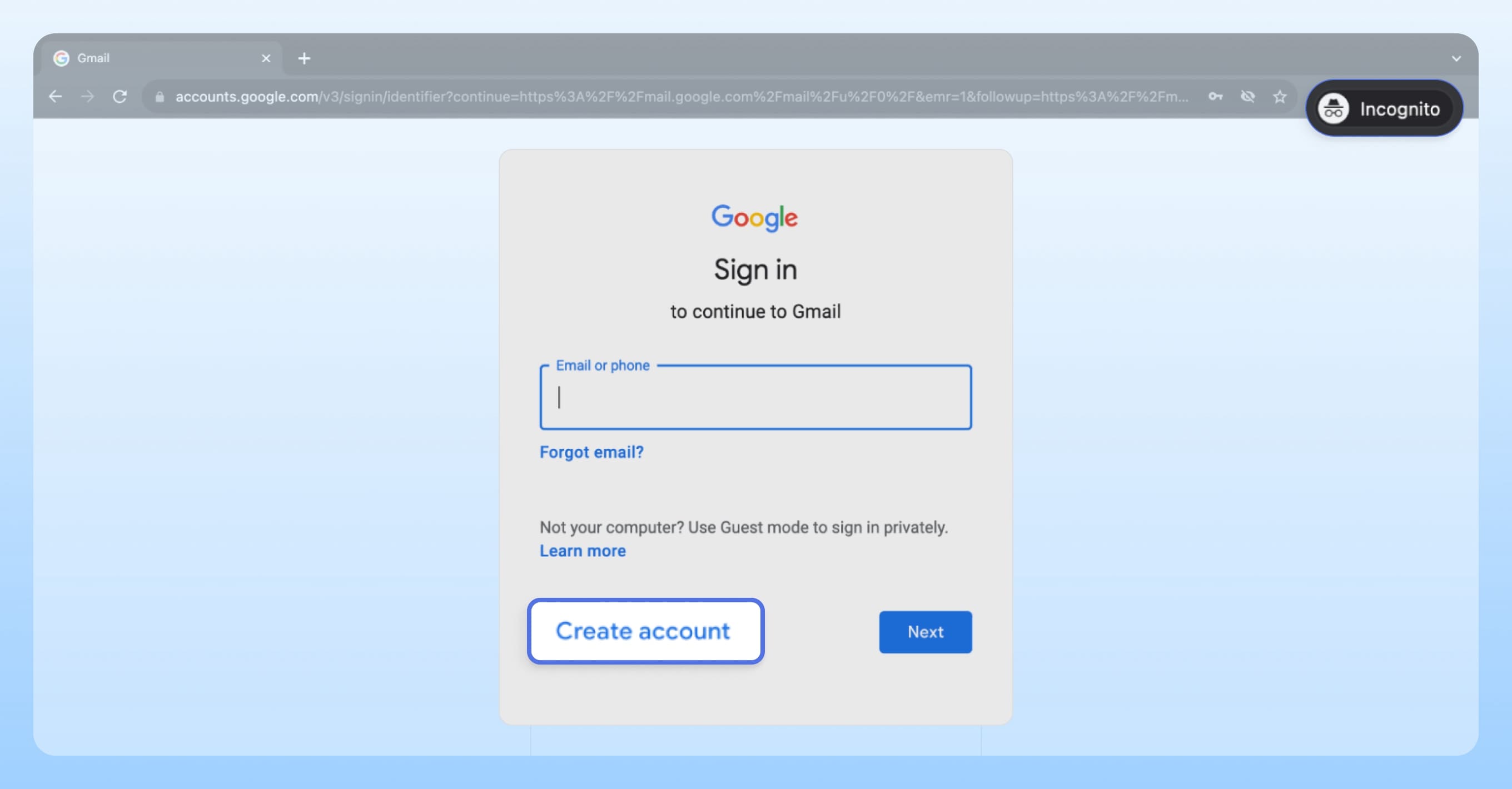
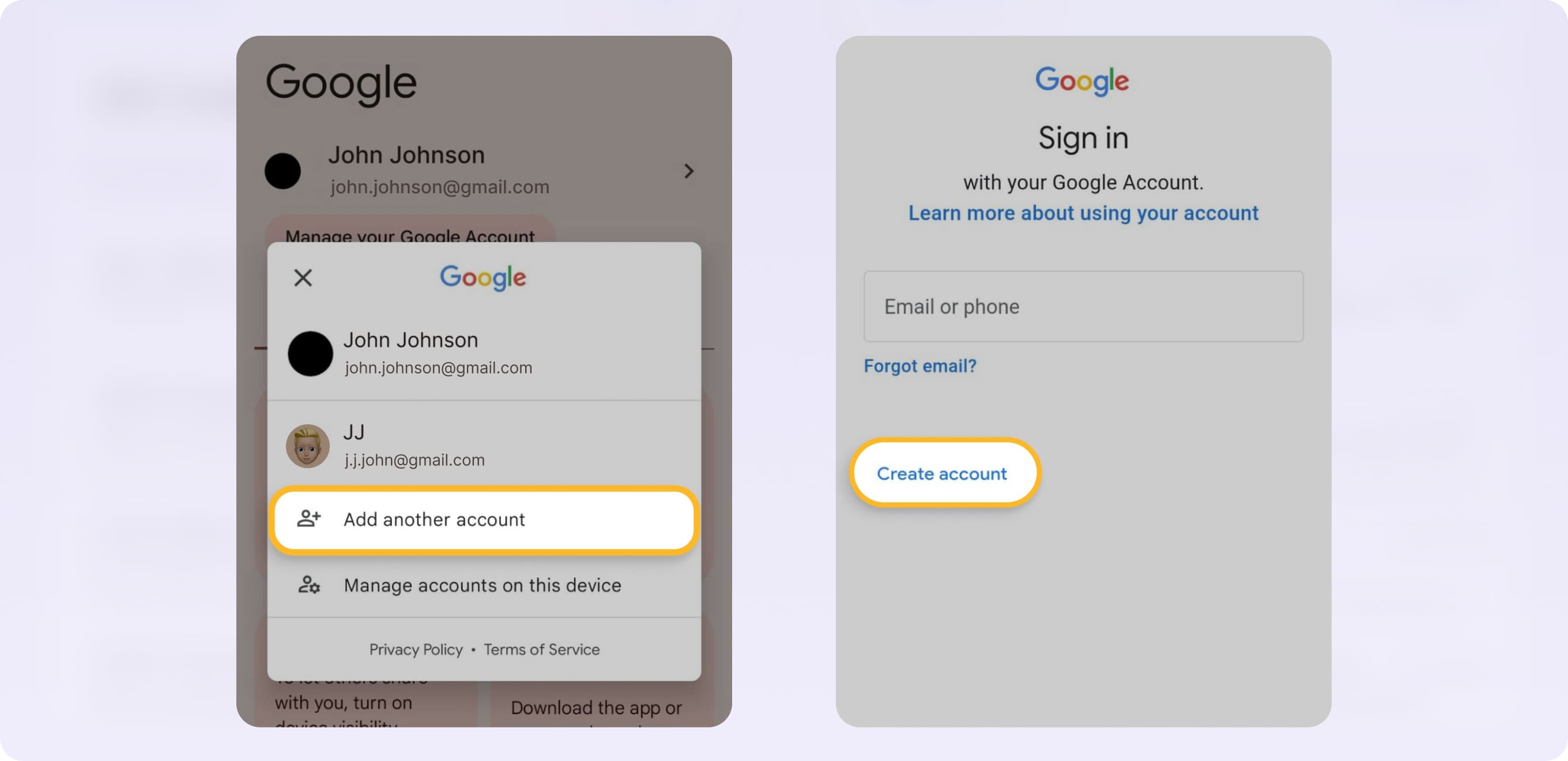
First things first, head on over to the Gmail sign-up page. See that big, blue 'Create your Google Account' button? That's where the magic happens.
Click on it, and you'll be taken to a page where you can enter your details. Now, I know what you're thinking, "Do I really have to fill out all these fields?" The answer is yes, unfortunately. But don't worry, it's for your own safety. Google needs to know who you are (well, sort of) to keep your account secure.
 Create a New Gmail Account: Your 2026 Comprehensive Guide
Let's start with the basics. You'll need to choose a username, which will also be your email address. This is the part where you wish you'd thought of a cool username back in the MySpace days. But don't worry, you can always change it later. Just make sure it's something you'll remember, because you'll be using it a lot.
Next up, you'll need to choose a password. And no, 'password123' won't cut it. Google will give you a little strength indicator to help you out. Aim for something that's strong, but not so complicated that you'll forget it. A good tip is to use a mix of uppercase and lowercase letters, numbers, and symbols. And if you're really struggling, there are password generators out there that can do the job for you.
Once you've got your username and password sorted, it's time to fill out the rest of your details. This is where you'll enter your name, phone number, and recovery email address. The recovery email is important - it's a backup in case you forget your password. So make sure it's an account you use regularly.
 Create a New Gmail Account: Your 2026 Comprehensive Guide
Verifying your account
After you've filled out all your details, it's time to verify your account. Google will send a verification code to your recovery email. Click on the link in the email, enter the code, and voila! Your account is verified.
Now, you might be thinking, "That's it? That's all I have to do?" And yes, that's it! Creating a Gmail account is that simple. But if you're anything like me, you'll want to dive right in and start exploring all the features. So, go ahead, take a look around. And remember, if you get stuck, Google's help center is always there to lend a hand.
And there you have it, folks. You're now the proud owner of a shiny new Gmail account. No more awkward silences, no more missed opportunities to share your excitement. You're ready to take on the digital world. So, what are you waiting for? Start exploring, start connecting, and most importantly, start enjoying the perks of having an email account in the 21st century.
