What Is An Archive Folder In Outlook

Alright, picture this: You're at your grandma's house, rummaging through her attic. You find a dusty old box labeled "Memories". Inside, there are letters from your mom when s...
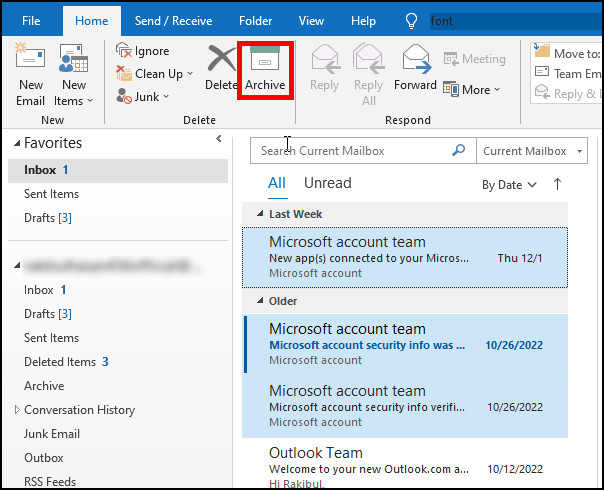
Alright, picture this: You're at your grandma's house, rummaging through her attic. You find a dusty old box labeled "Memories". Inside, there are letters from your mom when she was your age, photos of your dad's first car, and even a lock of your great-grandpa's hair (yeah, we know, a bit much). That, my friend, is essentially what an archive folder in Outlook is - a digital attic for your email memories.
What's the Big Idea?
Outlook, being the organized friend it is, doesn't want your inbox to turn into a cluttered attic. So, it created archive folders to help you keep your emails tidy. Think of it like moving old furniture to the garage when you redecorate. You're not throwing it out, you're just making room for the new stuff.
But Why Bother?
You might be thinking, "Why should I care? I can just delete old emails, right?" Well, sure, you could. But what if you suddenly need that old receipt for your taxes, or that flight confirmation from last year? Poof! Gone. That's where the archive folder comes in. It's like having a safety deposit box for your emails. You can find them when you need them, but they're not cluttering up your inbox.
Must Read
Plus, think about this: Emails are like little time capsules. They can remind you of funny moments, important decisions, or even that time you ordered too much pizza. Wouldn't it be a shame to lose all that? So, let's give our inbox some breathing room and use those archive folders.
How to Archive Like a Pro
Alright, now that we've convinced you, let's get archiving. It's actually pretty simple. In Outlook, just select the emails you want to archive, right-click, and choose "Move to Folder". Then, pick or create your archive folder. Boom! Done.
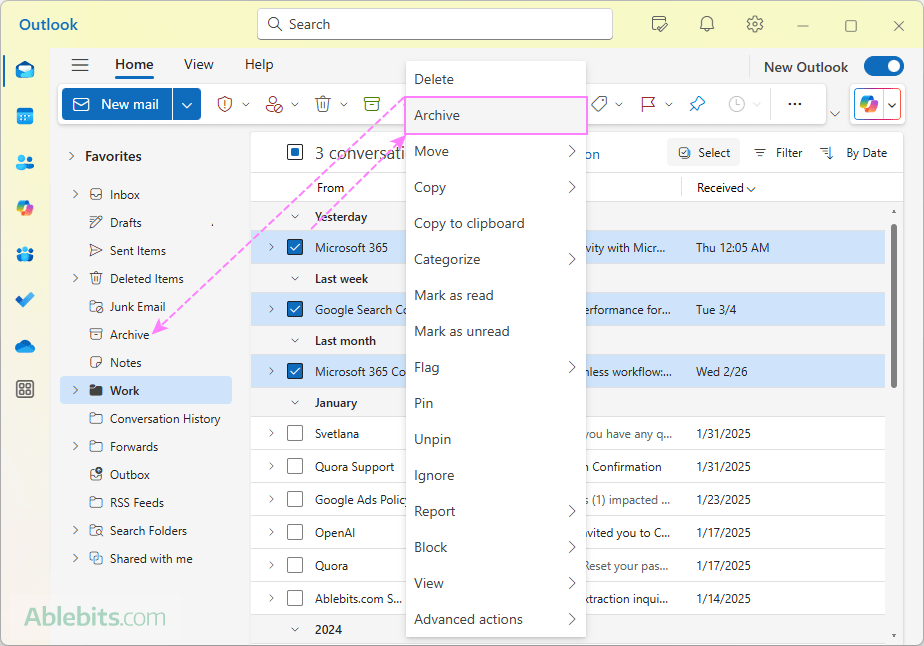 How to archive Outlook emails automatically or manually to save space
But here's a pro tip: Don't just dump everything in one folder. Create sub-folders for different topics or years. It's like having different rooms in your attic for different types of memories. Trust us, future you will thank you.
What About Search?
You might be worried that archiving will make it harder to find your emails. But don't fret! Outlook has a nifty search bar at the top. Just type in a keyword, and it'll find your email faster than you can say "Jack Robinson". And if you've organized your archive folders, searching is even easier.
Think of it like this: When you're looking for something in your grandma's attic, you're more likely to find it if it's in a labeled box, right? The same goes for your email archive. The more organized, the easier it is to find what you're looking for.
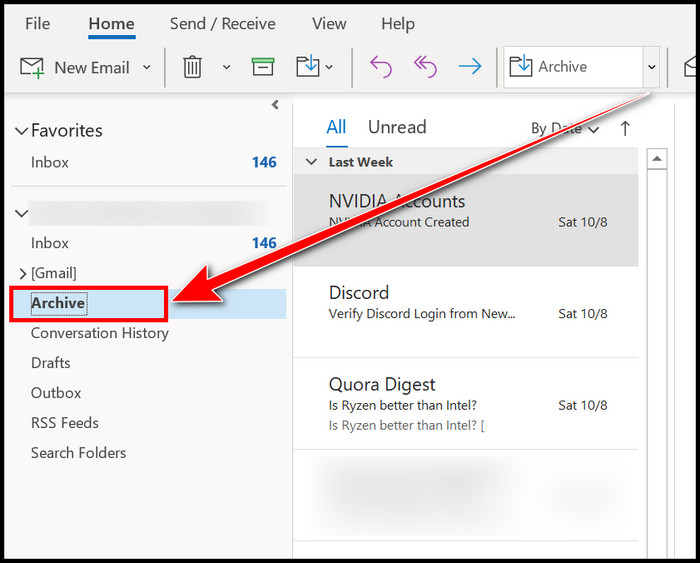 How to Archive Emails in MS Outlook [Quickest Methods 2024]
But What About...?
You might have some other questions. Like, "What if I want to unarchive an email?" Easy peasy. Just drag it back into your inbox. "What if I want to delete an email for good?" Well, that's what the delete button is for. But remember, once it's gone, it's gone for good. So, be sure before you hit that button.
And finally, "How much stuff can I put in my archive folder?" Well, that depends on your email service provider. But most give you plenty of space. Just remember, it's like your attic. You can fill it up, but don't let it become a hoarder's paradise. Keep it tidy, and you'll be golden.
So there you have it. The lowdown on archive folders in Outlook. It's not as scary as it sounds, and it'll make your email life a whole lot easier. Now, go forth and archive. Your inbox will thank you.
