Google Assistant Settings On Android

Hey Google, Let's Chat About Your Settings! Ever felt like your Android phone has a mind of its own? Like it's suddenly got a knack for playing your favorite tunes at 3 AM, o...
Hey Google, Let's Chat About Your Settings!
Ever felt like your Android phone has a mind of its own? Like it's suddenly got a knack for playing your favorite tunes at 3 AM, or it's ordering pizza when you've been dreaming about sushi? Well, that's probably your trusty Google Assistant at work. So, let's dive into its settings and make sure it's as helpful as a best friend, and not as mischievous as a toddler on a sugar rush.
First Things First: Getting to Know the Settings
Alright, imagine you're at a buffet. You want to try everything, but you don't want to overload your plate, right? That's how you should approach the Google Assistant settings. They're like that buffet - a smorgasbord of options, but you don't need to dive into every single one at once.
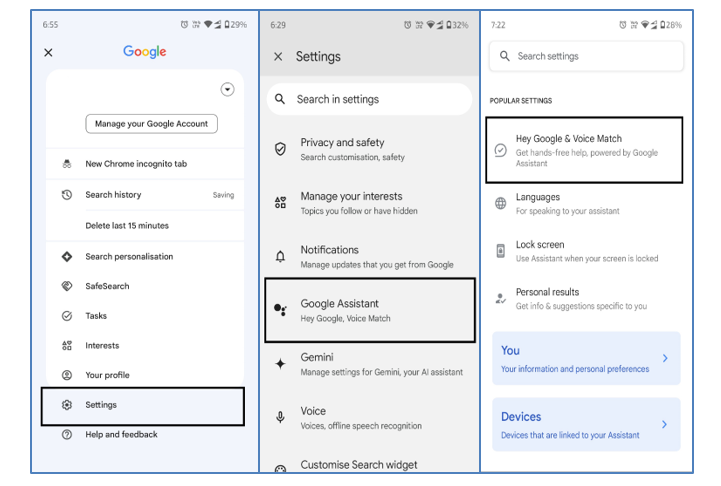
To find the settings, just say "Hey Google, open Assistant settings" or tap on the "More" tab in the Google Assistant app. It's like finding the buffet's entrance - once you're there, you can start exploring.
Must Read
Raising Your Assistant: Language & Voice
Your Google Assistant comes with a default voice, but hey, it's not like you're stuck with it forever. You can change its voice to suit your preference. Think of it like choosing your favorite radio DJ - some people prefer a smooth, calming voice, while others like a more energetic one.
And if you're bilingual or multilingual, you can teach your Assistant new languages. It's like having a polyglot friend who can chat with you in multiple tongues. Just go to "Assistant" > "Languages" to get started.
Setting Boundaries: Routines & Downtime
Ever had a friend who's a bit too enthusiastic about planning your day? Your Google Assistant can be like that, but with a bit of tweaking, it can become your ultimate personal assistant instead of a pushy event planner.
 How to Remove a Device from Google Home
Routines are like your Assistant's daily schedule. You can set it to perform multiple actions at once, like turning on the lights, playing your morning playlist, and giving you the weather update. It's like having a butler who knows exactly what you need to start your day.
And if you want some peace and quiet, you can set up Downtime. It's like a 'do not disturb' mode for your Assistant. During Downtime, it won't give you notifications or respond to your commands. It's like telling your chatty friend to take a break and let you enjoy your alone time.
Privacy Matters: History & Personalization
We all have that one friend who loves to share every little detail of our lives, right? Well, your Google Assistant isn't that friend (at least, not intentionally). But it does keep a history of your interactions to improve its performance. If you're not comfortable with that, you can delete all or part of your history in the "Assistant" > "My Activity" > "Delete Activity" section.
As for personalization, your Assistant uses your activity data to give you more relevant suggestions. But if you'd rather keep your preferences to yourself, you can turn off personalized results in the "Assistant" > "You" > "Personalization" section.
 How to set up and customize Google Assistant | Android Central
Customizing Your Assistant: Devices & Services
Think of your Google Assistant as the conductor of an orchestra. Each device and service is like an instrument, and your Assistant helps them play in harmony. You can connect your smart home devices, your calendar, your email, and more to make your Assistant work seamlessly with your life.
To connect a new device or service, just tap on "Devices" or "Services" in the settings menu. It's like adding a new member to your orchestra - once they're in, your Assistant can help them play their part.
When in Doubt, Ask Away!
Remember, your Google Assistant is there to help. If you're not sure about something, just ask! It's like having a helpful friend who's always ready to lend a hand. And if you ever feel like your Assistant isn't understanding you, you can always adjust its language model in the "Assistant" > "Speech" > "Language model" section.
So, go ahead and explore your Google Assistant's settings. It's like having a personalized, always-ready-to-help friend in your pocket. And who knows? You might just find a new feature that makes your day a little bit brighter. Happy exploring!
