How Can I Logout Of Gmail On My Phone

So, you've been checking your emails all day, and now you're ready to call it quits. But wait, how do you log out of Gmail on your phone? Don't worry, I've got you covered. Le...
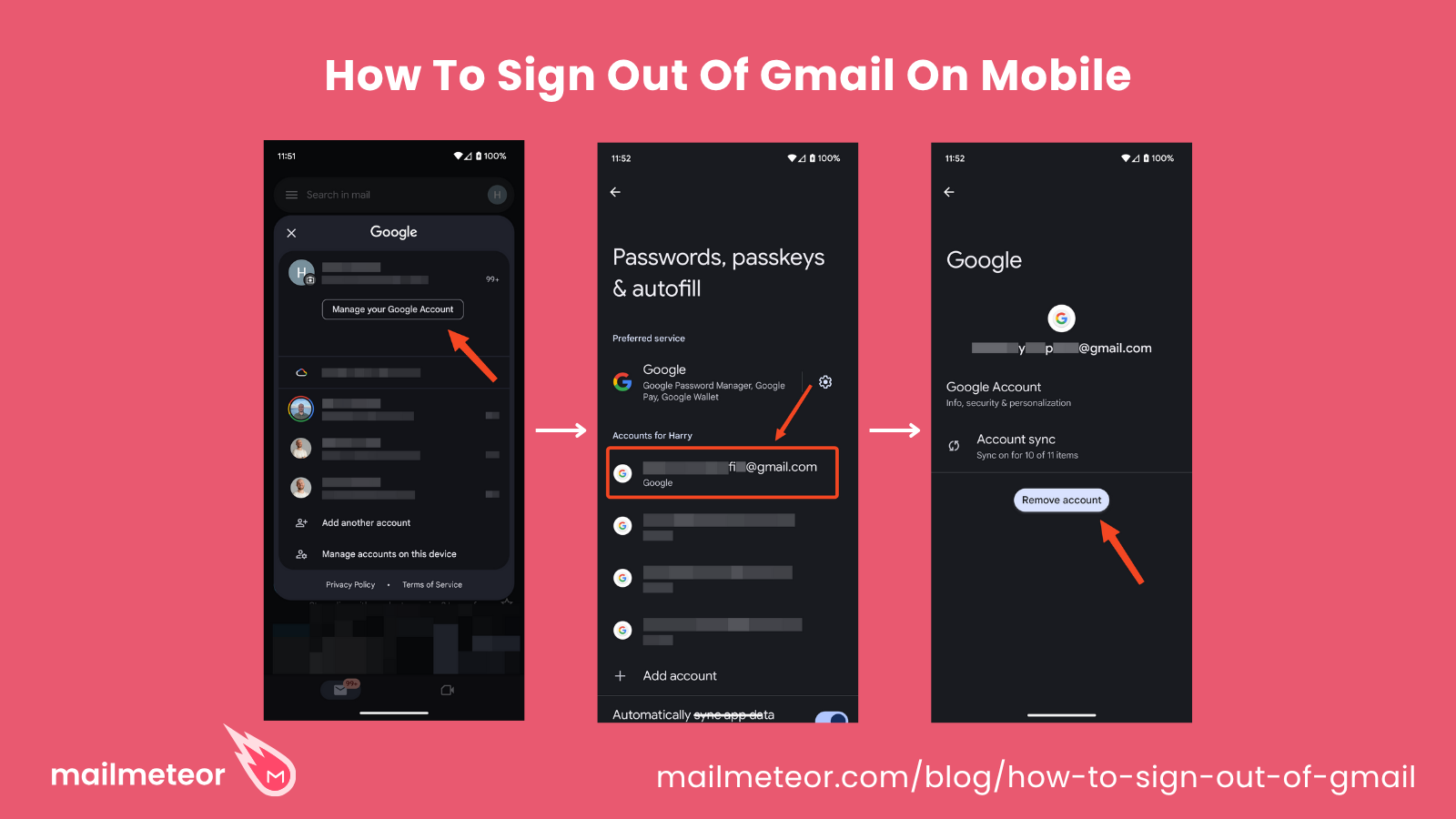
So, you've been checking your emails all day, and now you're ready to call it quits. But wait, how do you log out of Gmail on your phone? Don't worry, I've got you covered. Let's dive in, shall we?
First Things First: The Quick Way Out
Alright, listen up. If you're using the Gmail app, here's the quickest way to log out:
- Tap that little profile picture or initial at the top right corner. It's like waving hi to your digital self.
- Scroll down until you see 'Manage your Google Account' on Android, or 'Manage your account on the web' on iOS. Tap on it.
- Now, look for the 'Sign out' option. It's usually at the bottom, but it might vary a bit depending on your device.
And just like that, you're outta there! But hey, if you're using the web version on your phone, it's a teensy bit different.
Must Read
Web Version: The Not-So-Secret Menu
If you're using the web version of Gmail on your phone, here's how you log out:
- Tap the three horizontal lines (hamburger menu) at the top left corner. It's like opening a secret door to a whole new world.
- Scroll down until you see 'Settings'. Tap on it. It's like you're about to customize your own little Gmail universe.
- Now, look for 'Your Account' and tap on it. It's usually at the top of the list.
- Finally, tap on 'Sign out'. And poof! You're out of Gmail land.
But wait, what if you want to log out of all devices? I mean, you wouldn't want your secret email plans to be ruined, right?
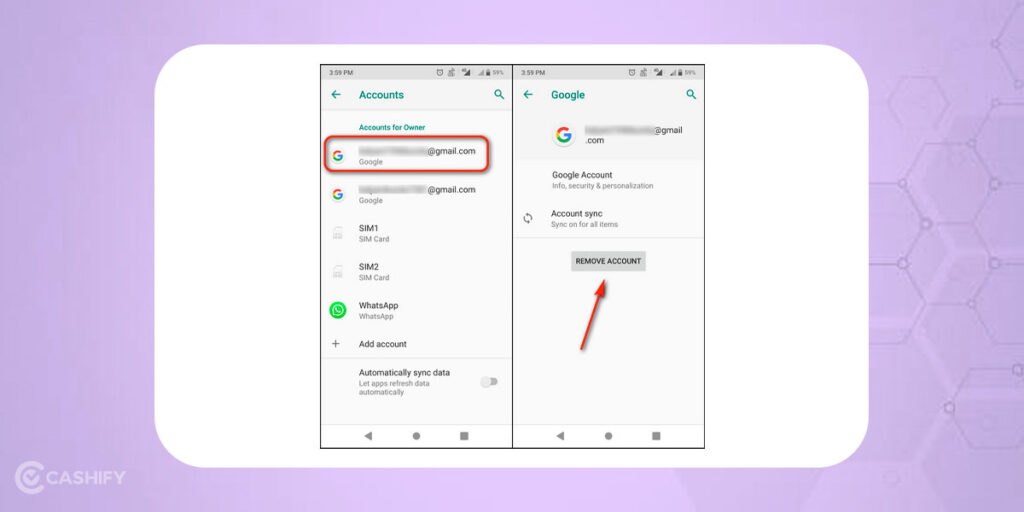 Here’s How To Logout Gmail Account In Phone In Two Simple Ways
Logging Out of All Devices: The Big Goodbye
Alright, so you want to make sure no one else can snoop through your emails. Here's how you log out of all devices:
- First, log in to your Google Account on a computer. It's like going back to the main hub.
- Click on 'Security' in the left-hand menu. It's like you're about to beef up your email fortress.
- Scroll down until you see 'Third-party apps with account access'. Click on it.
- Now, look for the 'Sign out all other web sessions' option. Click on it. It's like you're giving the big goodbye to all your other sessions.
And there you have it! You've successfully logged out of Gmail on your phone, and any other devices you were using. Now you can go back to binge-watching your favorite shows without any email interruptions.
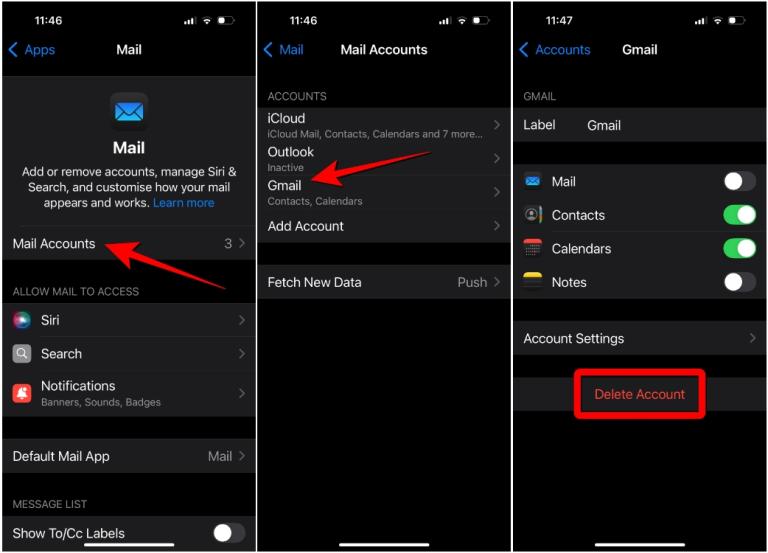 How to Log Out of Your Gmail Account on Any Device | Beebom
But Wait, There's More!
Before you go, let's talk about a little trick. You know how sometimes you just want to log out of Gmail but keep other Google services running? Like, you want to keep using Google Maps but not have anyone else read your emails? Here's how:
- Follow the steps above to log out of Gmail on your phone.
- But instead of closing the app or the web page, just switch to another app or tap the home button.
- And that's it! You're logged out of Gmail but still logged in to other Google services. Magic, right?
And there you have it, folks! You're now a Gmail logout pro. So go ahead, take a break, and remember, your inbox will still be there when you get back. Until then, happy email-free time!
