How Do I Find Ip Address For My Router

So, there I was, sitting in my home office, trying to streamline my work-from-home setup. I'd just spent an hour trying to connect my new printer to my Wi-Fi, and I was ready...
So, there I was, sitting in my home office, trying to streamline my work-from-home setup. I'd just spent an hour trying to connect my new printer to my Wi-Fi, and I was ready to pull my hair out. Then it hit me - I didn't even know my router's IP address! I mean, how was I supposed to access its settings without that? If you've found yourself in a similar pickle, don't worry, you're not alone. Let's dive into how to find your router's IP address, shall we?
Why Your Router's IP Address Matters
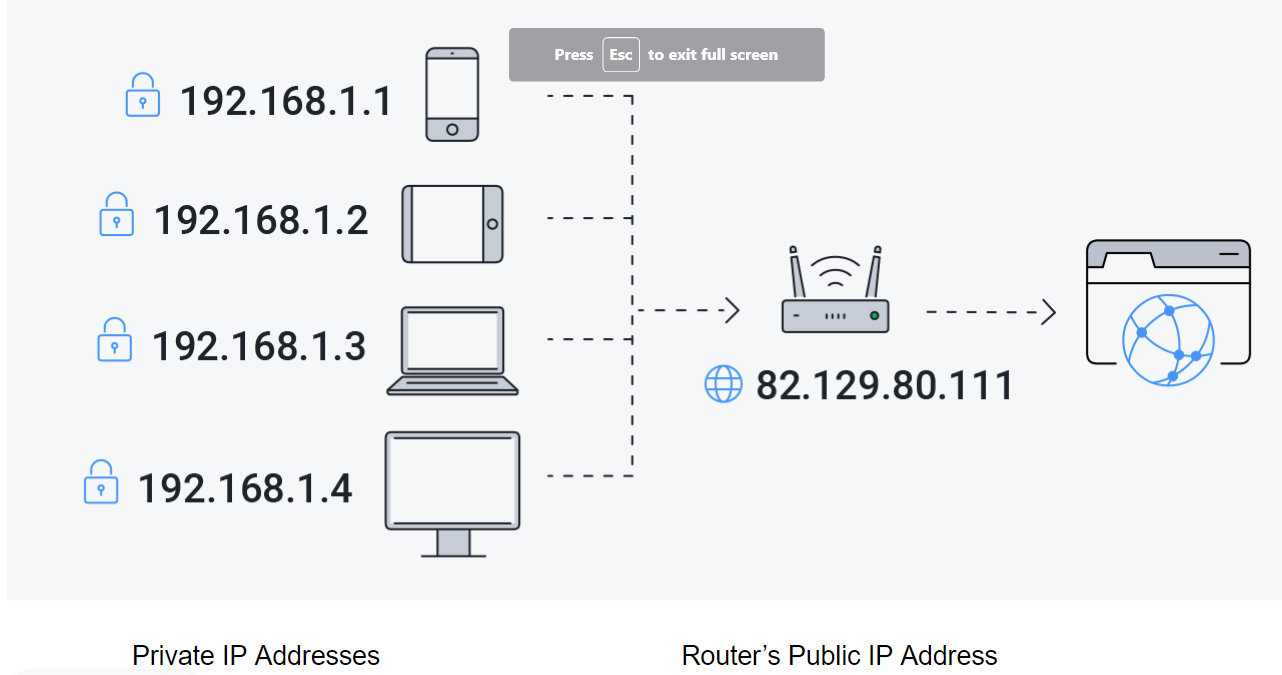
Alright, so you've realized you need your router's IP address, but why? Well, it's like your router's unique identifier on your home network. It's what you'll use to access your router's settings, change your Wi-Fi password, update firmware, and more. It's the key to your router's control panel, if you will.
Finding Your Router's IP Address on Windows
If you're a Windows user, finding your router's IP address is a breeze. Here's how:
Must Read
- Open Command Prompt. You can do this by pressing Windows Key + R, typing cmd, and pressing Enter.
- Type ipconfig and press Enter. This will display your network settings.
- Look for the line that says Default Gateway. The number next to it is your router's IP address. Easy peasy!
For example, it might look something like this:
Default Gateway . . . . . . : 192.168.1.1
Finding Your Router's IP Address on Mac
Mac users, don't worry, you're not left out. Here's how you can find your router's IP address:
 How to Find Router's IP Address On Windows Computer or Tablet - YouTube
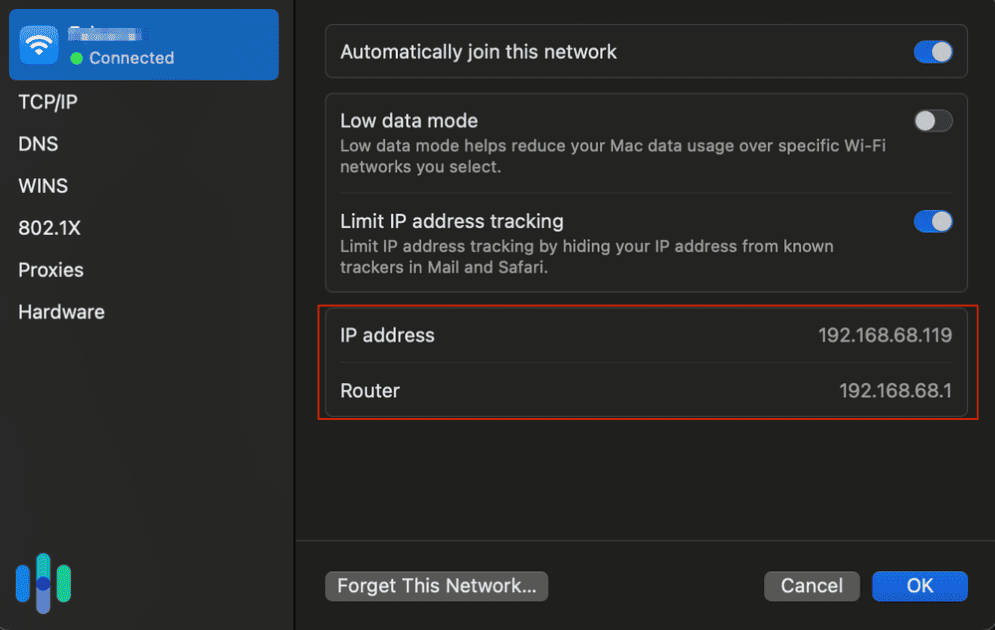
- Open System Preferences. You can do this by clicking on the Apple menu and selecting System Preferences.
- Click on Network.
- Select your Wi-Fi connection from the list on the left.
- Click on Advanced.
- Go to the TCP/IP tab. Your router's IP address will be listed next to Router.
What If You Can't Find It?
If you're still having trouble finding your router's IP address, don't panic. Here are a few more things you can try:
- Check your router's documentation. Sometimes, the IP address is printed on a label on the router itself or in the documentation that came with it.
- Try using a third-party tool. There are many tools available online that can help you find your router's IP address. Just do a quick search and follow the instructions.
- Ask your internet service provider (ISP). If all else fails, you can always contact your ISP. They should be able to help you find your router's IP address.
Now That You've Got It...
Congratulations! You've successfully found your router's IP address. Now that you have it, you can use it to access your router's settings, change your Wi-Fi password, update firmware, and more. Just type your router's IP address into your web browser, and you should be good to go.
 How Do I Check My Router Ip Address? – ECGZCE
Remember, it's always a good idea to keep your router's firmware up to date. This can help protect your network from security threats and ensure that you're getting the best performance possible. So, don't forget to check for updates regularly!
And there you have it, folks. Finding your router's IP address is a lot easier than you might think. So, the next time you need to access your router's settings, you'll be ready. Happy networking!
