How To Add A Fillable Text Box In Pdf

Adding Text Boxes to PDFs: Because Sometimes, Paper Needs a Voice Ever felt like a PDF is just a blank canvas, waiting for your words to paint a masterpiece? Well, today we're...

Adding Text Boxes to PDFs: Because Sometimes, Paper Needs a Voice
Ever felt like a PDF is just a blank canvas, waiting for your words to paint a masterpiece? Well, today we're going to give that silent document a voice, by adding a fillable text box. It's like giving your PDF a mouth, so it can finally tell its story. Let's dive in!
First Things First: What's a Fillable Text Box?
Imagine you're filling out a form. You see a blank space, and you know it's waiting for your words. That's a text box, and when we make it 'fillable', it means anyone can type into it. It's like giving your PDF a conversation starter, a prompt for interaction.
Why Bother? When Paper Can't Talk Back
You might be thinking, "Why go through the trouble? Paper can't talk back, after all." Well, neither can a regular PDF. But with a fillable text box, it's like giving your document a chance to have a dialogue with its readers. It's perfect for forms, surveys, or even interactive stories. Think of it as a way to make your PDF more engaging, more... chatty.
Must Read
Alright, Let's Do This: The Tools
To add a fillable text box, you'll need a PDF editor. There are plenty of options out there, from free tools like PDFescape or Smallpdf, to more advanced software like Adobe Acrobat. Choose one that fits your needs and budget, and let's get started!
Step 1: Open Your PDF in the Editor
First things first, open your PDF in the editor. It's like inviting your silent document to the party. Once it's open, you should see a toolbar with options. We're looking for something that says 'Add Text Field' or something similar. It might look like a little square with lines inside, like a tiny, empty notebook.
 How to Convert Fillable PDF to Regular PDF? (Free&Paid) | [Official] UPDF
Step 2: Draw Your Box
Click on that icon, and then click on your PDF where you want the text box to go. A little box should appear, ready for you to draw. It's like drawing a speech bubble for your PDF. Make it the size you want, and place it where you want your text to go.
Step 3: Set Your Options
Now, right-click on your text box. A menu should pop up with options. Here, you can name your text box (which is helpful if you're adding multiple boxes), set its size, and make it 'fillable'. It's like giving your text box a personality, a name, and the ability to talk back.
Step 4: Test Your Text Box
Once you've set your options, it's time to test your text box. Save your PDF, and open it in a PDF reader. You should see your text box, ready and waiting for words. Click inside it, and type. It's like hearing your PDF speak for the first time. Isn't that something?
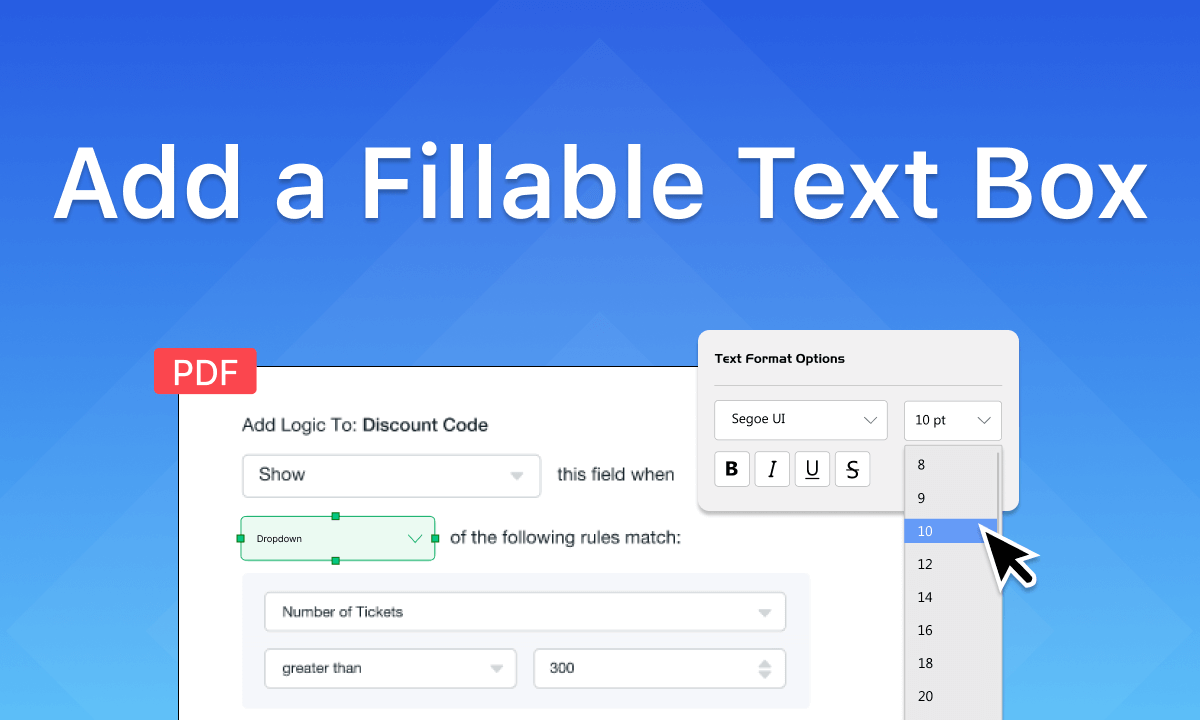 Fill out PDF Online: Free PDF Form Filler
Bonus Step: Lock It Down
If you want to make sure no one can mess with your text box (or your PDF), you can lock it. This means no one can move, resize, or delete it. It's like giving your PDF a stern talking-to, telling it to behave. To do this, right-click on your text box, and look for an option to lock it.
And That's a Wrap!
And there you have it! Your PDF now has a voice, a way to communicate, thanks to your fillable text box. It's like giving a silent document the power of speech. So go ahead, give your PDF a voice. Let it tell its story. After all, every document deserves a chance to speak its mind.
Happy typing, and until next time, keep your PDFs chatty!
