How Do You Logout Of Gmail On Android

Picture this: You’re halfway through your morning coffee, scrolling through emails like a digital archaeologist digging for buried treasures, when suddenly—ding! Another notif...
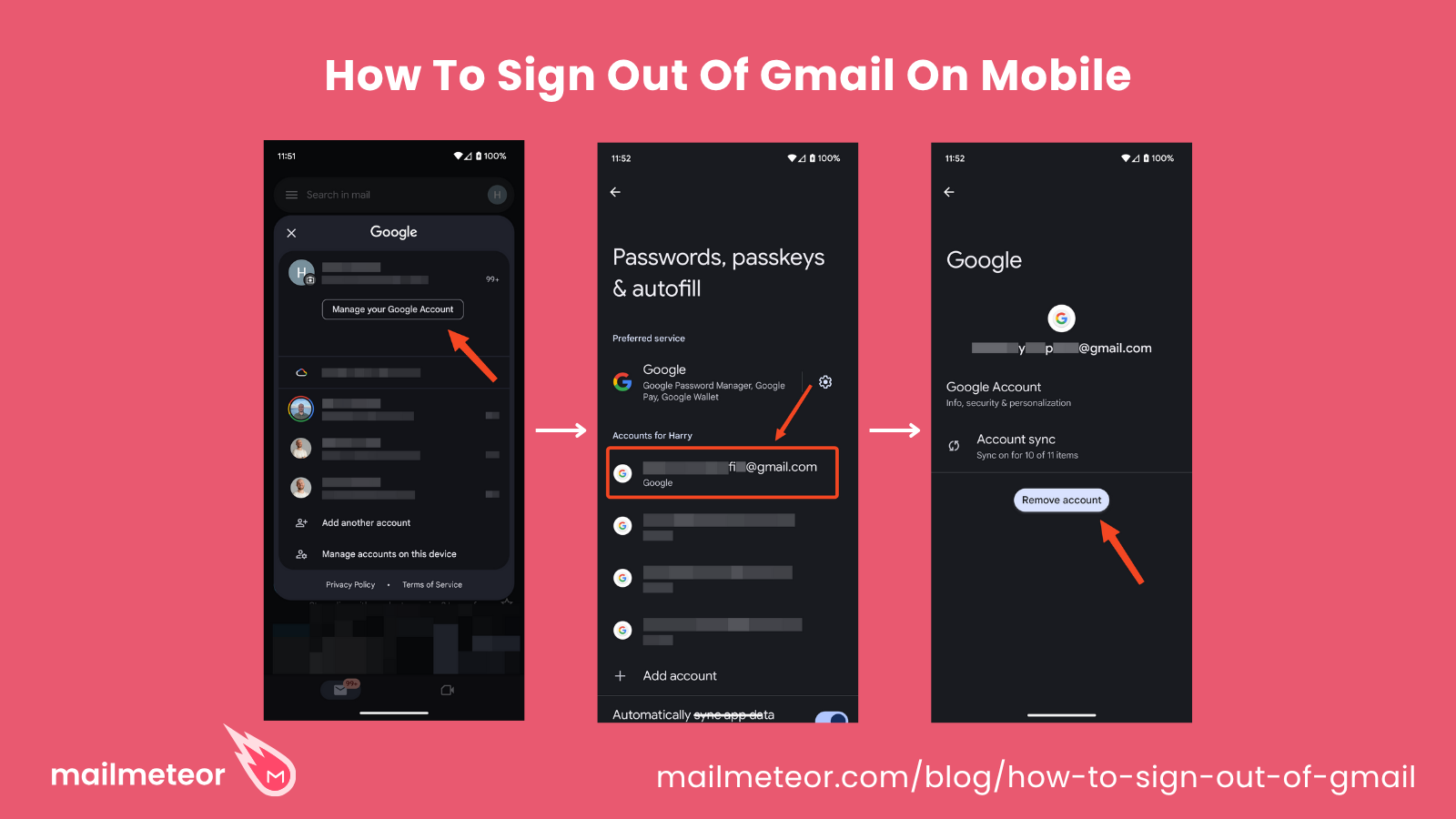
Picture this: You’re halfway through your morning coffee, scrolling through emails like a digital archaeologist digging for buried treasures, when suddenly—ding! Another notification pops up. Your phone buzzes, and you realize you’ve been logged into Gmail for far too long. It’s time to hit that logout button, but where’s the exit door in this app? Don’t worry, we’ve got you covered.
Why Log Out? The Art of Digital Detox
Logging out of Gmail isn’t just about security—it’s a tiny act of rebellion against the endless scroll. Think of it like closing a book after a chapter. You’ve read enough, and now it’s time to put it down, even if just for a little while. Plus, if you’re sharing your phone with roommates, kids, or that one friend who always forgets their password, a quick logout keeps your inbox private.
Pro tip: If you’re the type who forgets their own password, enable two-factor authentication. It’s like adding a deadbolt to your digital front door. Apps like Google Authenticator or even your phone’s fingerprint scanner make logging back in a breeze—no more "I must’ve changed it last week" panic attacks.
Must Read
Method 1: The Classic Logout (For When You’re Feeling Old-School)
Open your Gmail app and tap your profile picture in the top-right corner. A menu will pop up—look for the “Sign out” option, usually near the top. It’s like the “exit” button in a video game, but for your emails. Simple, right?
If you’re using the web version of Gmail on your phone’s browser, the process is similar. Tap the three horizontal lines (that’s your hamburger menu) in the top-left corner, then scroll down to “Sign out”. No need to overcomplicate it—sometimes the simplest solutions are the best.
Method 2: The Quick Logout (For When You’re in a Rush)
Swipe down from the top of your screen to open the notification panel. If you’ve been logged into Gmail recently, you might see a quick-access button labeled “Gmail” or your profile icon. Tap and hold it, then select “Sign out”. It’s like the fast-forward button for your digital life.
Another shortcut? Open your phone’s Settings app, go to Accounts, and find Google. From there, you can manage which apps are signed in and log out of Gmail directly. It’s the ultimate control panel for your digital footprint.
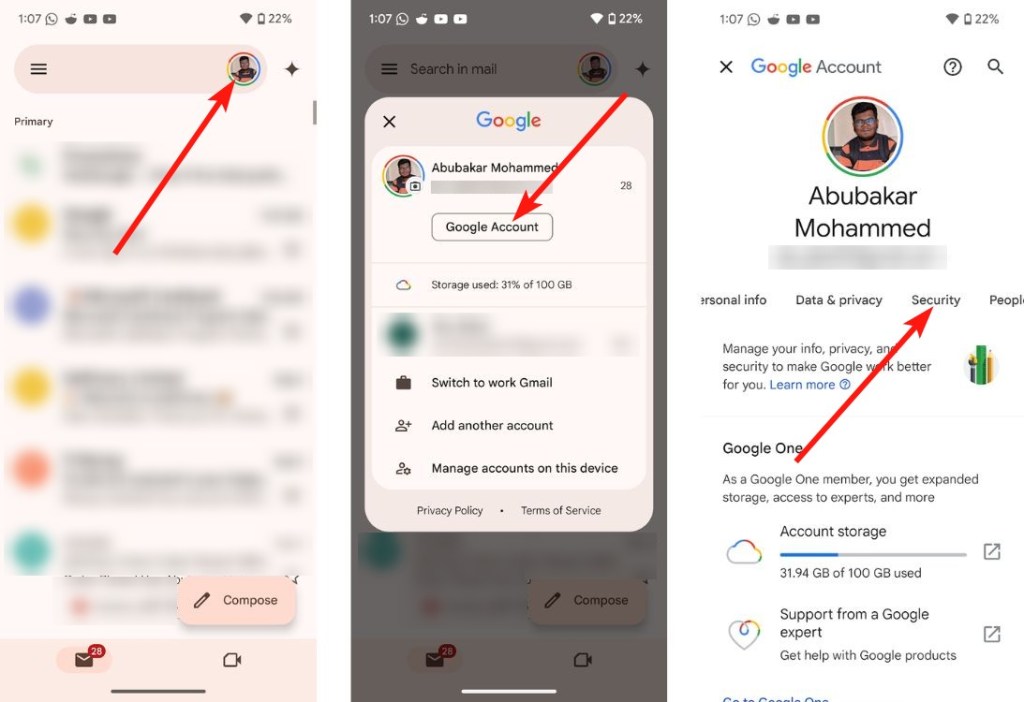 How to Log Out of Your Gmail Account on Any Device | Beebom
Method 3: The Auto-Logout Hack (For When You’re Lazy)
If you’re the kind of person who forgets to log out but hates the idea of someone else snooping through your emails, enable auto-logout. Go to Gmail Settings (the gear icon in the top-right corner), then “Account”, and scroll down to “Auto-sign out”. Set it to 15 minutes, 1 hour, or never—your call. It’s like setting a timer on your coffee mug so you don’t drink it all at once.
This feature is especially handy if you’re using a shared device or just want to avoid the awkward moment when someone else accidentally opens your inbox. It’s the digital equivalent of locking your front door when you leave the house.
Bonus: What If You Can’t Log Out?
Ever tapped “Sign out” and suddenly felt like you were stuck in a loop? Don’t panic. If the button isn’t working, try closing the app completely by swiping it up from the bottom of your screen (on newer Android versions) or using the app switcher. Sometimes, a full restart of the app does the trick.
If that fails, check if you’re using a work or school account. Some corporate Gmail setups have extra security measures, like requiring a password reset or approval from your IT department. In that case, you might need to call your tech support—because even superheroes need backup.
Why This Matters: The Psychology of Logging Out
There’s something strangely satisfying about logging out of an app. It’s like hitting the “reset” button on your brain, giving yourself permission to step away from the digital noise. Studies show that regular digital breaks can reduce stress and improve focus—so maybe logging out isn’t just about security, but about reclaiming a little sanity.
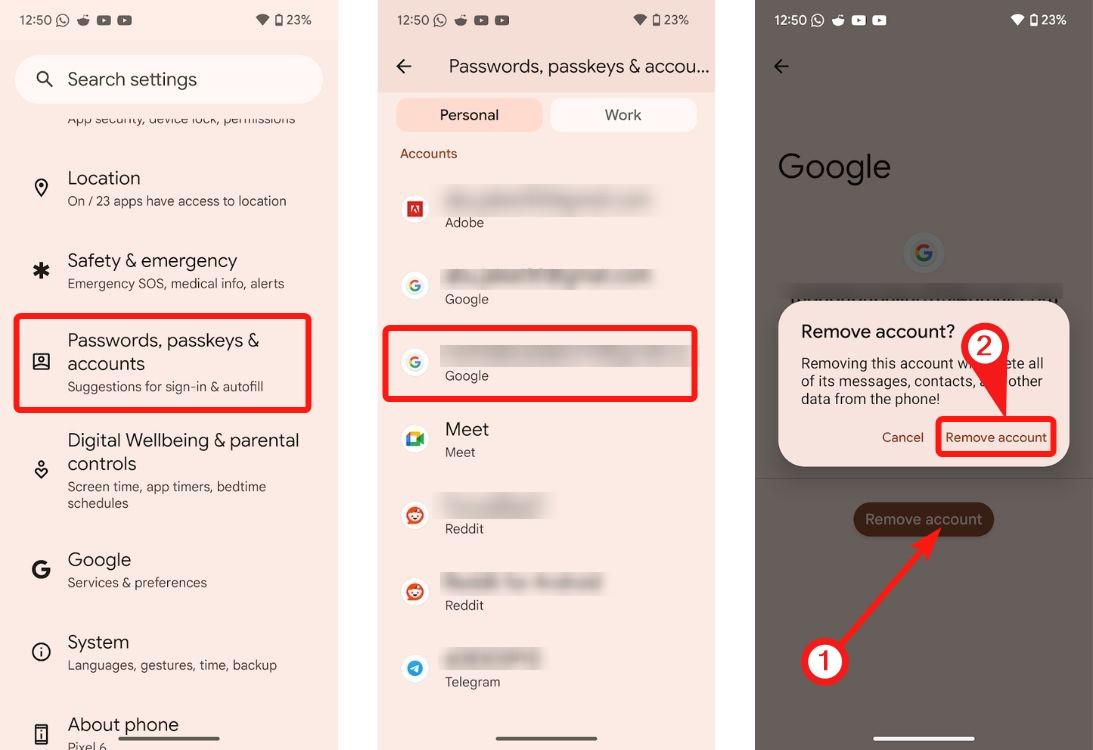 How to Log Out of Your Gmail Account on Any Device | Beebom
Think of it like how you’d close a book after a long reading session. You don’t just leave it open on the last page, right? The same goes for your inbox. Sometimes, the best thing you can do is put it down—even if just for a few hours.
A Little Fun Fact: The History of Logging Out
Did you know that the concept of logging out dates back to the early days of computing? In the 1960s, when computers were the size of a room, users had to physically sign out of terminals by typing a special command—like “LOGOUT” or “EXIT”. Now, it’s just a tap on your phone, but the idea remains the same: you’re done here for now.
Funny how far we’ve come, right? From punch cards to swipe gestures, technology has made logging out easier than ever. But the principle stays the same—know when to walk away.
The Reflection: Small Moments, Big Impact
Logging out of Gmail might seem like a tiny, insignificant task, but it’s one of those little rituals that add up. It’s the difference between scrolling mindlessly and living mindfully. Next time you hit that sign-out button, take a second to appreciate the pause—because in a world where we’re always connected, those moments of disconnection are what make life feel real.
So go ahead, log out. Close the tab. Put the phone down. The world won’t end. In fact, it might just feel a little lighter.
