How Do You Sign Out Of Gmail Account

So, you're chilling, checking your emails, and suddenly you're like, "Whoa, I've been logged into this Gmail account for ages. Time to sign out, I guess." But wait, how do you...

So, you're chilling, checking your emails, and suddenly you're like, "Whoa, I've been logged into this Gmail account for ages. Time to sign out, I guess." But wait, how do you do that again? Don't worry, I've got you covered. Let's dive in, yeah?
First Things First
Alright, so you're sitting there, staring at your inbox, and you're ready to sign out. But before we get to the nitty-gritty, let's make sure you're on the right track. You're on the Gmail homepage, right? If not, just pop over to mail.google.com.
Now, Let's Get Down to Business
Okay, so you're on the Gmail homepage, and you're ready to sign out. Here's where it gets a teensy bit tricky. You see that little profile picture or initial in the top right corner? Yeah, that's your cue. Hover over it, and you'll see a little dropdown menu pop up. Easy peasy, right?
Must Read
But wait, what if you don't see a profile picture or initial? No worries, just click on the word "Google" instead. It'll do the same thing. It's like a secret handshake, but for Gmail.
Time to Say Goodbye
Alright, so you've hovered over your profile picture or clicked on "Google". Now, you're looking at that dropdown menu, and you're thinking, "Okay, what now?" Well, my friend, you're just a click away from signing out.
See that option that says "Sign out"? Yeah, the one that's right there, staring you in the face. Click on it. Go on, you can do it. It's not as scary as it looks, promise.
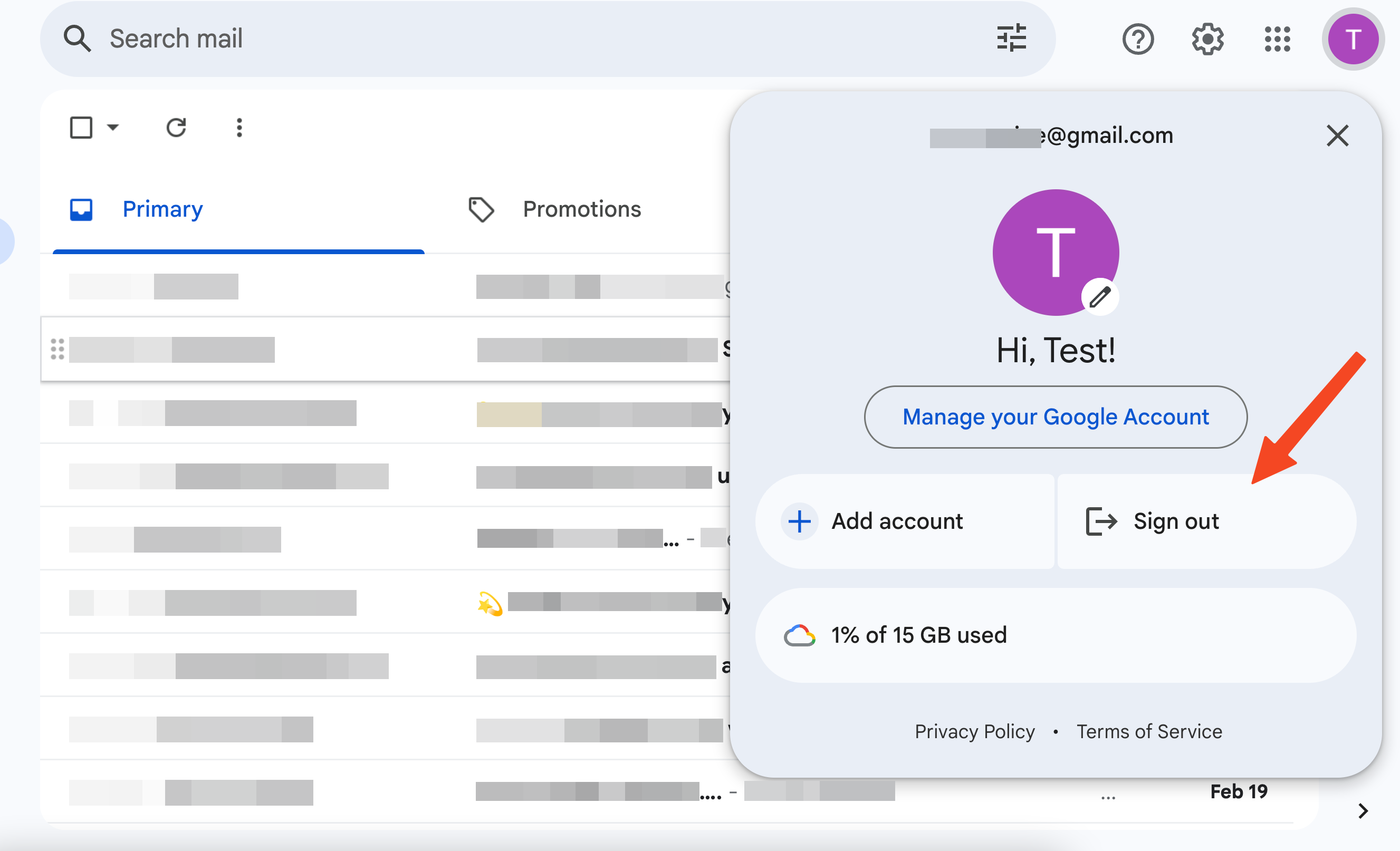 How to Sign Out of Gmail on Any Device or Remotely (2026)
But Wait, There's More
Now, here's where things get a little interesting. You might see a pop-up asking if you're sure you want to sign out. It's like Gmail is trying to change your mind, but don't let it sway you. Click "Sign out" again. You're almost there!
And just like that, you're signed out. It's like you were never there. Well, except for all those emails you sent, but you know what I mean.
Bonus Round: Signing Out of All Devices
So, you've signed out of Gmail on your laptop, but you're wondering, "Did I sign out of my phone too?" Well, my curious friend, the answer is no. But don't worry, Google's got you covered.
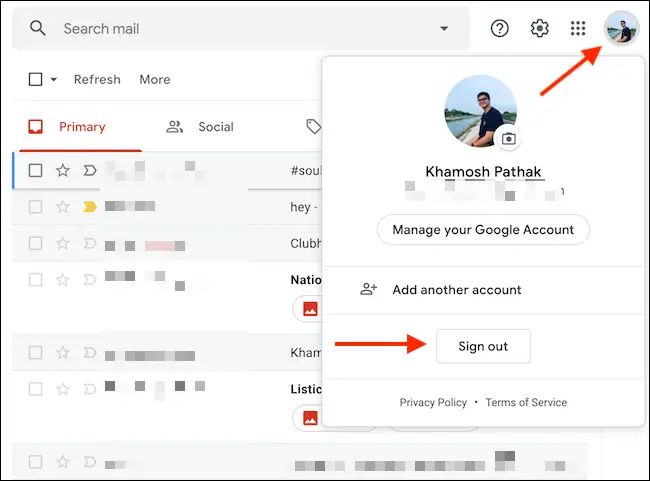 Steps to Sign Out of One Gmail Account from Desktop| Android
Here's what you do. Go to your Google Account (myaccount.google.com) and sign in if you haven't already. Then, click on "Security" in the left-hand menu. Scroll down to the "Your devices" section, and you'll see a list of all the devices you're currently signed into.
If you see a device that you don't recognize, or one that you want to sign out of, just click on it. Then, click "Sign out" and confirm. It's like a digital spring clean, but for your Google Account.
And That's a Wrap!
And there you have it, folks! You're now a certified Gmail sign-out pro. Whether you're signing out of one device or all of them, you know exactly what to do. So, go forth, sign out, and enjoy your digital downtime.
But hey, before you go, don't forget to share this little gem with your friends. You know, just in case they ever find themselves in the same situation. Until next time, stay safe, and happy signing out!
