How To Add Table Of Contents In Word

Ever found yourself swimming in a sea of words, wishing you had a handy map to navigate your document? Well, friend, let me introduce you to the Table of Contents - your very...
Ever found yourself swimming in a sea of words, wishing you had a handy map to navigate your document? Well, friend, let me introduce you to the Table of Contents - your very own GPS in the world of Word.
Now, you might be thinking, "Why do I need one of those? I can just scroll through my doc, right?" Sure, you could. But imagine you're in a massive library, and you want to find a specific book. You'd be lost without a map, right? Same goes for your Word documents. A Table of Contents makes life so much easier.
So, how do we create this magical tool?
First things first, let's get your headings in order. You know, like the chapters in a book. Select the text you want to use as a heading, then click on the Home tab. See those little styles over there? Click on one of those to make your heading stand out.
Must Read
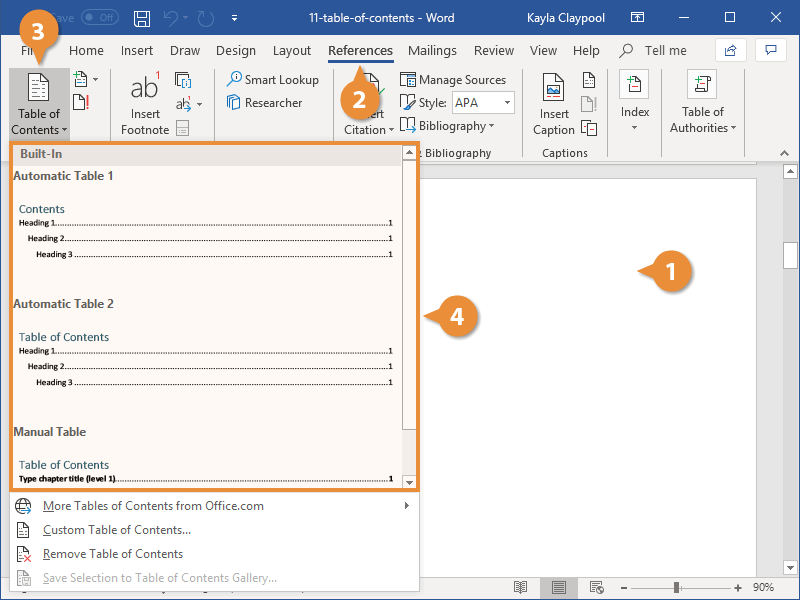
Now, here's where the magic happens. Place your cursor where you want your Table of Contents to appear. Then, click on the References tab. See that little guy that says Table of Contents? Click on that, and voila! Word creates a Table of Contents for you.
But wait, there's more!
Word isn't one of those pushy salespeople who try to sell you something you don't need. No, no. It gives you options. You can choose the number of levels you want your Table of Contents to have. Just click on the Options button, and you'll see what I mean.
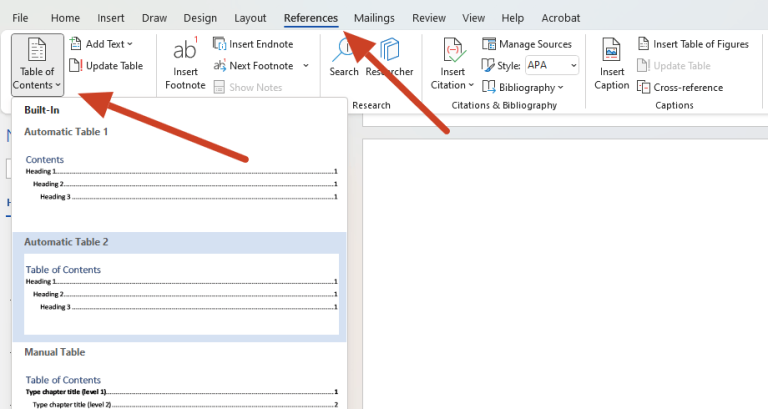 How to Create a Table of Contents in Microsoft Word: Simple Guide
And if you're thinking, "Hey, I want this to look a little different," Word's got you covered there too. Click on the Modify button, and you can change the way your Table of Contents looks. You can even add some styles to make it pop.
But what if I want to change something?
Don't worry, Word's not going to leave you hanging. If you change a heading, or add a new one, your Table of Contents will update automatically. It's like having a personal assistant who keeps your document in tip-top shape.
And if you want to move your Table of Contents, just click and drag it wherever you want it to go. Easy peasy, lemon squeezy.
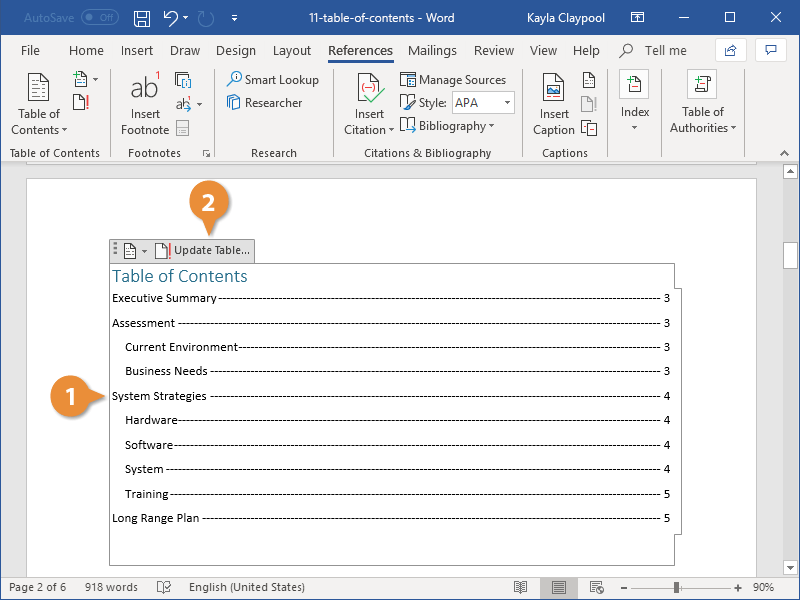 Table of Contents in Word | CustomGuide
But what if I want to get rid of it?
No problemo. Just right-click on your Table of Contents, and select Delete. It's gone in a flash. But remember, it's always there if you change your mind. Just follow the same steps you used to create it in the first place.
So, there you have it. Creating a Table of Contents in Word is like having a secret weapon that makes your documents look super professional. It's like having a personal tour guide who knows exactly where to take you in your document. And the best part? It's easy peasy, even for those of us who aren't tech whizzes.
So, what are you waiting for? Go forth and create your own Table of Contents. Your documents will thank you, and you'll be navigating them like a pro in no time.
