How To Change Hdmi Source On Samsung Tv

Hey there, tech-savvy friend! Let's chat about something that's been bugging you, right? You've got your Samsung TV all set up, but you're like, "How do I switch between my PS...

Hey there, tech-savvy friend! Let's chat about something that's been bugging you, right? You've got your Samsung TV all set up, but you're like, "How do I switch between my PS5 and Xbox on the same HDMI port?" Well, grab a snack and let's dive in. It's easier than you think!
First things first, let's talk about those HDMI ports.
You might be wondering, "Why can't I just plug both my consoles into different HDMI ports?" Well, here's the thing. Some Samsung TVs, especially the newer ones, have this nifty feature called HDMI-CEC. It's like the party host that lets your devices talk to each other. So, you can plug both your consoles into the same HDMI port and switch between them like a pro!
Now, let's get down to business. How to change that HDMI source?
Alright, so you've got your consoles all plugged in. Here's how you switch between them:
Must Read
Grab your TV remote. It's that little black box that's been gathering dust on your couch. You know the one.
Press the Source button. It's usually labeled with a little square and an arrow. You can't miss it!
Now, here's where it gets fun. You'll see a list of sources pop up on your screen. It's like choosing your adventure! Select the one you want. If it's your first time, it might be labeled as HDMI 1 or something similar. But don't worry, you'll get the hang of it in no time.
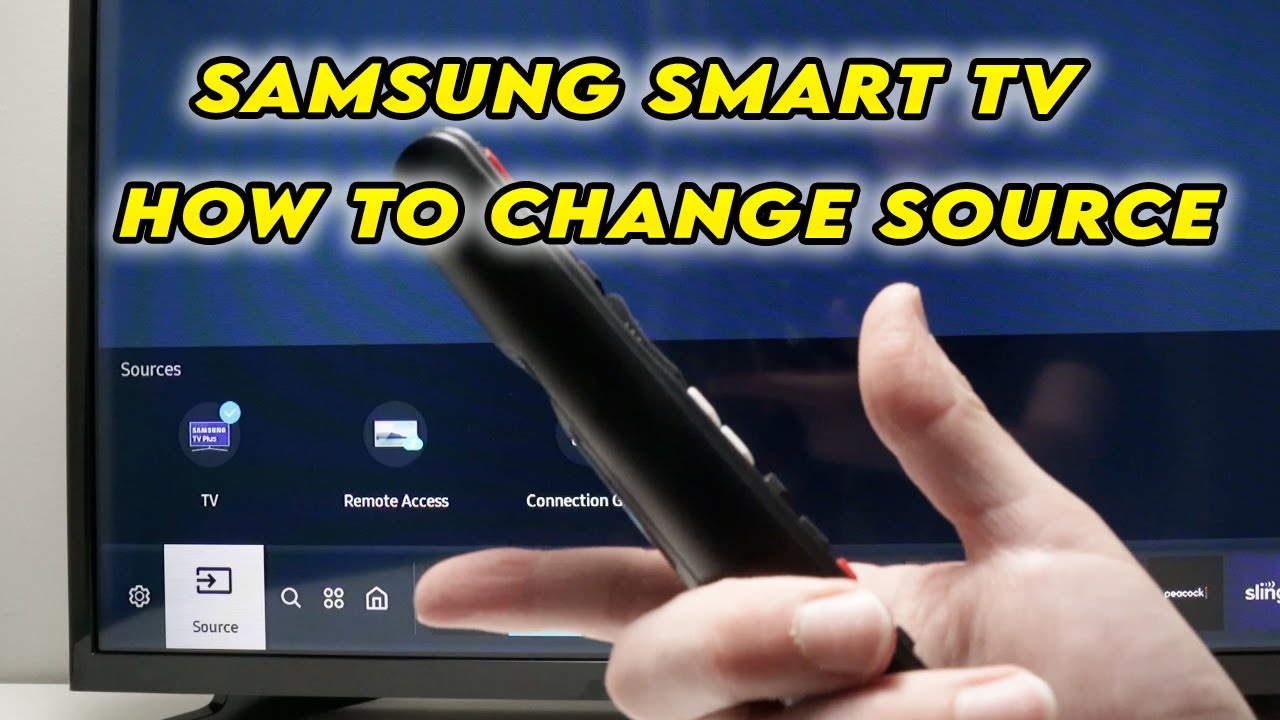 Samsung Smart TV: How to Change the Source (HDMI 1, HDMI 2, Antenna
And there you have it! You've just switched your HDMI source like a total pro. Wasn't that easy?
But wait, there's more!
Did you know that you can also rename your HDMI sources? That's right! No more trying to remember which one is your PS5 and which one is your Xbox. You can call them whatever you want. How cool is that?
To rename your HDMI sources, follow these steps:
Press the Settings button on your remote. It's usually a little gear icon.
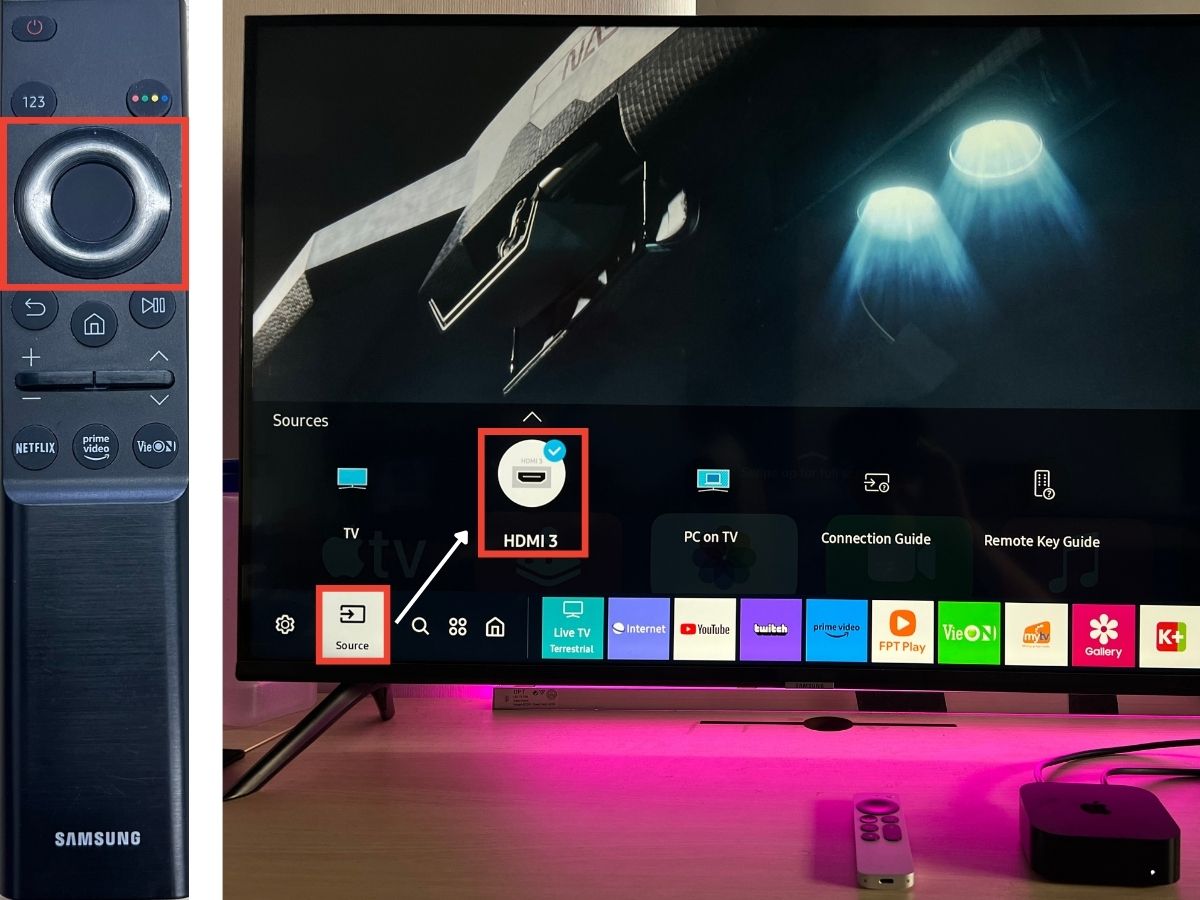 How to Change Source Input on a Samsung TV Easily - With or Without a
Scroll down and select General.
Then, select External Device Manager.
You'll see a list of your connected devices. Select the one you want to rename.
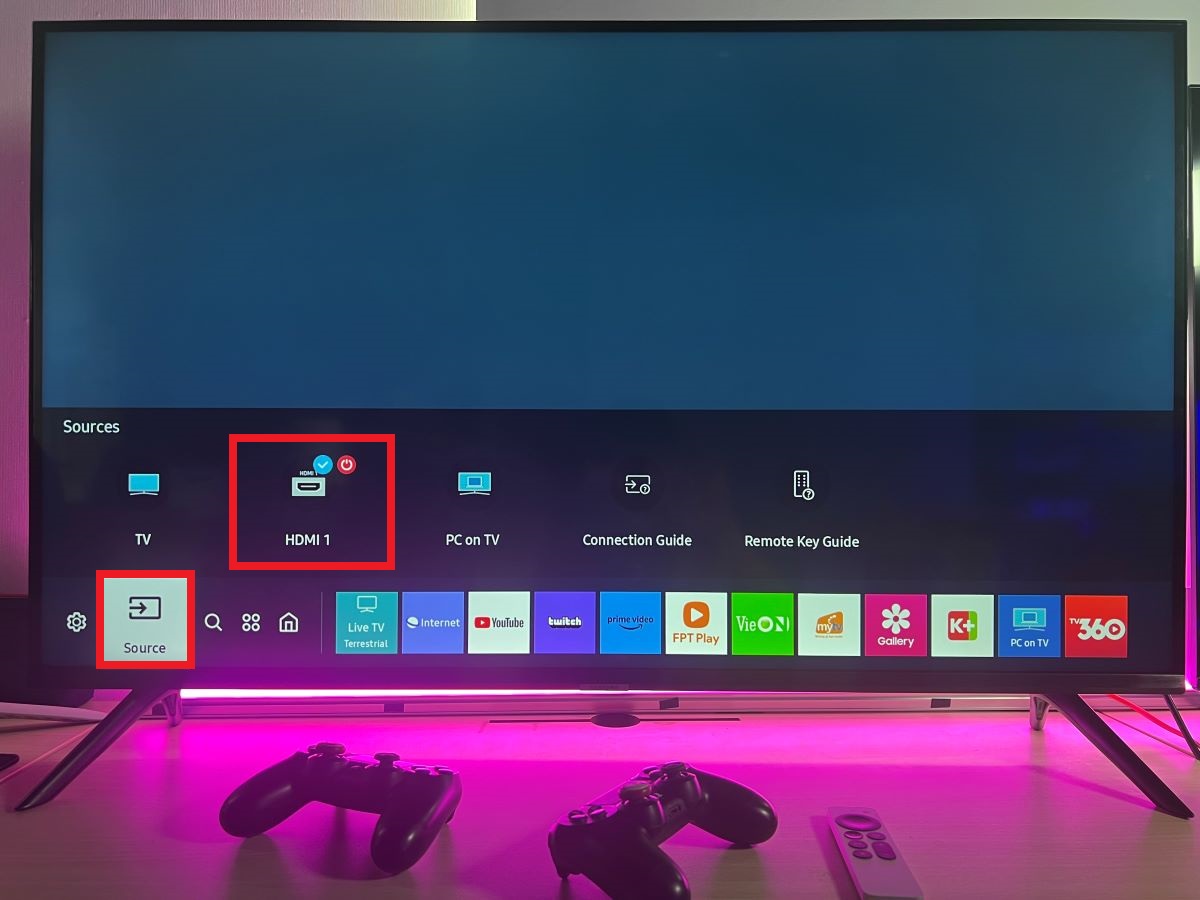 How to Change Source Input on a Samsung TV Easily - With or Without a
Use the arrow keys on your remote to highlight the name and change it to whatever you want. How about 'Gaming Zone' or 'Console Central'? The possibilities are endless!
And there you have it! You're now a certified HDMI source switching pro. Go ahead, show off your new skills to your friends. They'll be impressed, I promise.
But remember, with great power comes great responsibility. Don't go switching sources every five seconds just because you can. Your friends will think you're showing off, and you don't want that, do you?
So, go forth, switch your HDMI sources with confidence, and most importantly, have fun! That's what all this tech stuff is about, right?
