How To Change My Password On My Gmail

Hey there, tech-savvy friend! Forgot your Gmail password? Don't worry, we've all been there. It's like trying to remember that one song lyric that's on the tip of your tongue...
Hey there, tech-savvy friend! Forgot your Gmail password? Don't worry, we've all been there. It's like trying to remember that one song lyric that's on the tip of your tongue - frustrating, but not impossible. Let's dive into the easy-peasy world of password resets, shall we?
First Things First: The Forgot Password Link
Alright, so you're staring at the Gmail login page, and your brain is drawing a blank. No worries, Google's got a little 'Forgot password?' link just below the password field. Click on it, and you're one step closer to unlocking your inbox.
Now, if you're using your phone, you might see a 'Need help?' option instead. Click that, and then click on 'Forgot password'. Google's making sure no one's left behind, even if they're on the go.
Must Read
Time for a Security Check
Google's going to ask you to verify it's really you trying to reset the password. This is like showing your ID at the club, but less exciting (sorry to disappoint).
They'll ask for your email address or phone number linked to your Google account. Type it in, and click 'Next'. If you've got two-factor authentication set up (which you should, high-five if you do!), Google will send a code to your backup phone number or the app.
Lost Access to Your Recovery Info?
Oh no, you've lost access to your recovery info too? Don't panic! Google's got a recovery code feature that might save the day. If you've set this up, click on 'Try another way' and then 'Get a recovery code'.
If you haven't set this up, don't stress. You might still be able to access your account through another email address or phone number linked to your Google account. Click on 'I don't have my recovery code', and follow the prompts.
 How to change your Gmail password - Streak
Creating a New Password
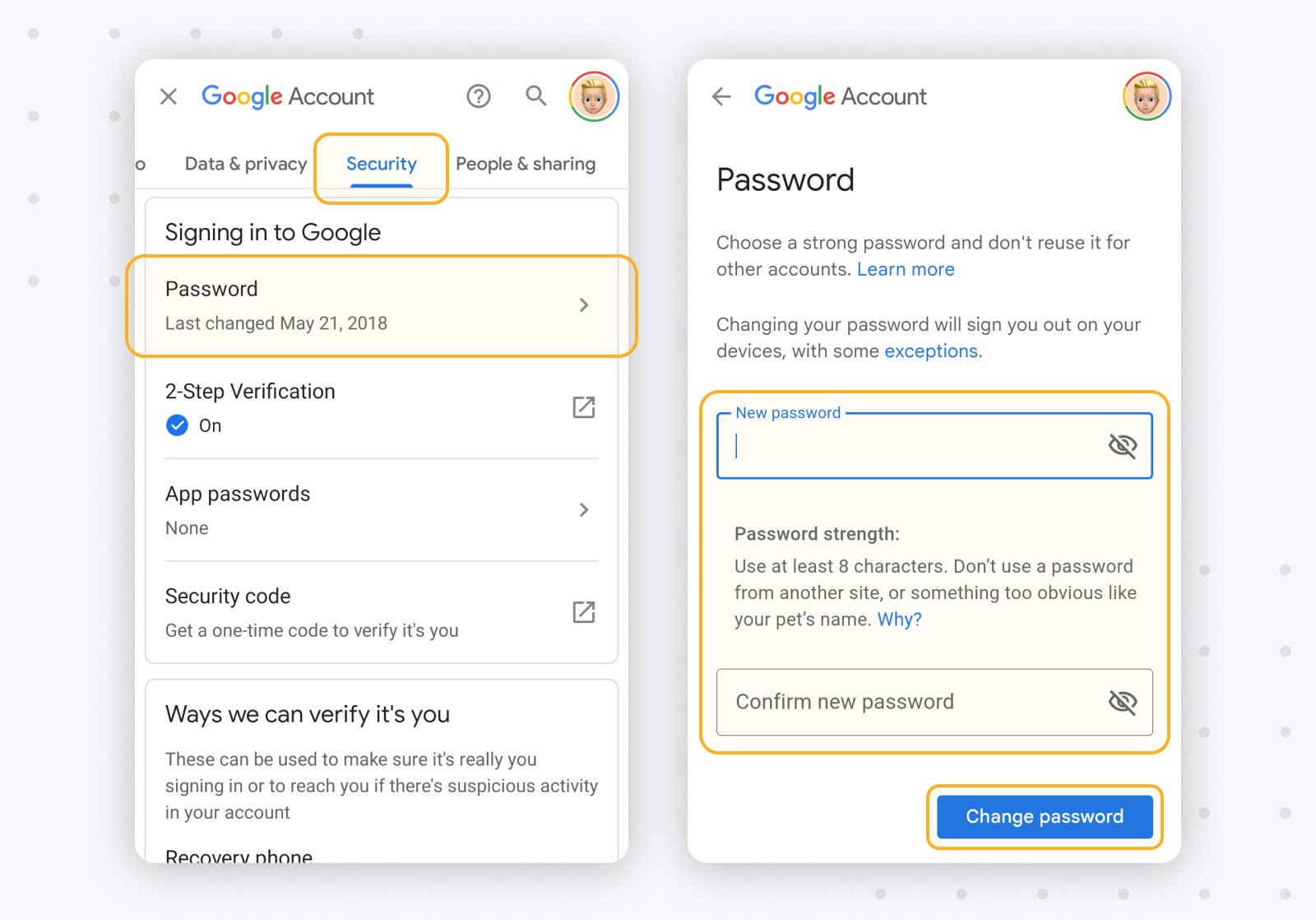
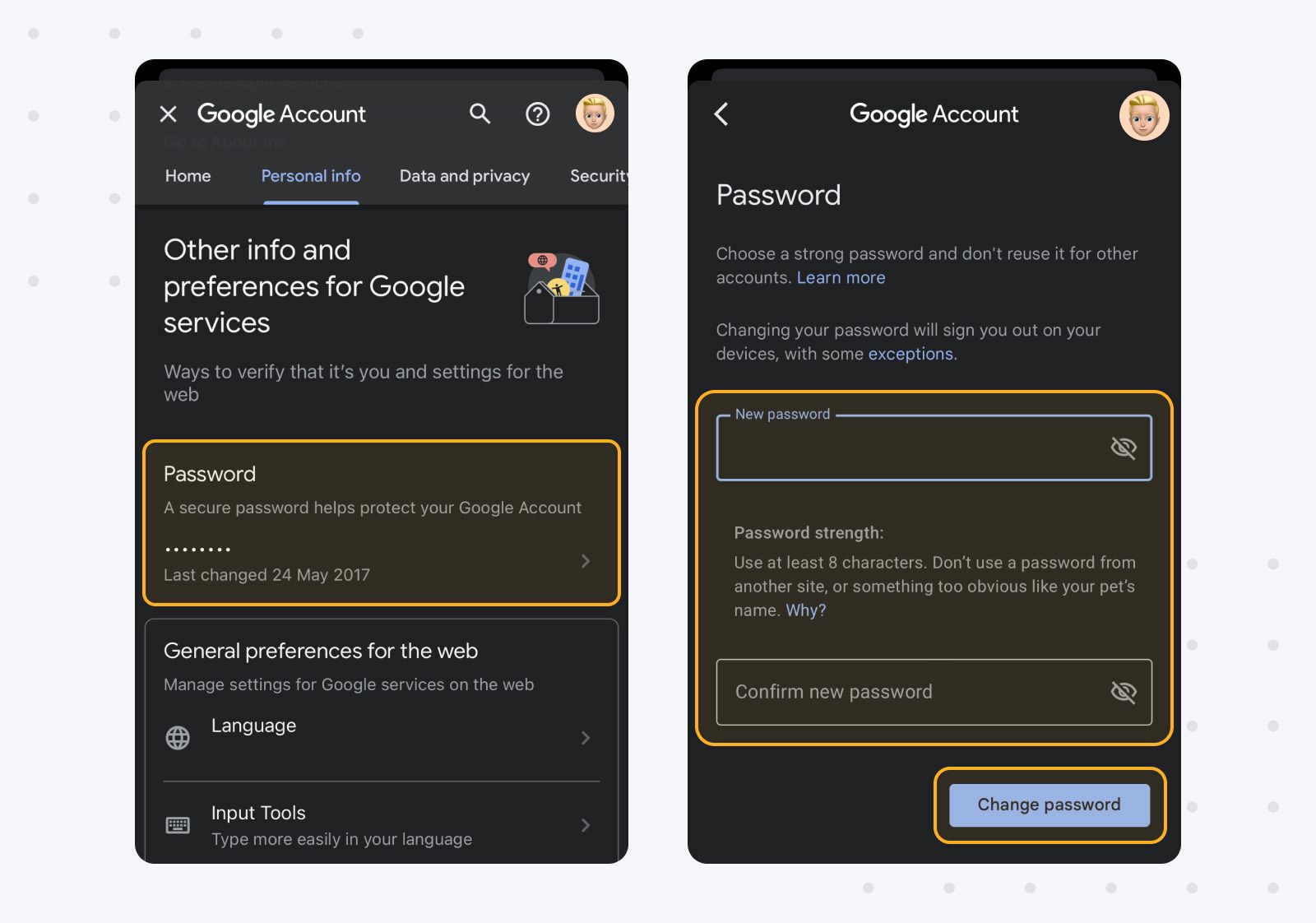
Congrats, you've made it through the security checks! Now it's time to create a new password. Make it strong, like your morning coffee. Google will help you out here, giving you a strength indicator as you type.
Once you've created your new password, click 'Change password'. Google will ask you to confirm it, just to make sure you're not accidentally typing in your old password (we've all been there, right?).
And that's it! You've successfully changed your Gmail password. Give yourself a pat on the back, you tech whiz, you.
But Wait, There's More!
Before you log back into your account, let's talk about password managers. They're like your personal password bodyguard, remembering all your passwords so you don't have to. Plus, they can generate super strong passwords for you. It's like having a password superhero in your corner.
 How To Change Your Gmail Password [with screenshots]
And hey, while you're at it, why not turn on two-factor authentication if you haven't already? It's like having a bouncer at your account's door, making sure only you can get in.
You Did It!
So there you have it, folks! You've successfully changed your Gmail password. You're now the proud owner of a shiny new password, ready to protect your inbox from all sorts of digital mischief.
Remember, changing your password is like giving your account a fresh start. It's a chance to create something strong, unique, and (dare I say it) slightly ridiculous. After all, who doesn't want a password that makes them smile every time they type it in?
Keep your passwords safe, your inbox secure, and your smile wide. You're a tech-savvy superstar, and don't you forget it!
