How To Connect A Controller To A Ps5

Ever found yourself in the middle of a high-stakes Fortnite battle, only to realize your PS5 controller's battery is as dead as Darth Vader's sense of humor? We've all been th...
Ever found yourself in the middle of a high-stakes Fortnite battle, only to realize your PS5 controller's battery is as dead as Darth Vader's sense of humor? We've all been there, friend. But fear not, for connecting a controller to your PS5 is as easy as pie, and we're here to guide you through it, step by step.
First Things First: The Controller
Before we dive in, let's talk controllers. The PS5 comes with a DualSense controller, which is basically a next-gen game-changer. It's got haptic feedback, adaptive triggers, and a built-in mic. It's like having a tiny, gaming-savvy life coach in your hands. But if you're rocking an older DualShock 4 controller, don't worry, we've got you covered too.
Connecting a DualSense Controller
Alright, let's connect that fancy new DualSense controller. First, make sure your PS5 is on. Then, press and hold the Share and PS buttons simultaneously on the controller. Hold them down for about 3 seconds. You'll see the light bar start to flash, which means your controller is in pairing mode.
Must Read
Now, look at your PS5. See that little light on the console? If it's white, you're good to go. If it's orange, you'll need to turn off your console, then turn it back on again. Once the light is white, press and hold the Create button on the controller for about 5 seconds. The light bar should start flashing again, and then turn solid, indicating that your controller is connected.
 Connect a PS5 Controller to a PS5 Console – EASY Step-By-Step
Connecting a DualShock 4 Controller
If you're using a DualShock 4 controller, the process is pretty much the same. Press and hold the Share and PS buttons simultaneously for about 3 seconds. The light bar should start flashing. On your PS5, make sure the light is white. If it's not, turn the console off and on again. Then, press and hold the PS button on the controller for about 5 seconds. The light bar should turn solid, indicating that your controller is connected.
Troubleshooting
So, you've followed the steps, but your controller still isn't connecting? Don't panic. Here are a few things you can try:
 How to Connect a PS5 Controller to a PS5: Step-by-Step Guide
- Make sure your controller is within range of the PS5. The DualSense controller has a range of about 28 feet, while the DualShock 4 has a range of about 6 feet.
- Try turning off your PS5, then turning it back on again. Sometimes, a simple reboot can work wonders.
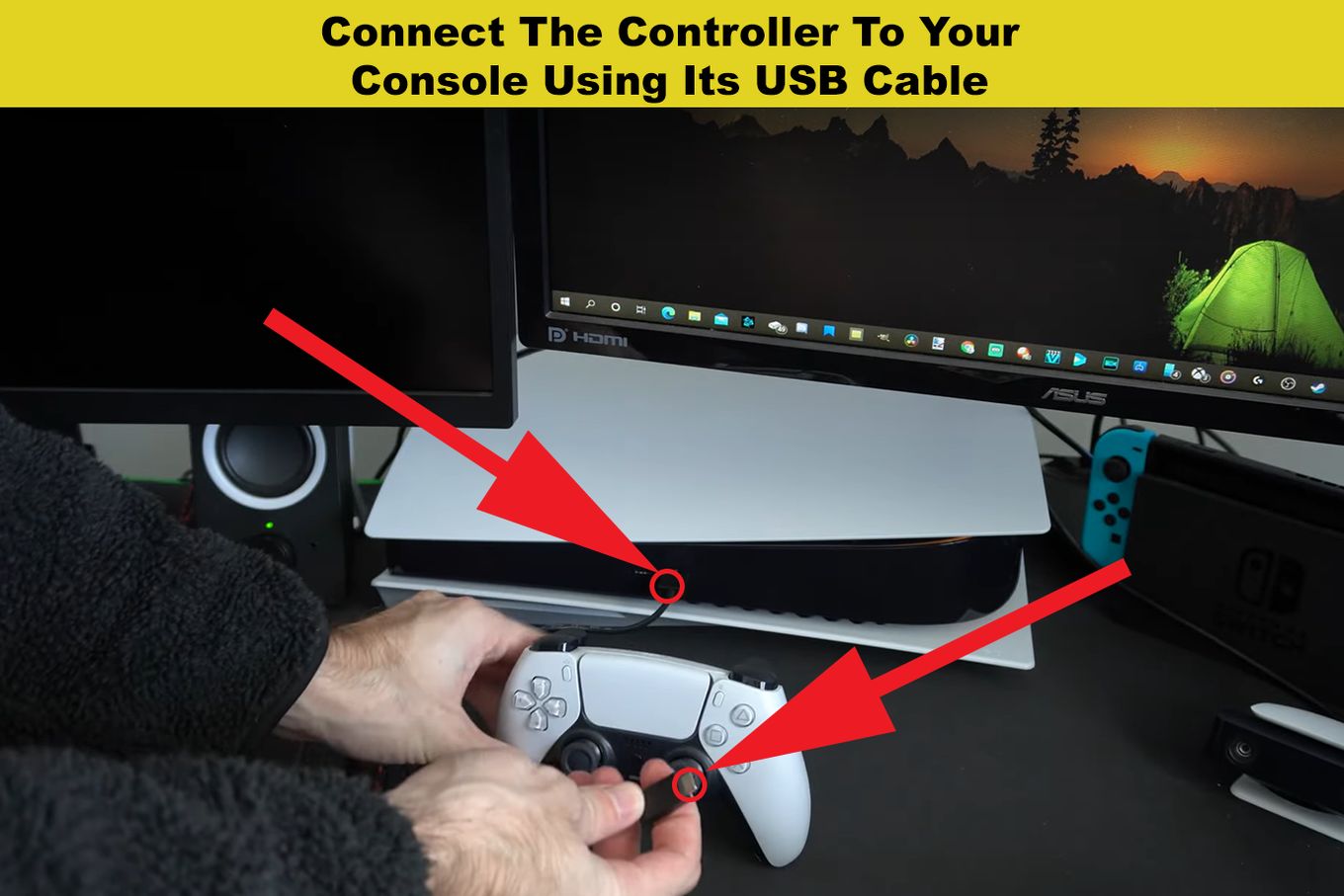
- If you're still having trouble, try connecting your controller using a USB cable. Plug the cable into your PS5 and your controller. Once the controller is charged up a bit, try disconnecting it and connecting it wirelessly again.
Now That You're Connected...
Congratulations, you're now ready to dive into the world of PS5 gaming! But before you do, let's take a moment to appreciate the little things. Like how the DualSense controller's adaptive triggers can make you feel like you're actually pulling back a bowstring in Spider-Man: Miles Morales. Or how the haptic feedback can make you feel every rumble and vibration in Astro's Playroom. It's these little details that make gaming on the PS5 such a joy.
So, go ahead, grab your controller, and let the games begin. And remember, if you ever find yourself in the middle of a gaming sesh and your controller dies, you know what to do. Happy gaming!
