How To Create New Google Play Account

Alright, folks, imagine you're at a massive buffet - think of it as the digital world. You've got your trusty plate (that's your device), and you're ready to dive into the del...

Alright, folks, imagine you're at a massive buffet - think of it as the digital world. You've got your trusty plate (that's your device), and you're ready to dive into the delicious apps, games, and movies. But hold on a second, you can't just grab a tray and start piling it up without a ticket, right? That's where your Google Play account comes in. It's like your buffet pass, and today, we're going to create one together. So, grab a cup of coffee (or tea, no judgment here), and let's get started.
First Things First: Why Bother?
You might be thinking, "I've got a Google account already, why do I need another one?" Well, friend, think of your Google account as your VIP pass to all things Google - Gmail, Docs, Drive, and whatnot. But your Google Play account? That's your pass to the fun stuff - apps, games, movies, books, and more. They're like two different buffet lines, and you need a ticket for each.
Now, if you've already got a Google Play account linked to your Google account, you can skip this whole shebang. But if you're new to the party, or you've got a new device and need a fresh start, stick around. We're about to make some magic happen.
Must Read
Let's Get Rolling: Creating Your Account
On Your Computer
Alright, let's start with the big screen. Head over to the Google Play Store website. You'll see a little 'Sign In' button in the top right corner. Click that bad boy, and you'll be taken to the Google sign-in page. If you're not already signed in, enter your email address and click 'Next'.
Now, if you're not seeing an option to create a new account, don't panic. Just click on 'Create account' at the bottom of the page. It's like finding the secret dessert menu - hidden, but totally worth it.
Fill in the blanks with your details - first and last name, desired email address, and a strong password. Remember, your password should be like your favorite joke - something you'll never forget, but others might not get. Then, click 'Next'.
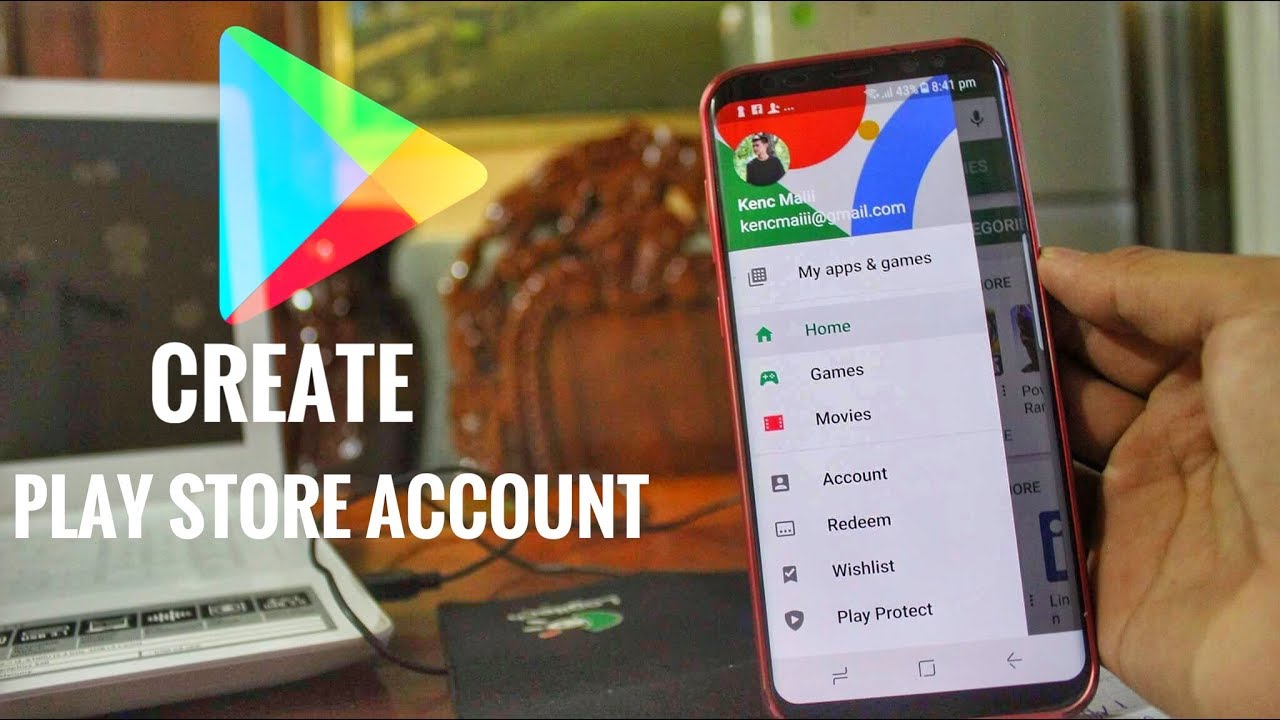 How To Create Google Play Store Account EASY - YouTube
Now, it's time to prove you're human. Follow the instructions for the verification process, and then click 'Verify'. Once that's done, you're in! Welcome to the club, newbie.
On Your Device
If you're more of a mobile person, don't worry, we've got you covered. Open the Google Play Store app on your device. Tap on the profile icon in the top right corner, then tap on 'Add account'.
If you're already signed in with an account, you'll see an option to 'Create a new account'. Tap that, and you'll be taken to the same sign-up page we saw earlier. Fill in your details, and follow the same steps as above. Easy peasy, lemon squeezy.
 How To Create Google Play Store Account - YouTube
Now What?
Congratulations, you've just created a new Google Play account! But wait, there's more. You'll need to add a payment method if you want to start buying apps, movies, or that fancy new game everyone's talking about. Don't worry, it's safe and secure - Google's got more layers of security than an onion at a cry fest.
To add a payment method, just go to the 'Payment methods' section of your Google Play account settings. Tap on 'Add payment method', and follow the instructions. It's like adding your credit card info at a restaurant - a little scary, but totally worth it for that delicious meal... or app, in this case.
And there you have it, folks! You're now the proud owner of a shiny new Google Play account. It's like having a new credit card - exciting, a little scary, but totally worth it for all the fun you're about to have.
So, go forth, explore, and enjoy the buffet. Just remember to pace yourself - there's a lot to see and do, and you don't want to end up with a digital food baby. Happy playing!
