How To Detect Ip Address Of A Device

Ever wondered what's hiding behind that little number sequence when you're fiddling with your Wi-Fi settings? That's right, we're talking about IP addresses - the digital addr...

Ever wondered what's hiding behind that little number sequence when you're fiddling with your Wi-Fi settings? That's right, we're talking about IP addresses - the digital addresses that let devices communicate with each other online. They're like your home address, but for your laptop, smartphone, or even your smart fridge (yes, they have one too!).
Why Should You Care?
You might be thinking, "Why do I need to know about IP addresses? I've been surviving just fine without them." Well, let me paint you a picture. Imagine you're at a huge party (the internet), and you want to talk to your friend (another device). You can't just shout their name and expect everyone to know who you're talking to. That's where IP addresses come in - they're like your secret handshake, helping you connect with the right person (device) in the crowded room (internet).
Plus, knowing your IP address can help you troubleshoot connectivity issues, set up a home network, or even secure your devices. It's like knowing your home address helps you get packages delivered - you can't receive them if the delivery person doesn't know where to go!
Must Read
Detecting Your IP Address: A Simple Guide
Now that we've established why IP addresses are important, let's find out how to detect them. Don't worry, it's as easy as ordering a pizza (well, almost).
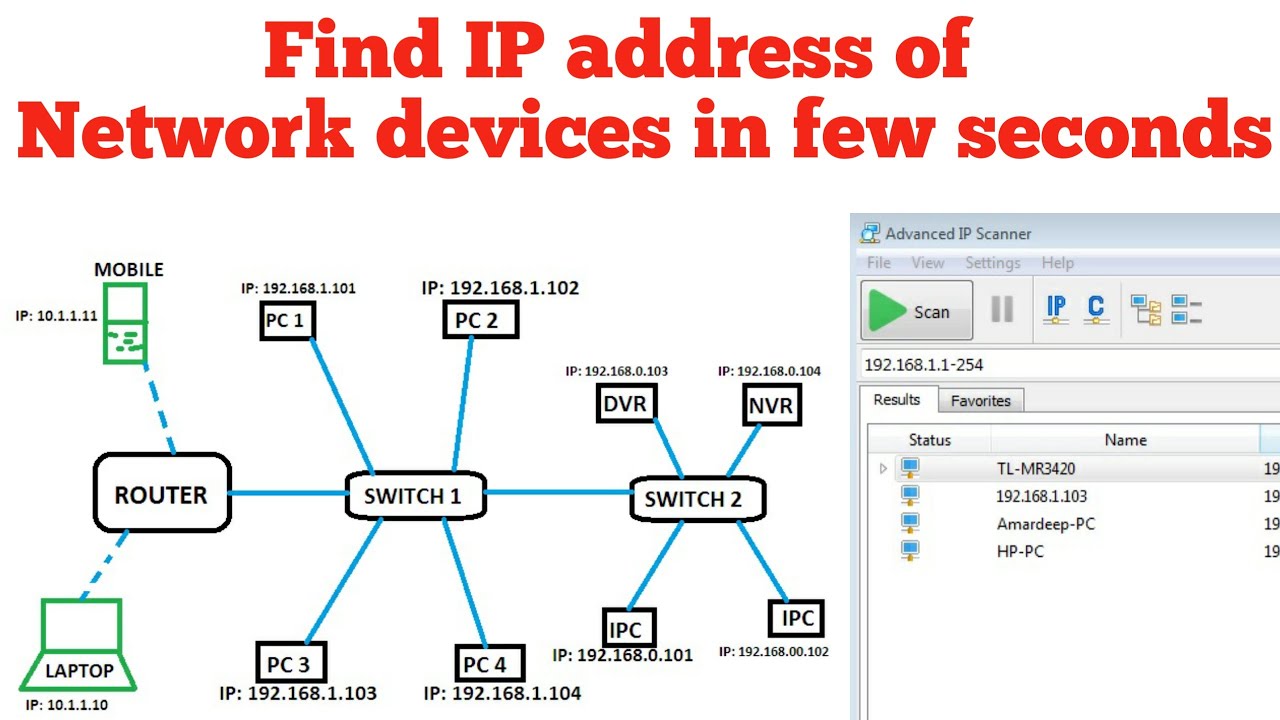 Find IP address of network device connected in your Network | How to
On Your Computer
If you're using a Windows computer, here's how you can find your IP address:
- Click on the Start menu and type "Command Prompt".
- Right-click on "Command Prompt" and select "Run as administrator".
- In the Command Prompt window, type "ipconfig" and press Enter.
- Look for "IPv4 Address" under the "Ethernet adapter" or "Wi-Fi" section. That's your IP address!
For Mac users, here's a quick way to find your IP address:
 How To Check Ip Address Of Mobile Device at Timothy Samons blog
- Click on the Apple menu and select "System Preferences".
- Click on "Network".
- Look for the status of your network connection (Ethernet or Wi-Fi). Next to it, you'll see your IP address.
On Your Smartphone
Finding your IP address on a smartphone is a bit trickier, as it varies by device and operating system. But here's a general method for Android and iOS:
- Connect to your Wi-Fi network.
- Open a web browser and visit a website that displays your IP address, like whatismyip.com.
- Your IP address will be displayed on the screen.
Easy peasy, right? Now you're armed with the knowledge to detect IP addresses, just like a digital detective. So go forth, troubleshoot, secure, and connect with confidence!
