How To Group Text Boxes In Powerpoint

Ever found yourself in a PowerPoint pickle, struggling to align text boxes like a toddler trying to stack Jenga blocks? We've all been there, but fear not! Grouping text boxes...
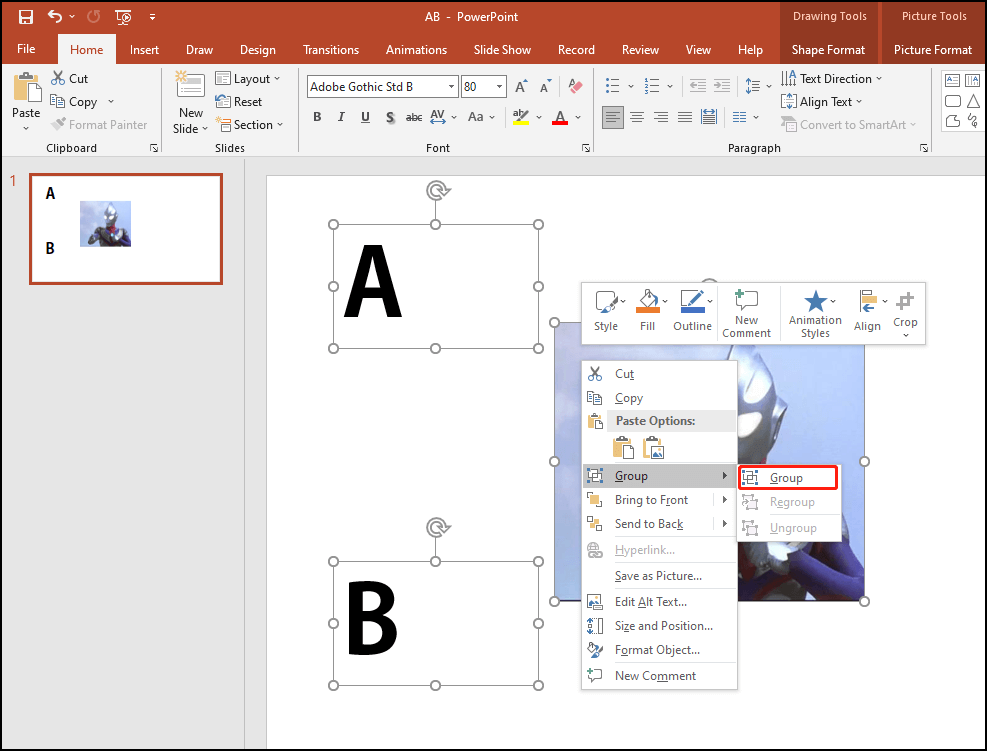
Ever found yourself in a PowerPoint pickle, struggling to align text boxes like a toddler trying to stack Jenga blocks? We've all been there, but fear not! Grouping text boxes is as easy as ordering a pizza. Let's dive in.
Why Group, You Ask?
Grouping text boxes isn't just about making your slides look like a well-rehearsed boy band (though that's a bonus). It's about maintaining consistency, making edits a breeze, and ensuring your content stays together like the dynamic duo, Bennifer (we can dream, can't we?).
Selecting Your Squad
First things first, you've got to round up your text boxes. Click on the first one, then hold down Shift and click on the rest. They'll turn blue, signaling they're ready for action. If you accidentally select the wrong one, just press Ctrl + Z (or Cmd + Z on Mac) to undo.
Must Read
Grouping: The Main Event
Now that you've got your squad, it's time to make it official. Right-click on any of the selected boxes and choose Group. Alternatively, you can use the shortcut Ctrl + G (or Cmd + G on Mac). Ta-da! Your text boxes are now a happy little family.
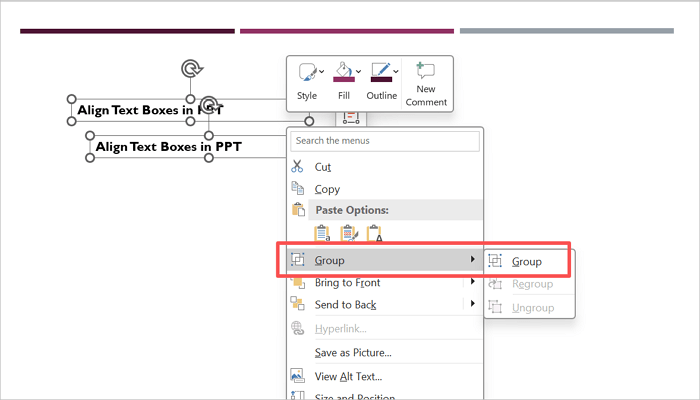 How to Add a Text Box in PowerPoint (Align, Group, and Format)
Moving as One
With your text boxes grouped, moving them around is as simple as grabbing one and dragging it to its new home. They'll all follow like the loyal sidekicks they are. To ungroup them, right-click and select Ungroup or use the shortcut Ctrl + Shift + G (or Cmd + Shift + G on Mac).
Resizing: The Art of Symmetry
Grouped text boxes also make resizing a cinch. Select your group, click on one of the sizing handles (the little squares around the edges), and drag. All boxes will resize simultaneously, maintaining their original proportions. It's like watching a well-choreographed dance routine.
 How to Group and Ungroup Objects in PowerPoint - Guiding Tech
Bonus Moves
Here are a few more tricks to make your grouped text boxes shine:
- Rotate Together: Select your group, click on the rotation handle (the curved arrow), and give 'em a spin. They'll all twirl like ballerinas.
- Align and Distribute: Select your group, then click on the Format tab. Here, you can align and distribute your boxes with just a click. It's like playing a game of Tetris, but with more professional outcomes.
- Add a Bit of Flare: With your group selected, click on the Shape Fill or Shape Outline in the Home tab. Add a pop of color or a fancy border to make your text boxes the life of the party.
Reflection: The Power of Togetherness
Grouping text boxes in PowerPoint might seem like a small thing, but it's a powerful reminder of the magic that happens when we work together. Whether it's text boxes, teams, or Bennifer (still holding out hope), when we combine our strengths, we can achieve great things. So, go forth and group, my friends. The world awaits your well-aligned, perfectly proportioned, and beautifully choreographed presentations.
