How To Make Google My Internet Browser

So, there I was, sitting in my favorite coffee shop, sipping on my latte, when I realized I'd left my laptop at home. No biggie, right? I mean, it's not like I was going to su...
So, there I was, sitting in my favorite coffee shop, sipping on my latte, when I realized I'd left my laptop at home. No biggie, right? I mean, it's not like I was going to survive the apocalypse without checking my emails. But then, I remembered something that made me do a little happy dance in my seat - I could use my phone to access the internet! Now, don't get me wrong, I'm not one of those people who thinks their phone is an extension of their body, but in that moment, it felt like a lifesaver.
And that's when it hit me - why not make Google my internet browser? I mean, I already use it for everything else - searching for recipes, watching cat videos (don't judge me), and even checking the weather. So, why not use it to browse the web too?
Why Google, you ask?
Well, let me tell you, making Google your default browser is like having your own personal internet butler. It's fast, it's smart, and it's always there to help you out. Plus, it's got this nifty little feature called 'syncing' that lets you access all your bookmarks, passwords, and settings across all your devices. It's like having a little piece of you in the cloud, ready to help you out whenever you need it.
Must Read
So, how do you make Google your internet browser?
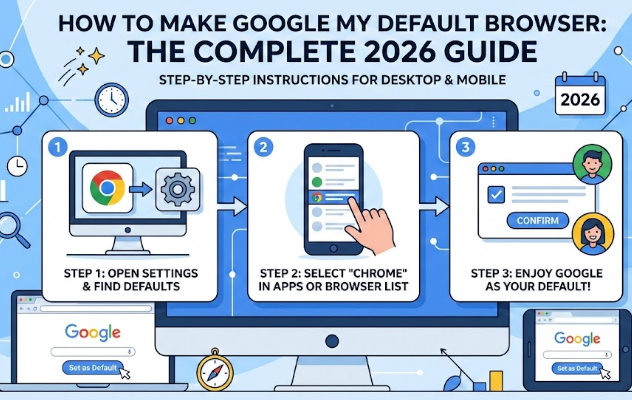
Alright, let's get down to business. Here's a step-by-step guide on how to make Google your default browser, whether you're using a computer or a mobile device.
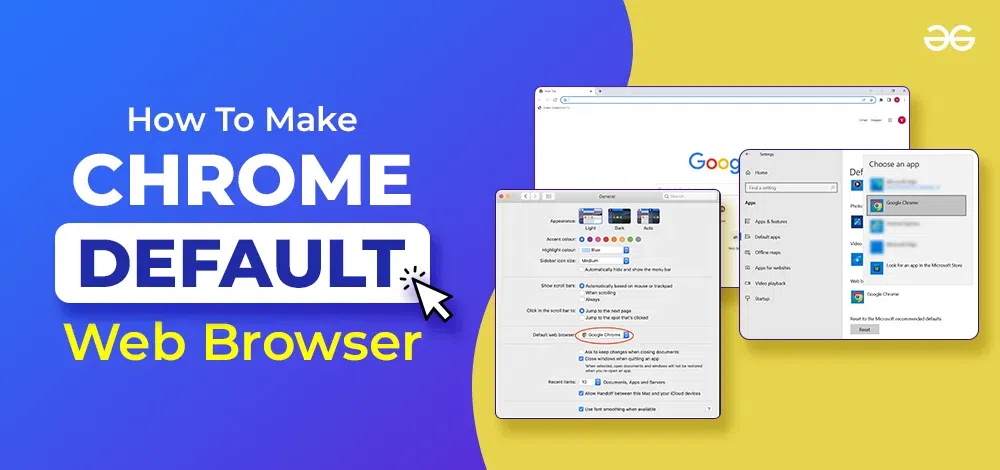 How To Make Google Chrome Default Web Browser | TAFT Independent
On your computer:
- Open your current browser and type chrome://settings in the address bar, then press Enter.
- Scroll down to the 'Default browser' section and click on 'Make default'.
- If your browser isn't listed, click on 'See more' and select 'Google Chrome' from the list.
- Restart your browser, and voila! Google Chrome is now your default browser.
Easy peasy, right? Now, let's talk about mobile devices.
On your mobile device:
- Open the 'Settings' app on your device.
- Scroll down and tap on 'Apps' or 'Application manager'.
- Find 'Browser' or 'Internet' in the list and tap on it.
- Tap on 'Launch by default' or 'Clear defaults' and select 'Google Chrome' from the list.
- Restart your browser, and you're good to go!
And there you have it, folks! In just a few simple steps, you've made Google your default internet browser. Now, go forth and surf the web with the power of Google at your fingertips!
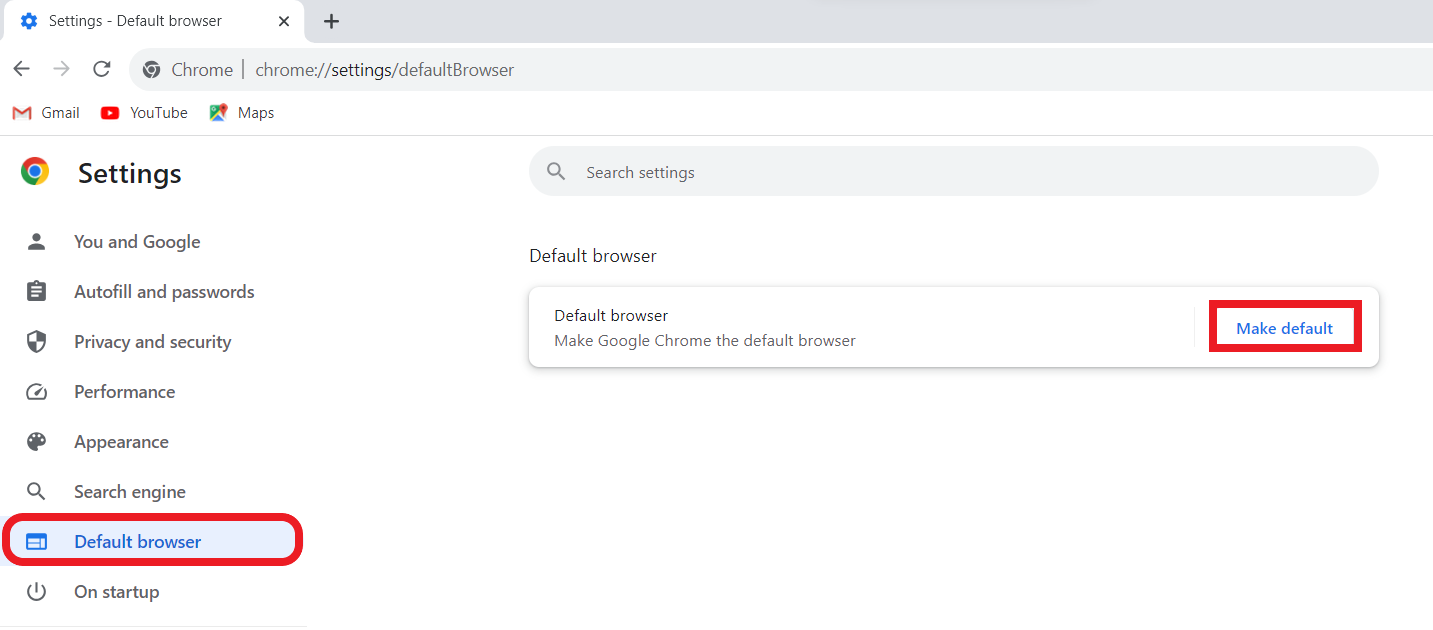 Google Chrome Settings Defaultbrowser – AFCBA
But wait, you might be wondering, 'What if I want to switch back to my old browser?' Well, don't you worry, it's just as easy to switch back. Just follow the same steps, but this time, select your old browser from the list instead of Google Chrome.
So, what are you waiting for? Give it a try and let me know how it goes. I promise, once you make the switch, you'll be wondering why you didn't do it sooner. Happy browsing!
